How to change your password in JumpLMS
Keeping your password up to date helps protect your JumpLMS account and keeps your training portal secure.
This guide explains how to change your password from your account settings. After saving the change, you’ll need to use your new password the next time you log in to JumpLMS.
How to change your password
-
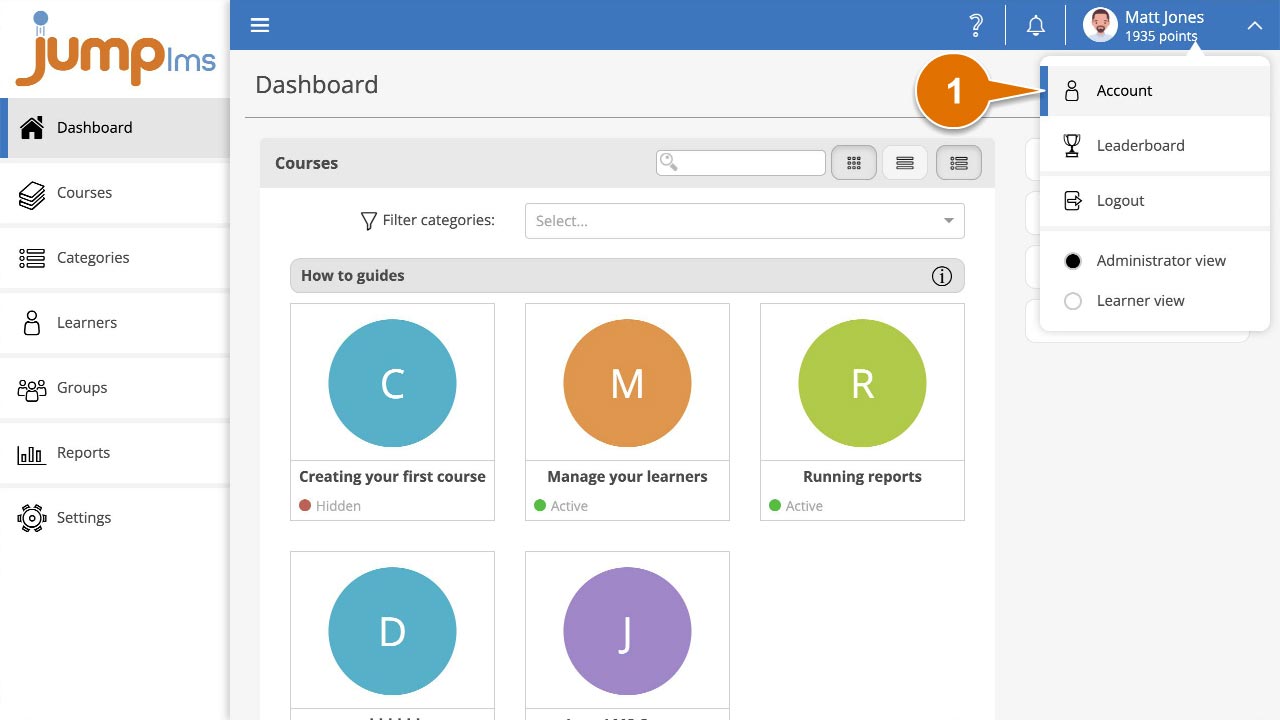
Click on your user profile image or name at the top-right of the screen and select Account.
-
In the Password panel, enter your current password.
-
Enter your new password, then retype it to confirm it has been entered correctly.
-
Click Save changes.
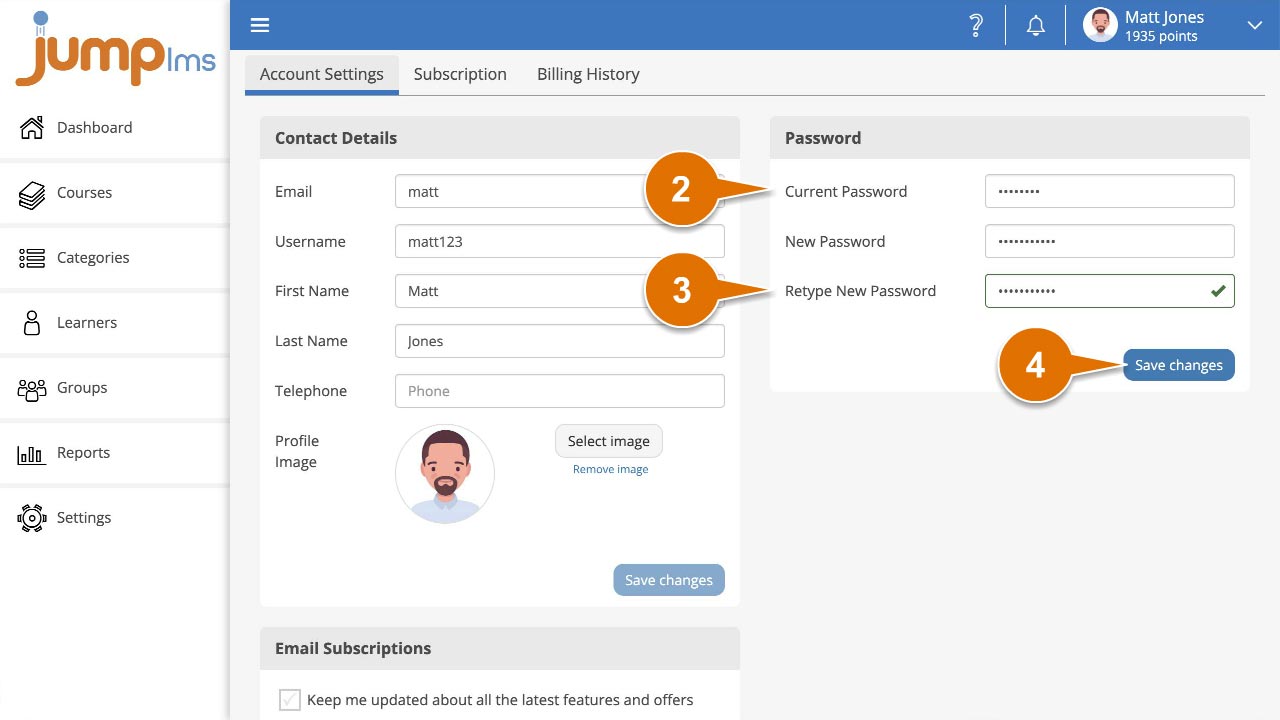
Your password has now been changed. Use your new password the next time you log in to your JumpLMS portal.
Contact the JumpLMS team and we’ll help you find the right answer.