How to filter report timelines in JumpLMS
JumpLMS timelines help you review training activity across your portal, individual courses and individual Learners.
You can filter timelines by activity, Learner, course and date range to find the specific activity you need.
JumpLMS timeline types
- Portal timeline — displays activity across the portal.
- Course timeline — displays activity within a specific course.
- Learner timeline — displays activity undertaken by a specific Learner.
How to filter your report timelines
-
Click on the Reports tab.
-
Click on the Timeline tab, or navigate to the course or Learner timeline.
-
Open the Activities dropdown list and select the activity types you want to search for. Leave this blank to view all activities.
-
Where applicable, open the Learners dropdown list and select the Learners you want to search for. Leave this blank to view all Learners.
-
Where applicable, open the Courses dropdown list and select the courses you want to search for. Leave this blank to view all courses.
-
Use the From and Until dates to select the period you want to search. By default, this is set to the last month.
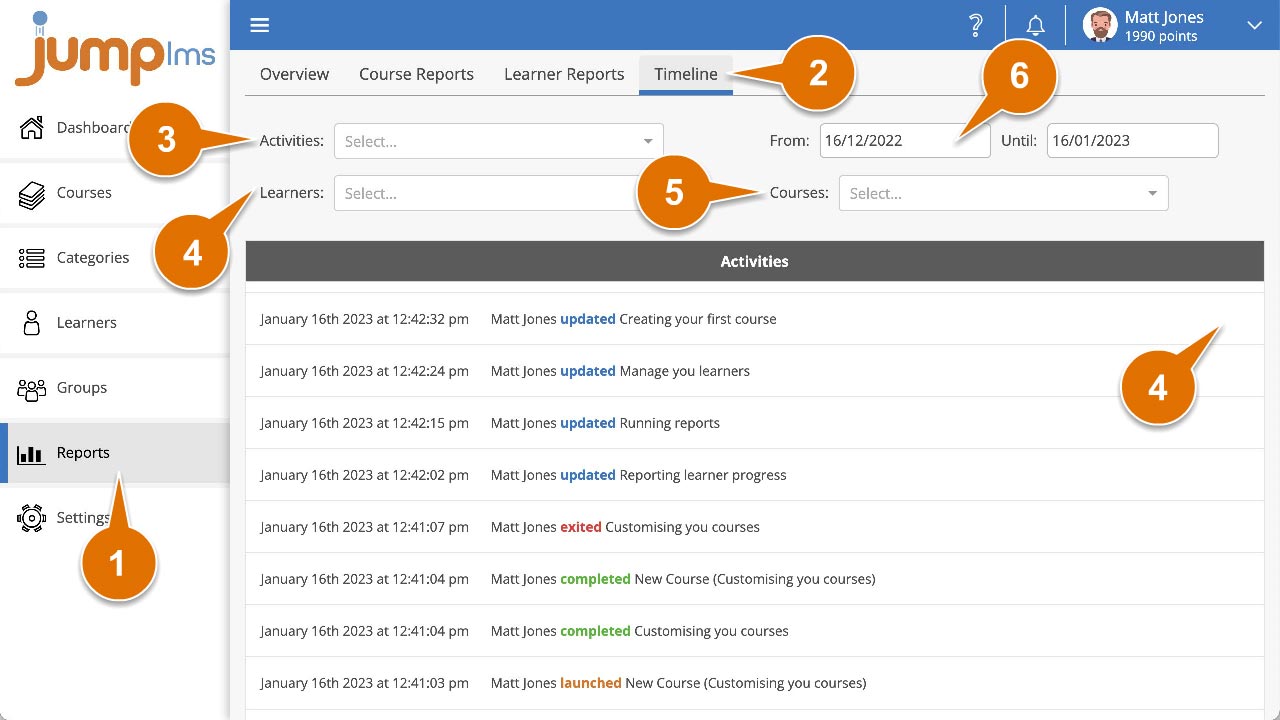
The timeline will now be filtered using your selected criteria.
Contact the JumpLMS team and we’ll help you find the right answer.