How to create a new group in JumpLMS
Groups help you organise Learners, manage course access and support team-based training in JumpLMS.
When you create a group, you can add a title and description, choose whether the group is active, and optionally link courses to the group straight away.
How to create a new group
-
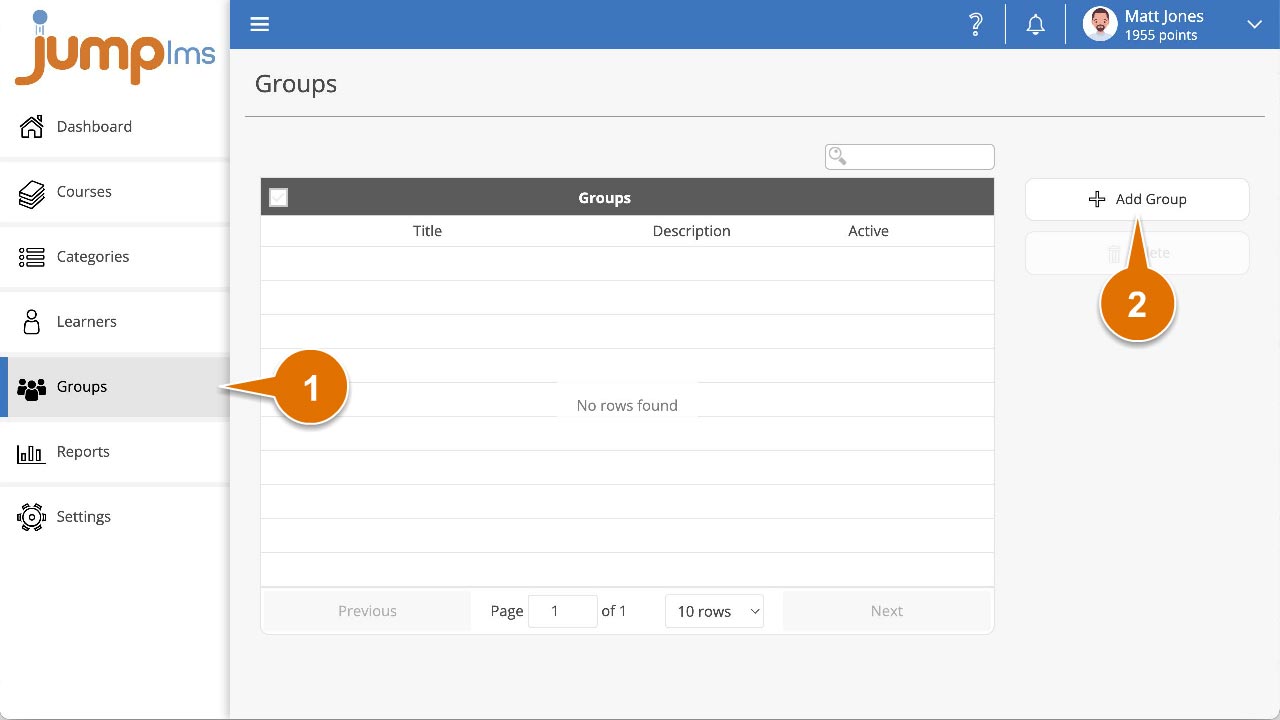
Click on the Groups tab.
-
Click Add Group.
-
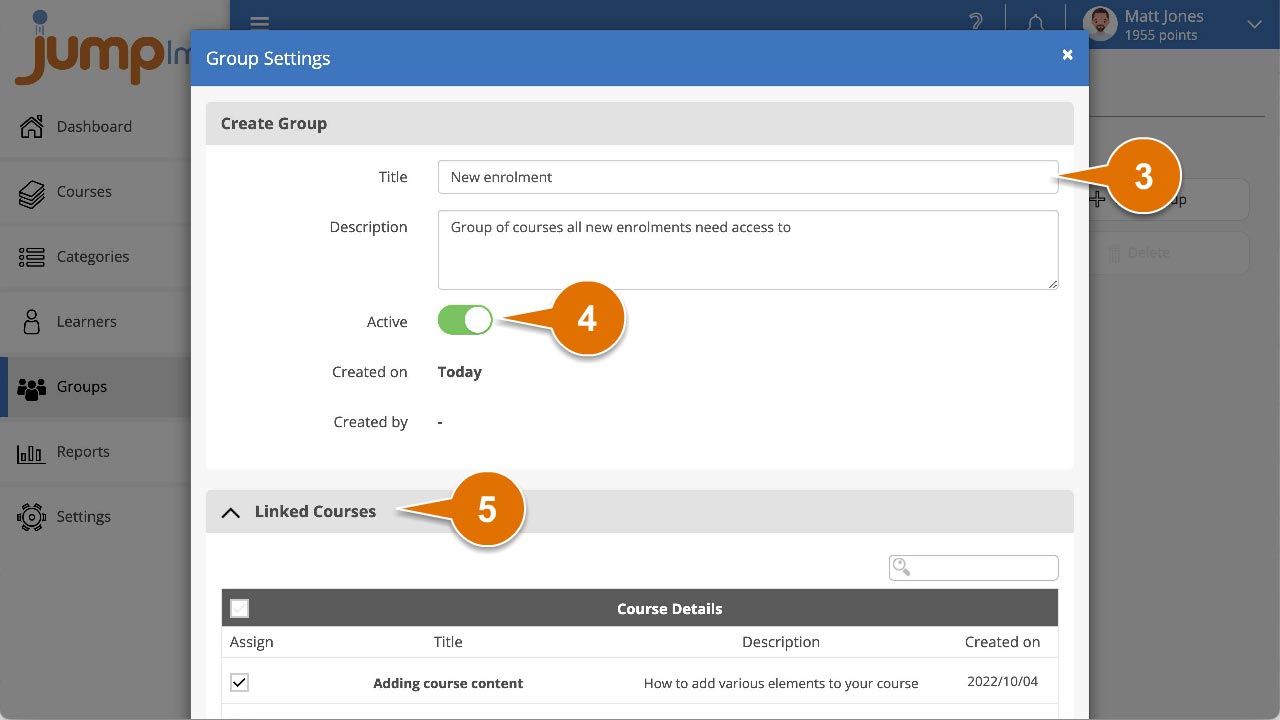
Enter the group title and add a description.
-
If you want the group to be active as soon as it has been created, switch on Active.
-
Expand the Linked Courses menu.
-
Tick each course you want to link to the new group. You can leave this blank and edit the group later if you do not want to assign courses now.
-
Click Add Group.
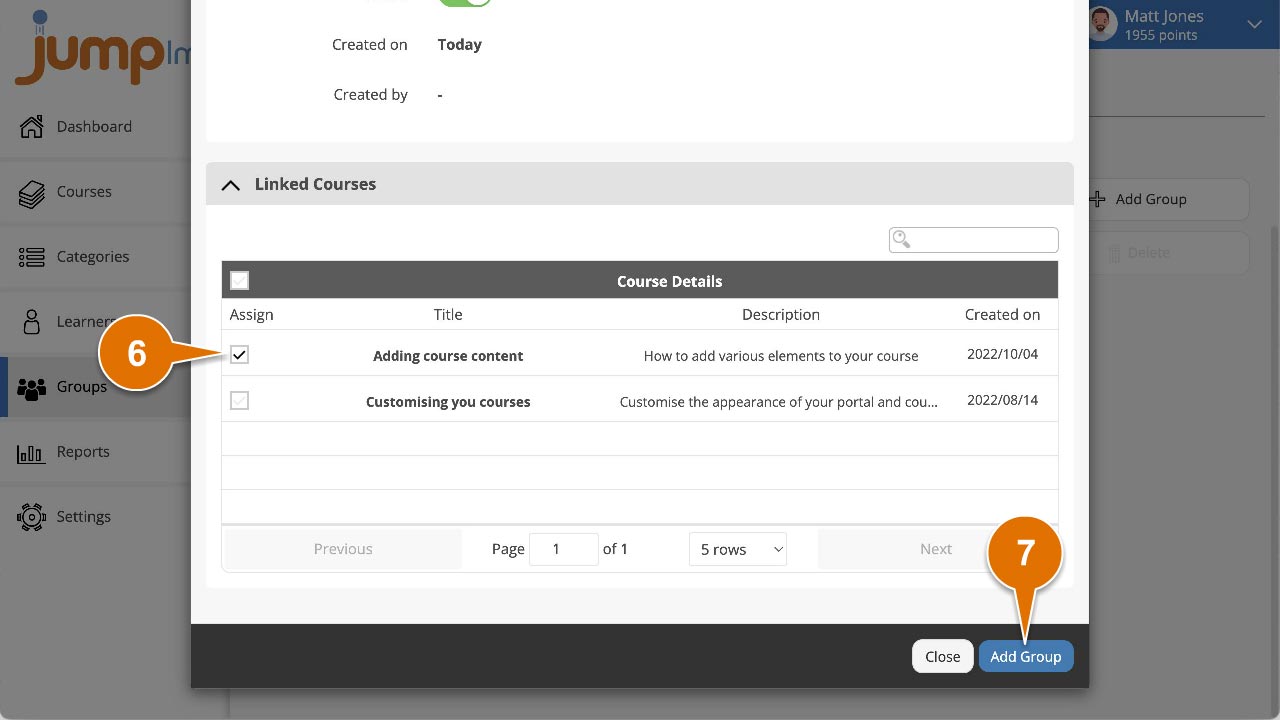
You have now created a new group and linked any selected courses to it.
Contact the JumpLMS team and we’ll help you find the right answer.