How to assign Learners to a group in JumpLMS
Adding Learners to groups helps you manage course enrolments, team communications and group-based training more efficiently.
You can assign a single Learner to groups from their Learner profile, or assign multiple Learners to groups in bulk from the Learners table.
Assign a single Learner to a group
-
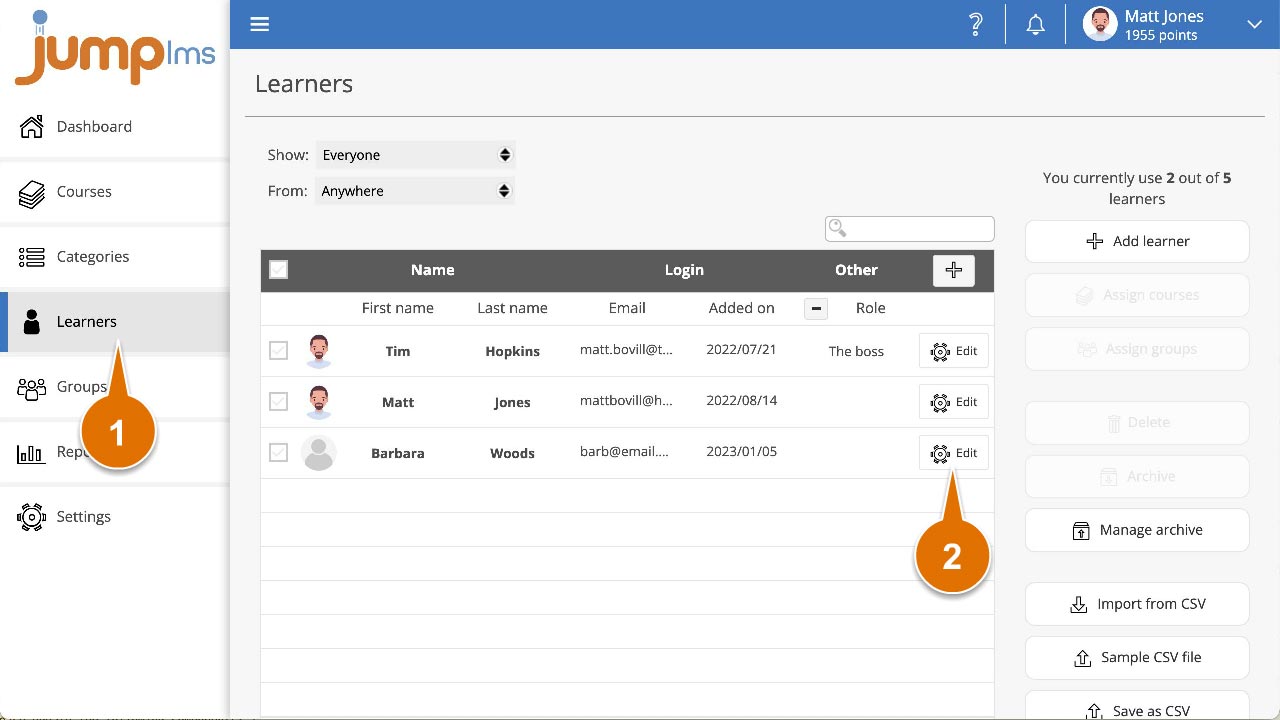
Click on the Learners tab.
-
Search for the Learner you want to update, or find them in the Learners table.
-
Click Edit.
-
Expand the Update Assigned Groups menu.
-
Tick each group you want to add the Learner to.
-
Click Synchronise to automatically enrol the Learner onto the courses assigned to the selected groups.
-
Click Save changes.
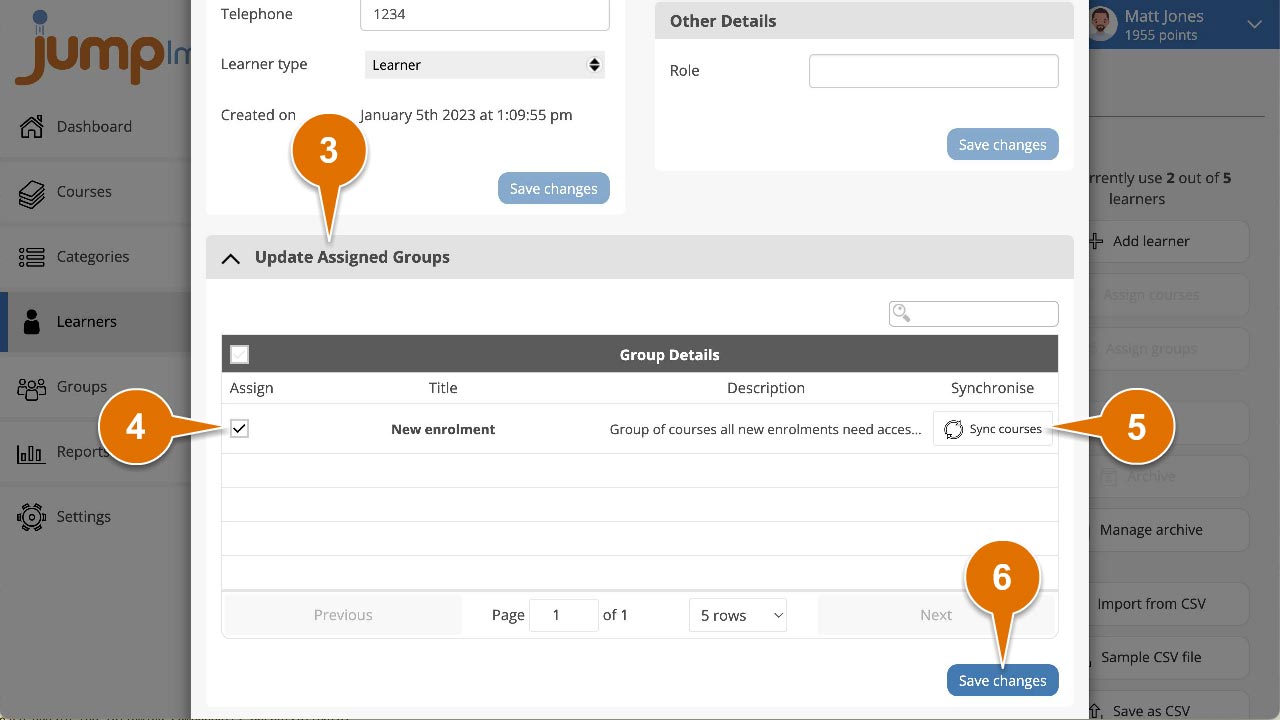
The Learner has now been added to the selected groups.
Assign multiple Learners to a group
-
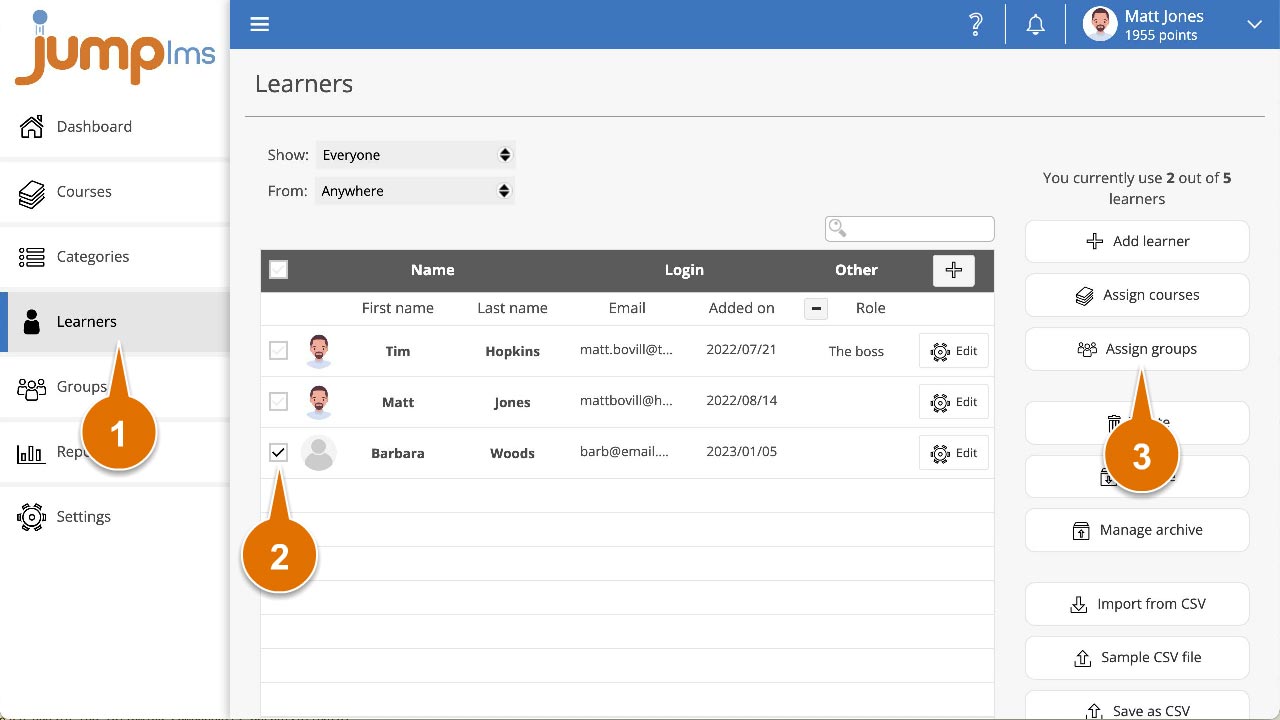
Click on the Learners tab.
-
Search for the Learners you want to update, or find them in the Learners table.
-
Tick Assign for each Learner you want to select.
-
Click Assign groups.
-
Tick each group you want to add the selected Learners to.
-
Click Save and synchronise courses to add the Learners to the selected groups and automatically enrol them onto the courses assigned to those groups.
-
Alternatively, click Save changes to add the Learners to the selected groups without enrolling them on the associated courses.
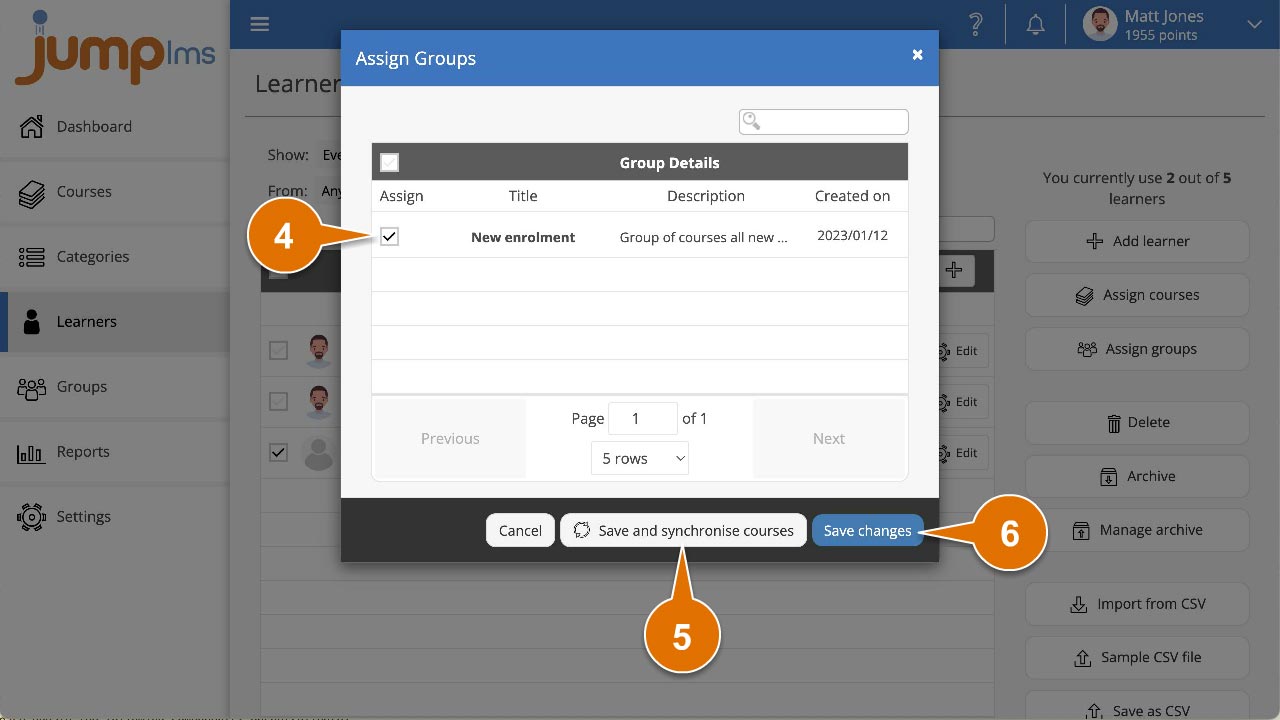
The Learners have now been added to the selected groups.
Contact the JumpLMS team and we’ll help you find the right answer.