How to add a course to a category in JumpLMS
Course categories help organise your course library and make it easier for administrators and Learners to find the right training.
You can add a course to a category from the Categories tab, or assign one or more categories directly from the Courses tab.
Option 1: Add a course from the Categories tab
-
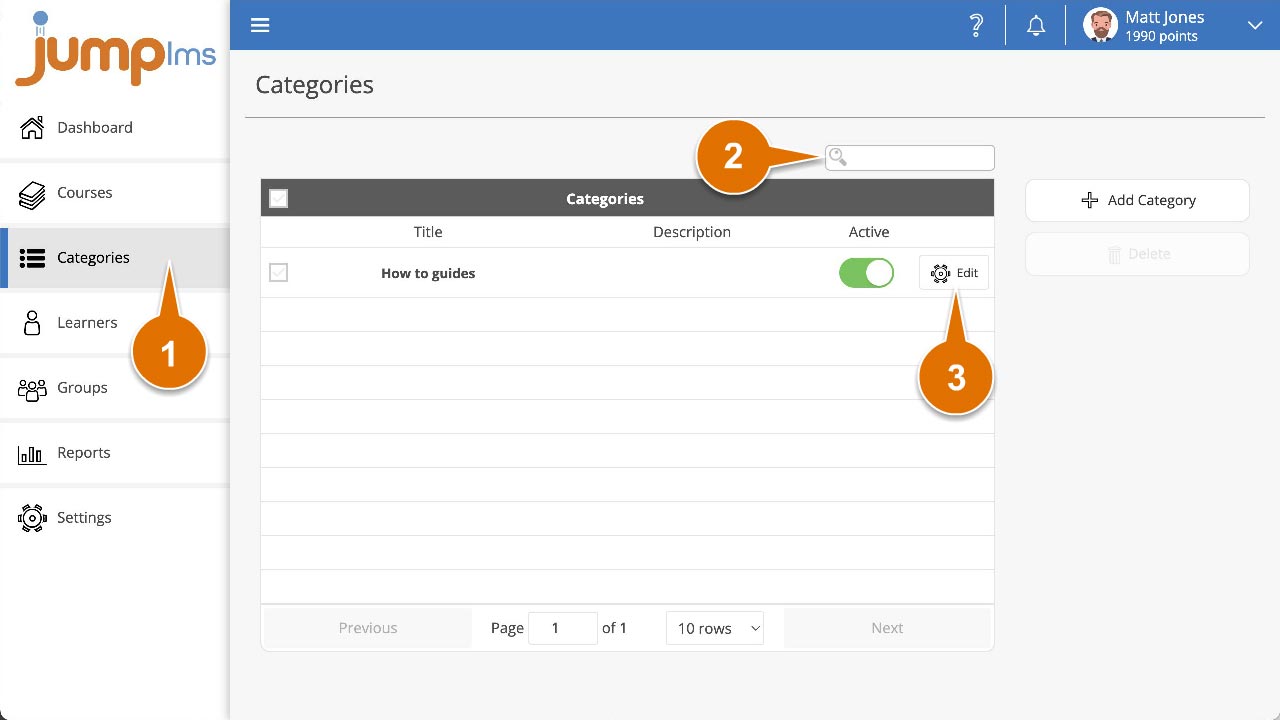
Click on the Categories tab.
-
Search for the category you want to add the course to, or find it in the category list.
-
Click Edit.
-
The category popup will appear.
-
In the Update Courses in Category section, search for the course you want to add to the category, or find it in the list.
-
Tick the Assign checkbox.
-
Click Save changes.
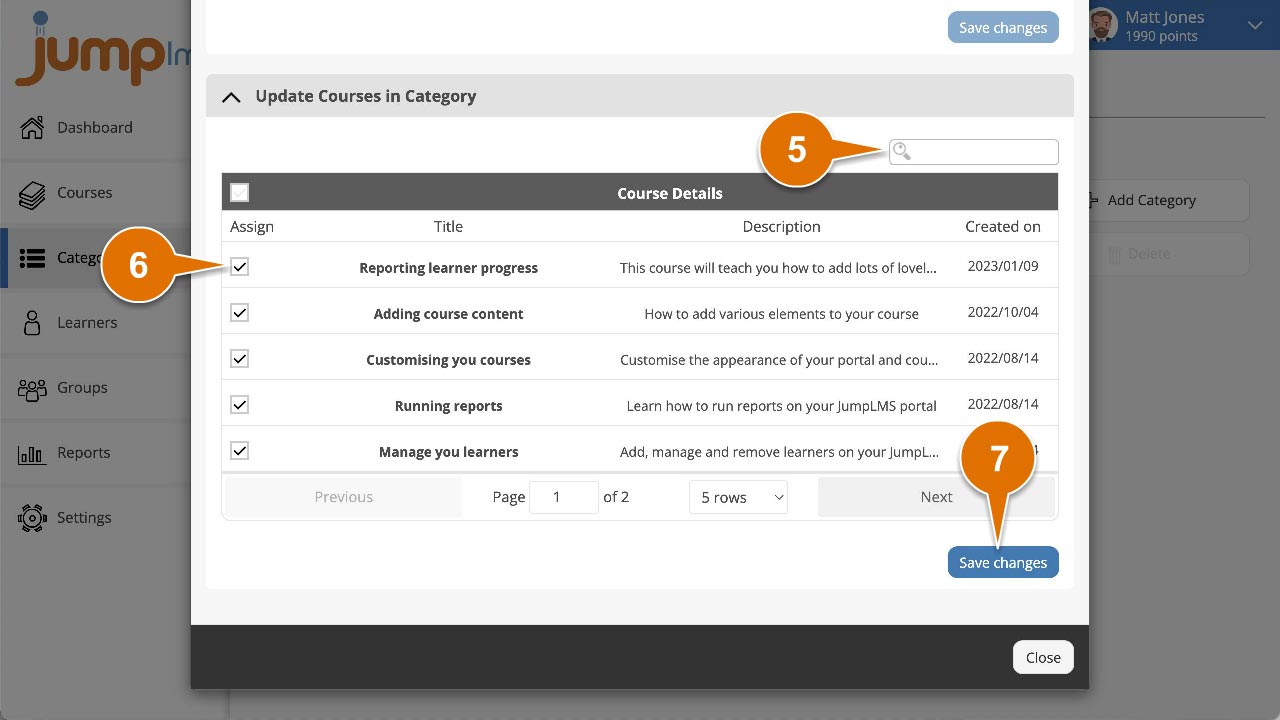
The course has now been added to the category.
Option 2: Add a course from the Courses tab
-
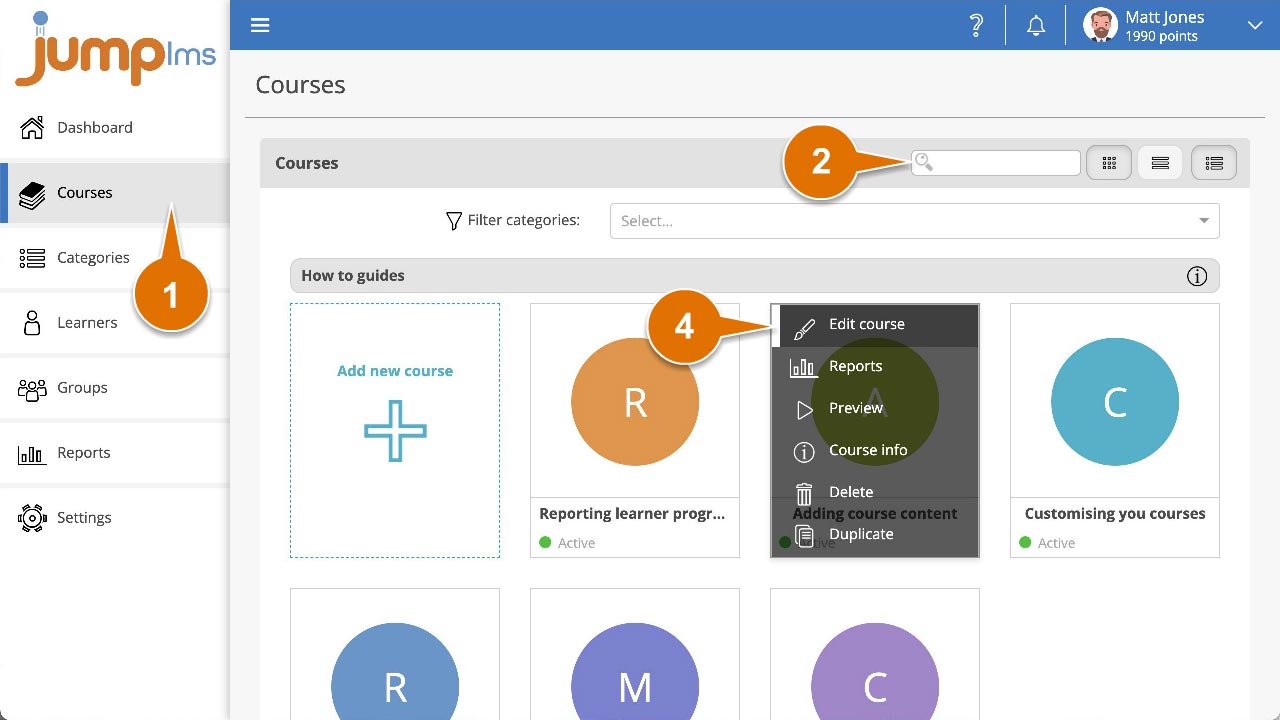
Click on the Courses tab.
-
Search for the course you want to add to a category, or find it in the course list.
-
Open the course options and click Edit course.
-
Click the Course details tab.
-
Click the Categories dropdown and select each category you want to add the course to.
-
Click Save changes.
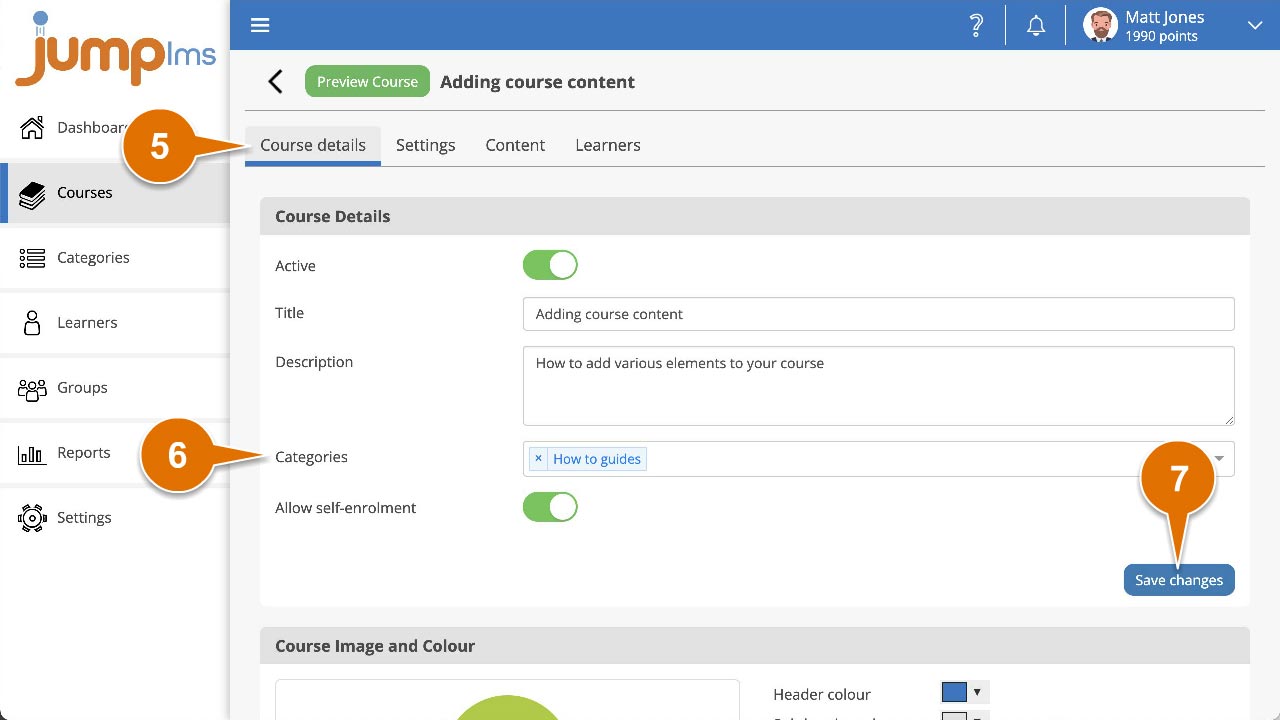
The course has now been added to the selected categories.
Contact the JumpLMS team and we’ll help you find the right answer.