How to create a new certificate in JumpLMS
JumpLMS lets you create reusable certificates that Learners can access after completing a course.
This guide explains how to create a new certificate, choose its orientation, customise the text, and save it so it can be assigned to one or more courses.
How to create a new certificate
-
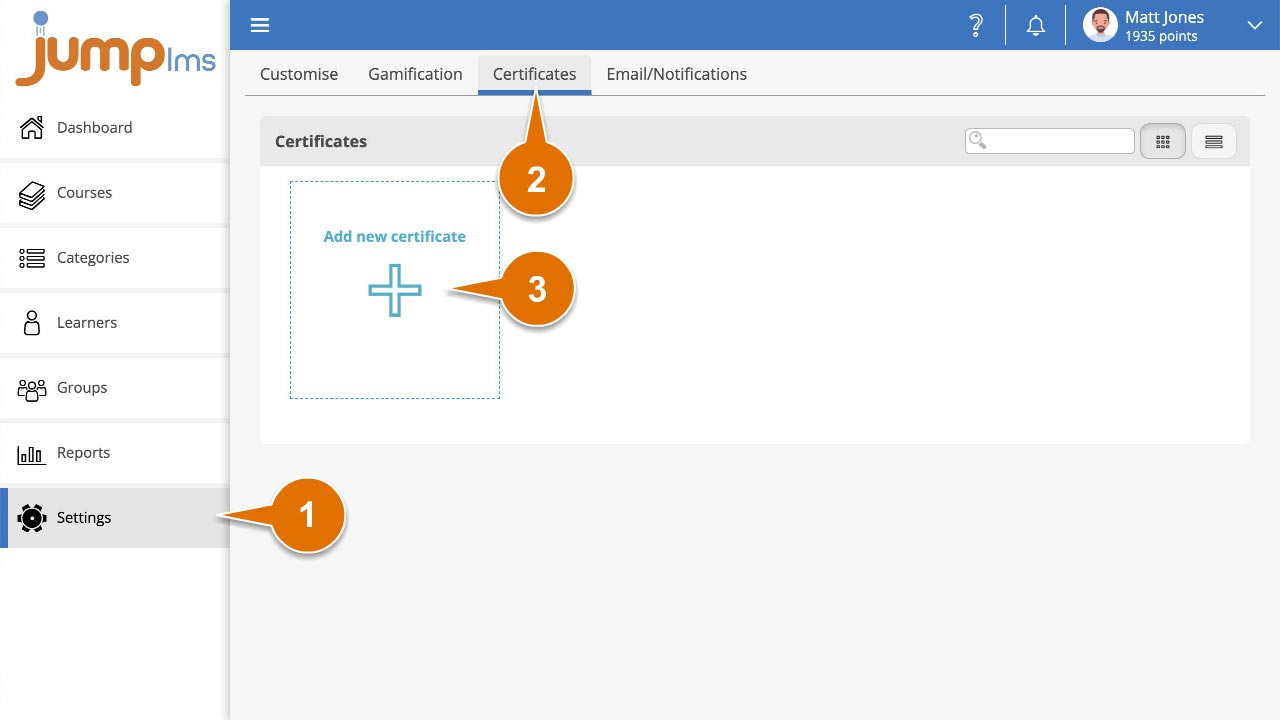
Click on the Settings tab.
-
Click on the Certificates tab.
-
Click Add new certificate to open the certificate creation tool.
-
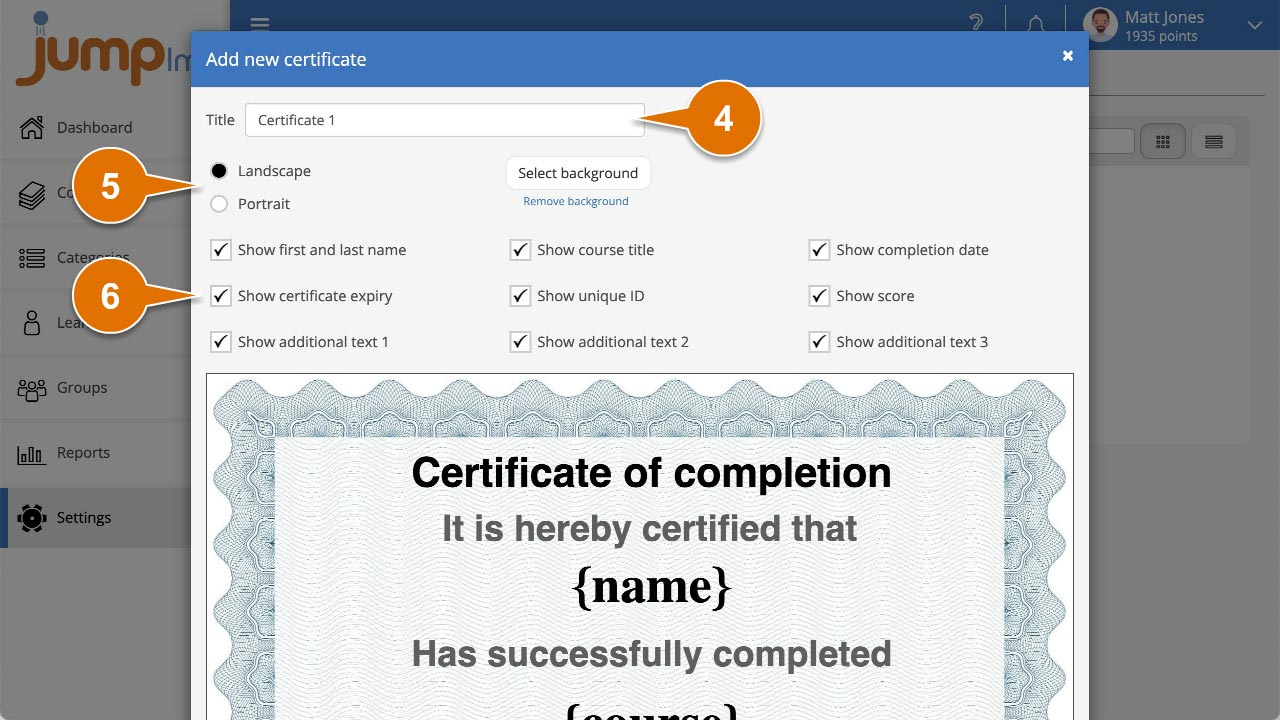
Enter a title for the certificate.
-
Select whether the certificate should use Landscape or Portrait orientation.
-
Choose which text elements to display by ticking or unticking them.
-
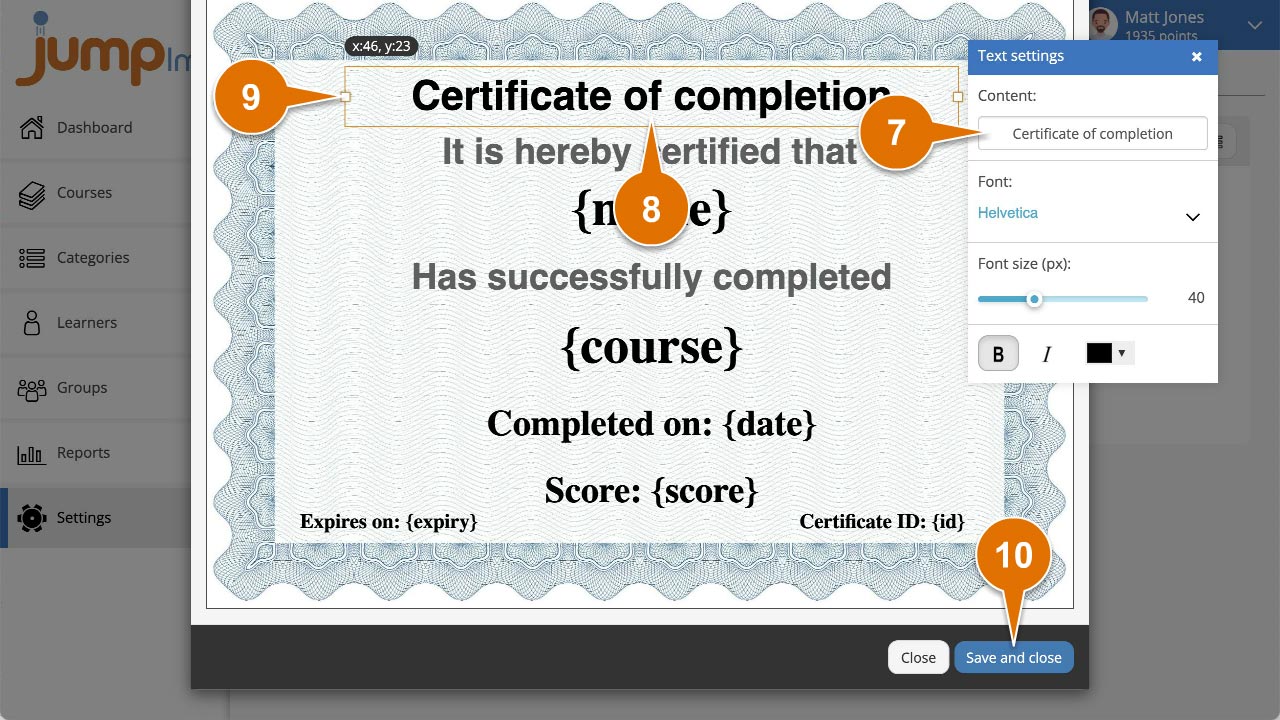
To edit a text element, click it and update the Content text. You can also change the font, font size, colour, boldness, and italics.
-
Reposition text elements by clicking and dragging them around the certificate.
-
Resize text elements by clicking and dragging the anchor points left or right.
-
When you are happy with the certificate, click Save and close.
Your certificate has now been created and can be assigned to any of your courses.
Contact the JumpLMS team and we’ll help you find the right answer.