How to add a new Learner in JumpLMS
Adding a new Learner to your JumpLMS portal is straightforward.
You can create their Learner profile, choose their access level, assign them to groups and enrol them on courses from the same area.
How to add a new Learner
-
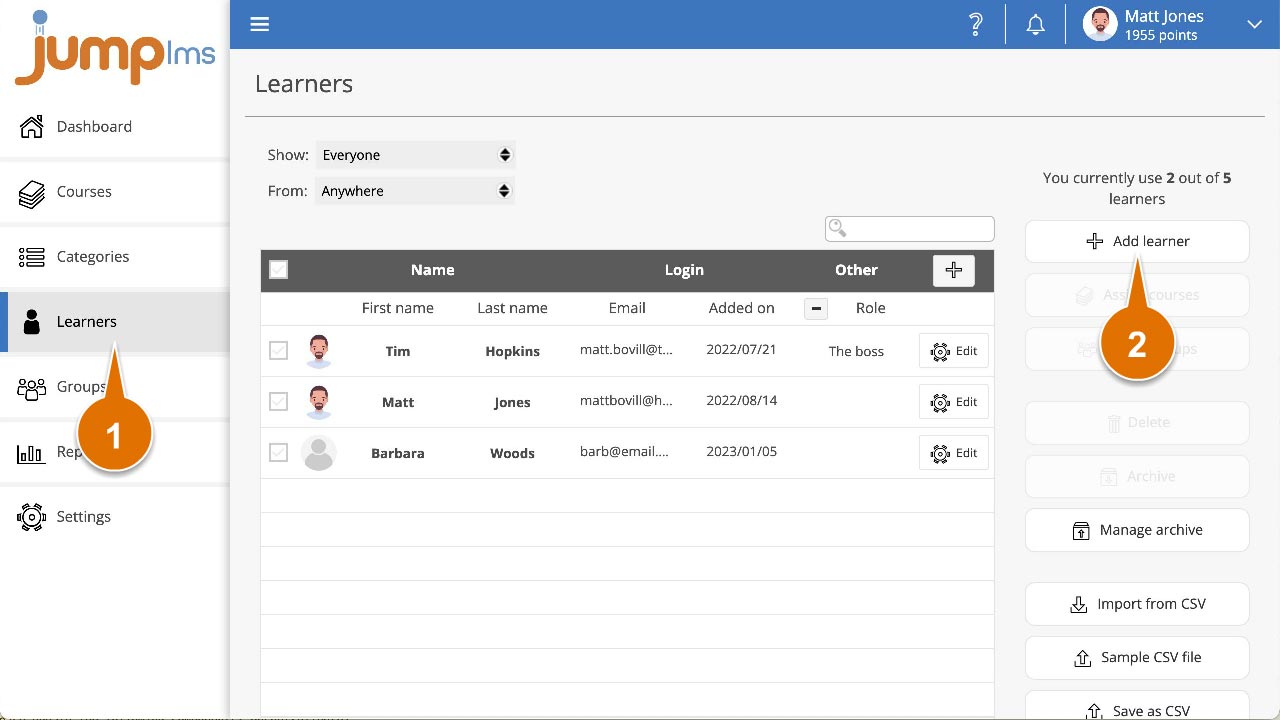
Click on the Learners tab.
-
Click Add Learner.
-
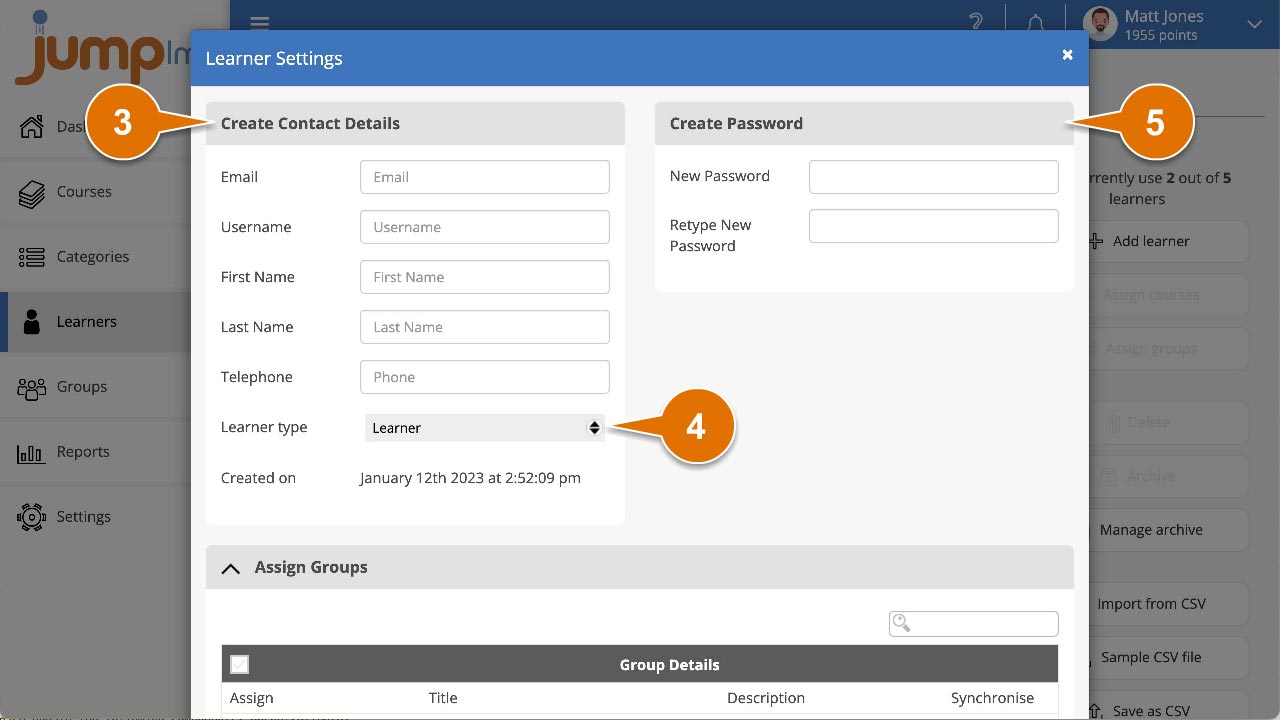
Enter the Learner's email address, username, name and any other required details in the Create Contact Details panel.
-
Select the appropriate access level from the Learner type dropdown:
- Learner
- Group manager
- Administrator
-
Create a password and retype it.
-
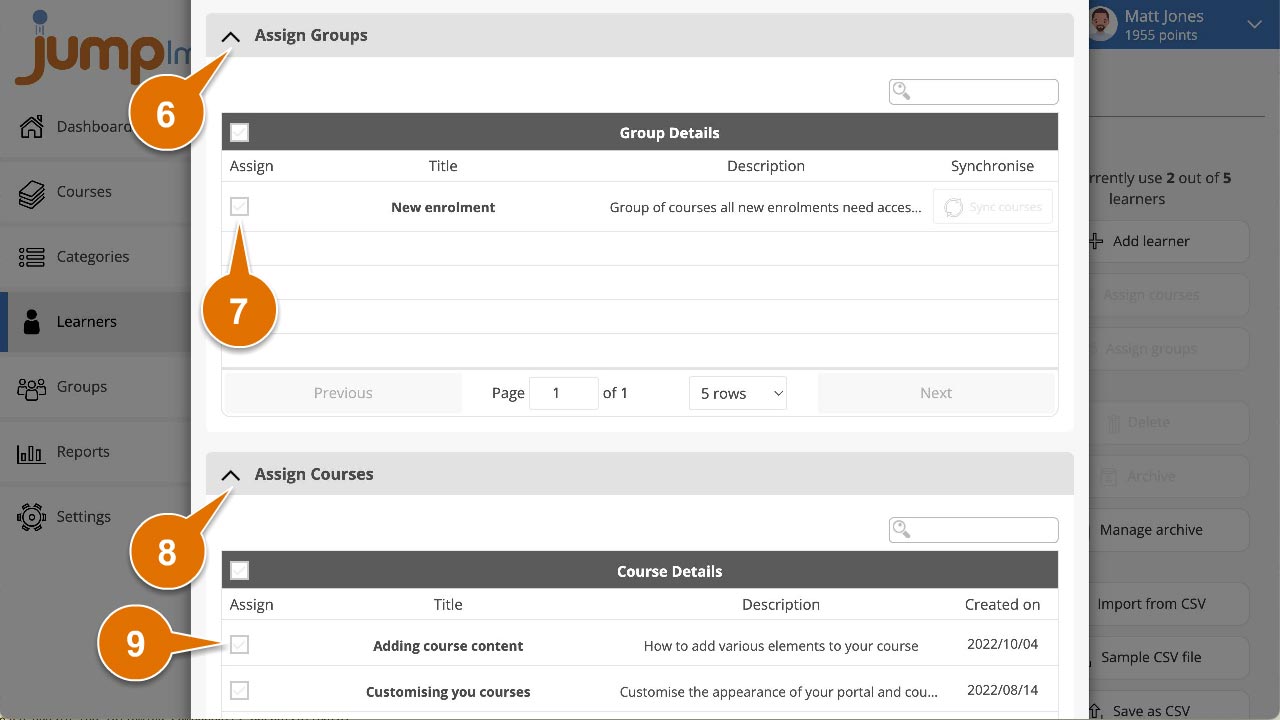
Expand the Assign groups menu.
-
Tick each group you want to add the Learner to.
-
Expand the Assign courses menu.
-
Tick each course you want to enrol the Learner on.
-
Click Add Learner.
The new Learner has been added to the portal, enrolled on the selected courses and assigned to the selected groups.
Contact the JumpLMS team and we’ll help you find the right answer.