How to assign a certificate to a course in JumpLMS
After you have created a certificate from the Settings tab, you can assign it to any course in JumpLMS.
When a Learner completes the course, JumpLMS can issue the selected certificate automatically. You can also choose whether the certificate expires after a set period.
Certificate expiry options
If you enable certificate expiry, JumpLMS will automatically add an expiry date to the certificate based on the period you choose.
- 1 month
- 6 months
- 1 year
- 2 years
- 3 years
- 4 years
- 5 years
How to assign a certificate to a course
-
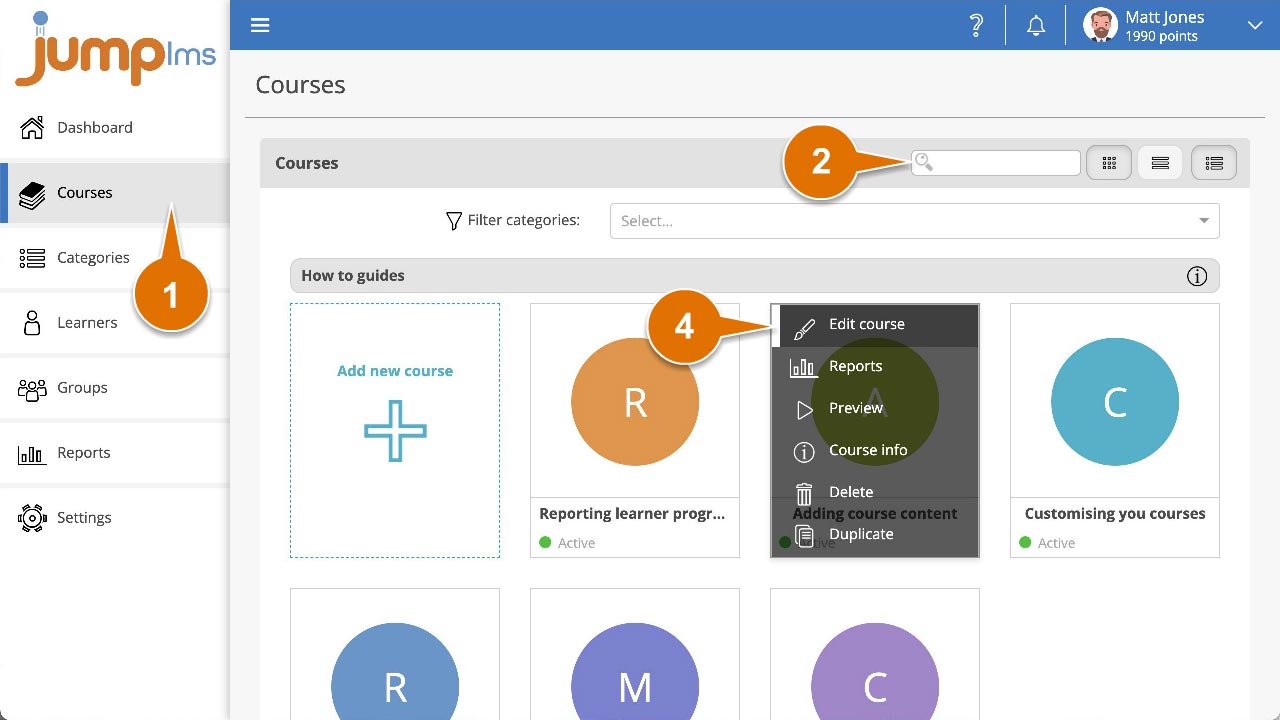
Click on the Courses tab.
-
Search for the course you want to assign a certificate to, or find it in the course list.
-
Open the course options and click Edit course.
-
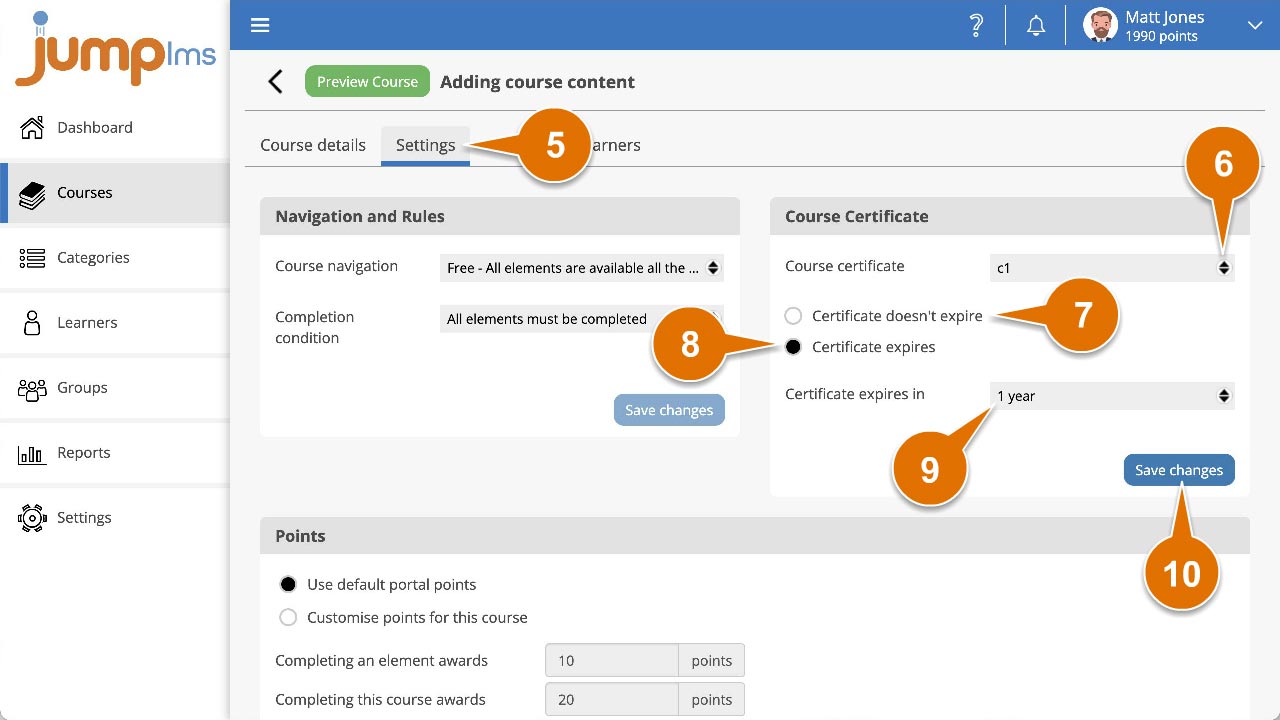
Click the Settings tab.
-
In the Course Certificate panel, open the Course certificate dropdown and select the certificate you want to assign.
-
If you do not want the certificate to expire, select Certificate doesn't expire.
-
If you want the certificate to expire, select Certificate expires.
-
Open the Certificate expires in dropdown and select an expiry period.
-
Click Save changes.
The certificate has now been assigned to the course.
Contact the JumpLMS team and we’ll help you find the right answer.