How to add multiple Learners all at once in JumpLMS
Last updated on
You can add multiple Learners to your JumpLMS portal at once by importing them from a CSV file.
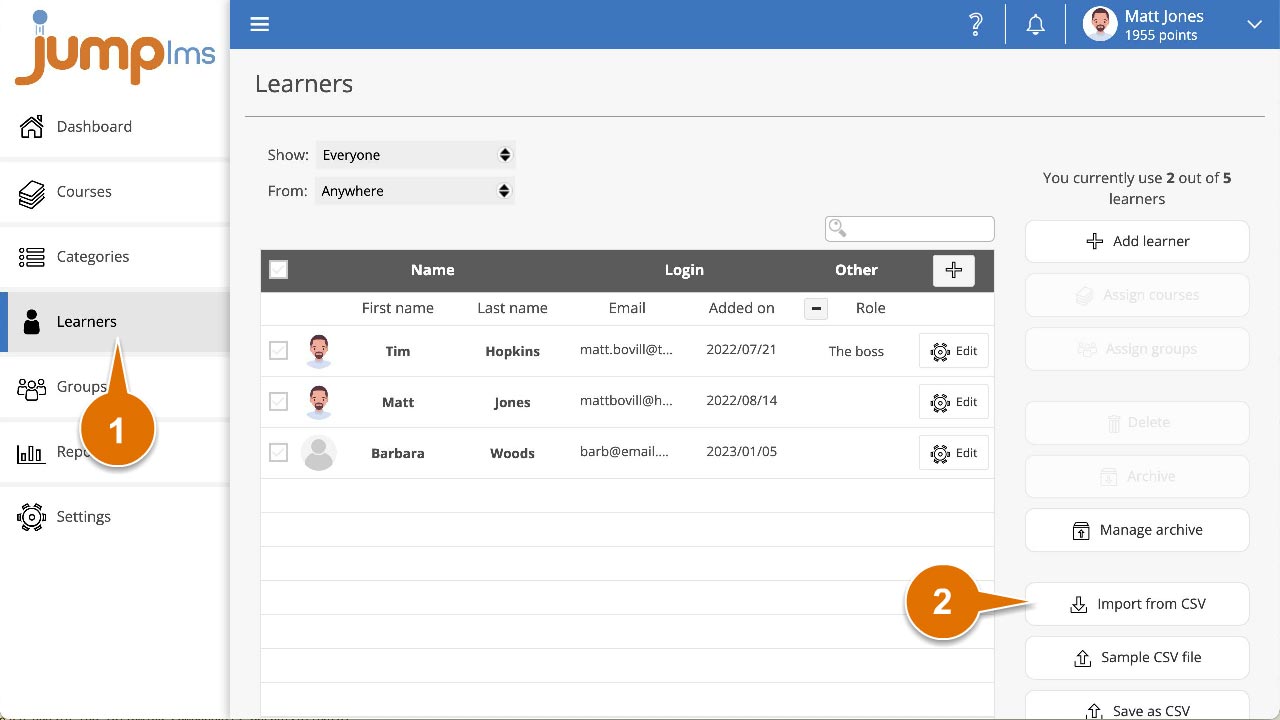
Before importing, download the sample CSV file from the Learners tab so your data is formatted correctly.
CSV fields required for bulk Learner import
Your CSV file should include the following columns:
- First name - required
- Second name - required
- Password - required
- Email - required
- Username - required
- Phone - optional
If importing the Learners in your CSV file would exceed your Learner allowance, the import will be cancelled.
How to import multiple Learners from CSV
-
Click on the Learners tab.
-
Click Import from CSV.
-
Browse to your CSV file and click Open.
All correctly formatted and non-duplicated Learners have now been added to your portal.
Did this article help?
Can't find what you're looking for?
Contact the JumpLMS team and we’ll help you find the right answer.
Contact the JumpLMS team and we’ll help you find the right answer.