How to customise navigation in a test or survey in JumpLMS
JumpLMS lets you control how Learners move through questions in a test or survey.
You can allow Learners to access all questions freely, or restrict navigation so each question must be submitted before the next one becomes available.
Test and survey navigation options
- Free — all questions are available all the time.
- Restricted — Learners cannot proceed until the previous question has been submitted.
How to customise navigation in a test or survey
-
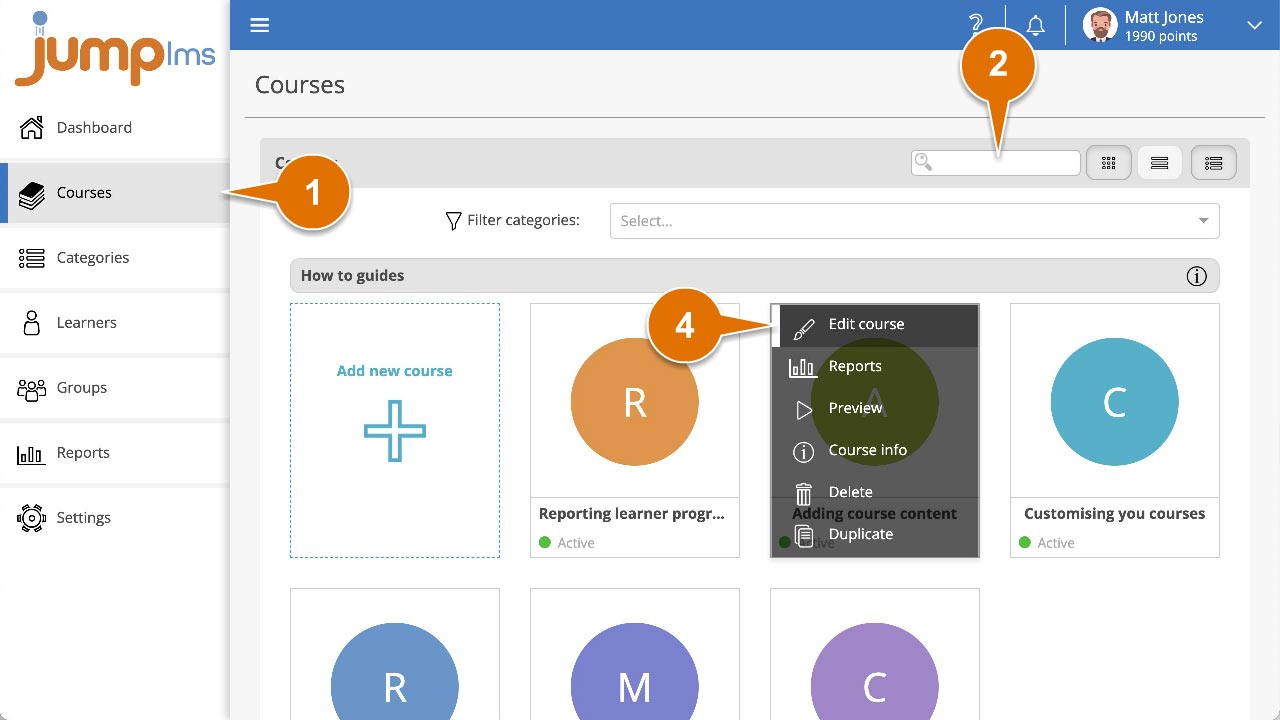
Click on the Courses tab.
-
Search for the course you want to edit, or find it in the list.
-
If you are using a touchscreen device, click the course thumbnail. If you are using a computer, hover over the course thumbnail.
-
Click Edit course.
-
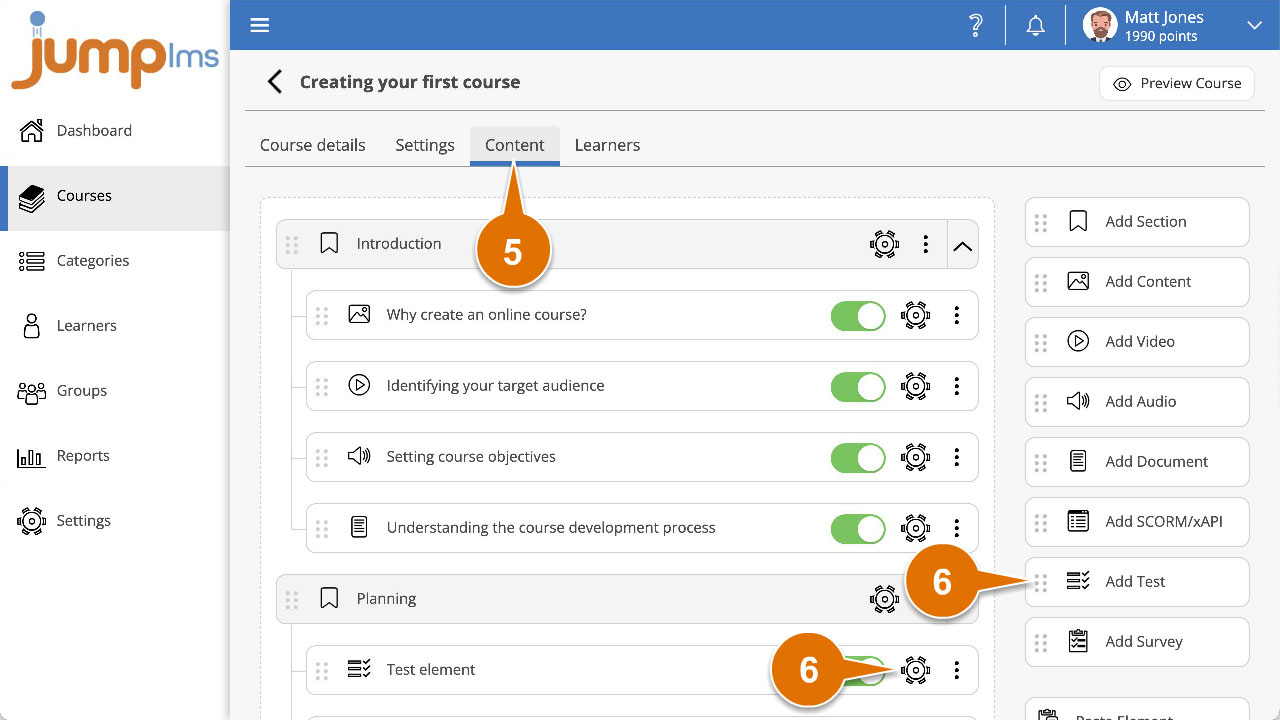
Click on the Content tab.
-
Find the test or survey element in the Course Elements list and click Edit. Alternatively, click Add Test or Add Survey to create a new element.
-
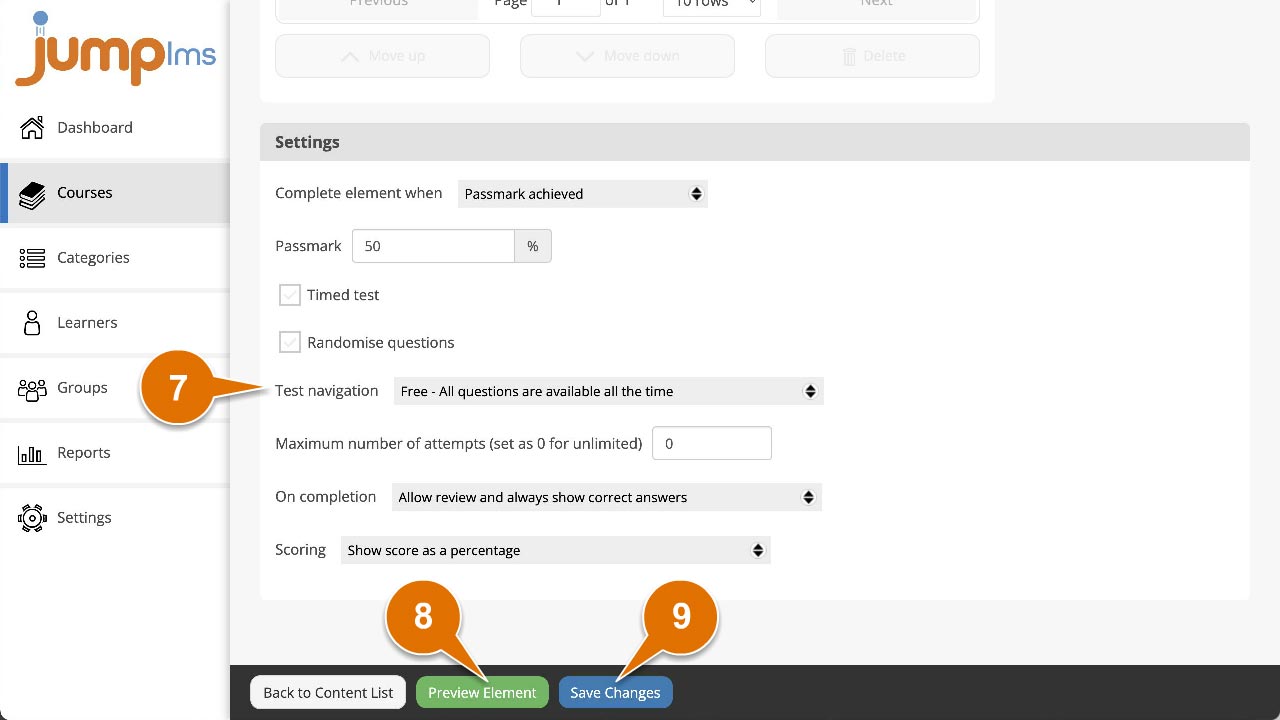
Open the Test navigation dropdown list and select the most appropriate navigation option:
- Free — all questions are available all the time.
- Restricted — Learners cannot proceed until the previous question has been submitted.
-
Click Preview Element if you want to see how the element will look in the course.
-
Click Add Element or Save Changes.
The test or survey will now use your selected navigation option.
Contact the JumpLMS team and we’ll help you find the right answer.