How to change the background image on a certificate in JumpLMS
Certificate background images help you control the look and branding of the certificates issued to Learners when they complete training.
JumpLMS includes ready-to-use certificate backgrounds, and you can also upload your own image through the Resource Library.
How to change the background image on a certificate
-
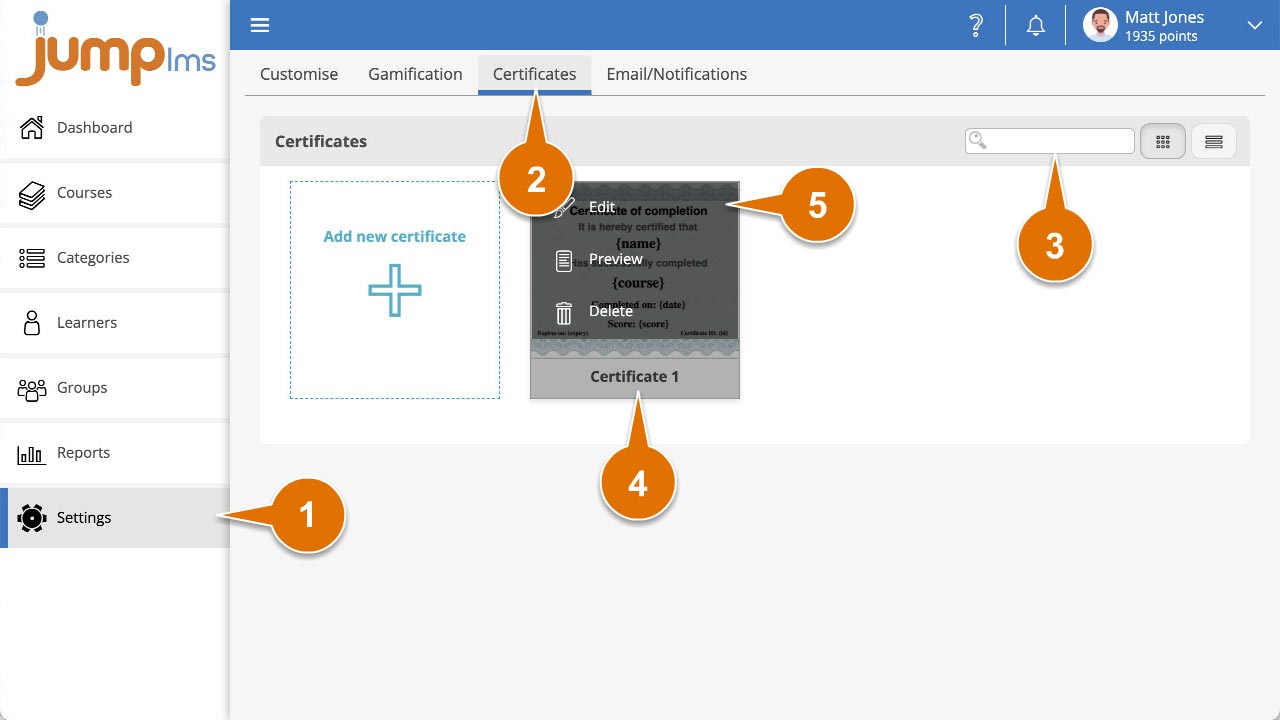
Click on the Settings tab.
-
Click on the Certificates tab.
-
Search for the certificate you want to edit, or find it in the certificate list.
-
Open the certificate options and click Edit.
-
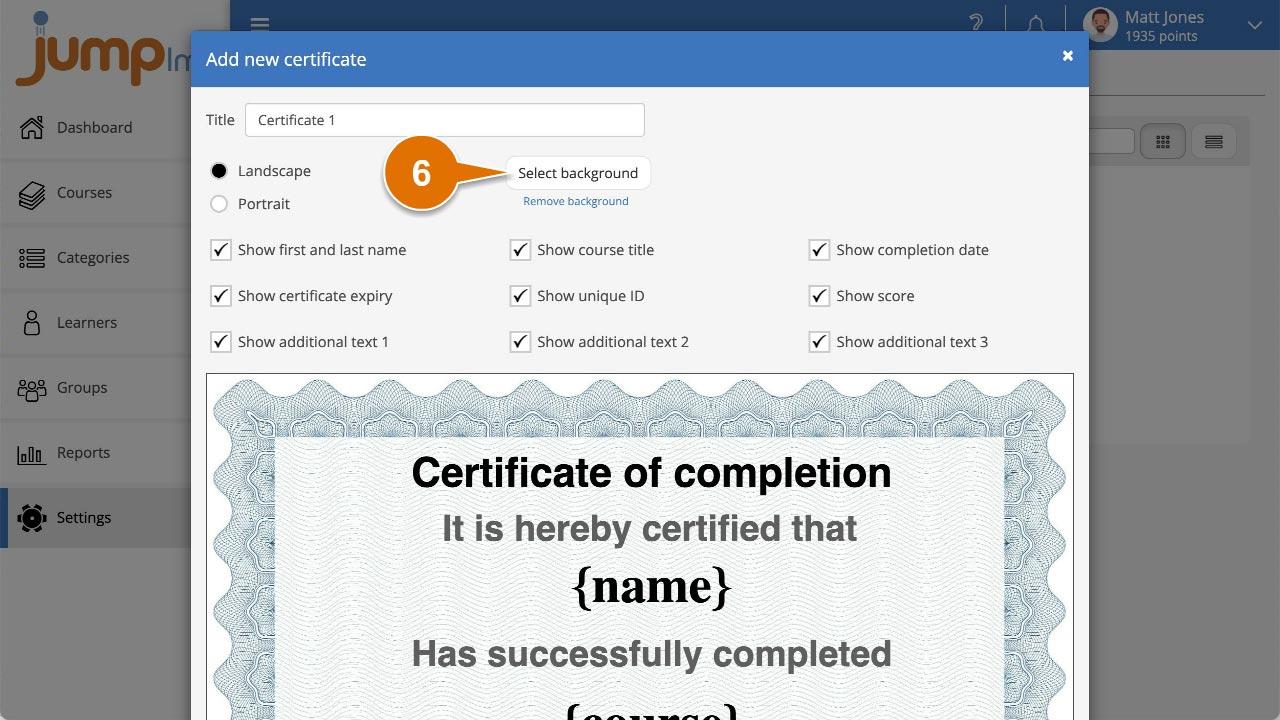
Click Select background to open the Resource Library.
-
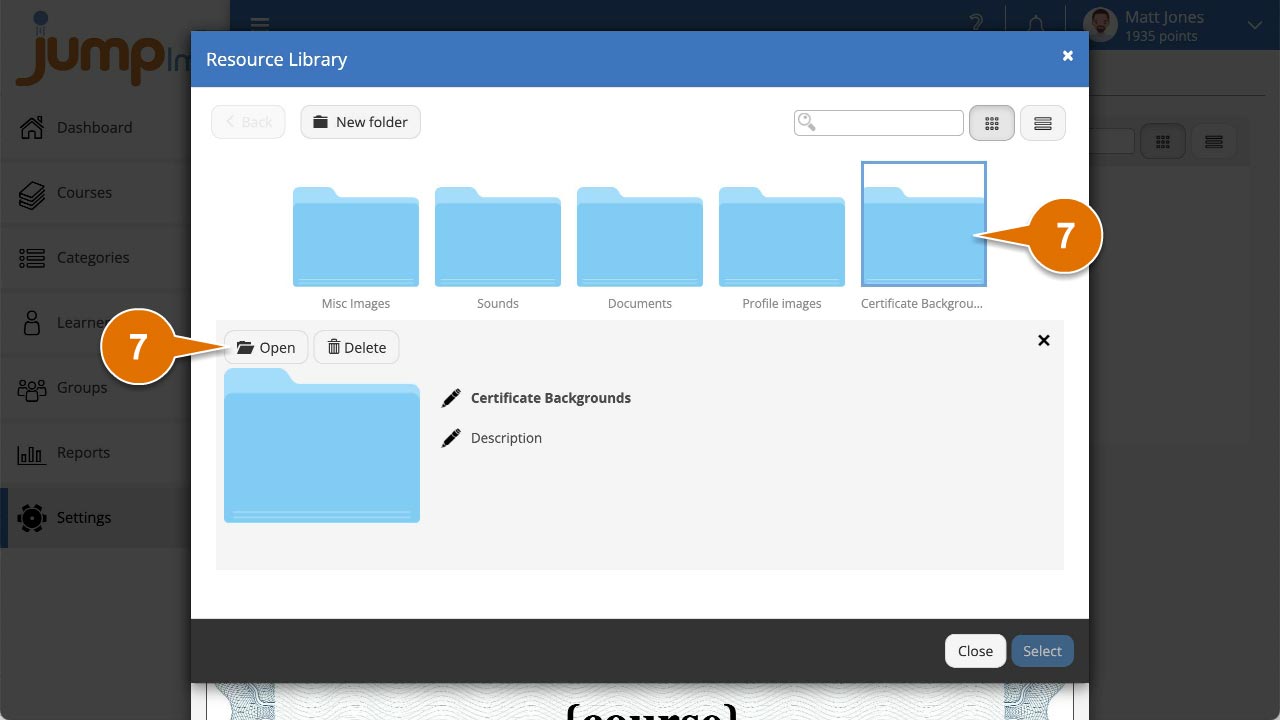
To use a built-in background, open the Certificate Backgrounds folder.
-
Alternatively, to use your own image, open the folder you want to upload it to, click Import, choose your image, and click Open.
-
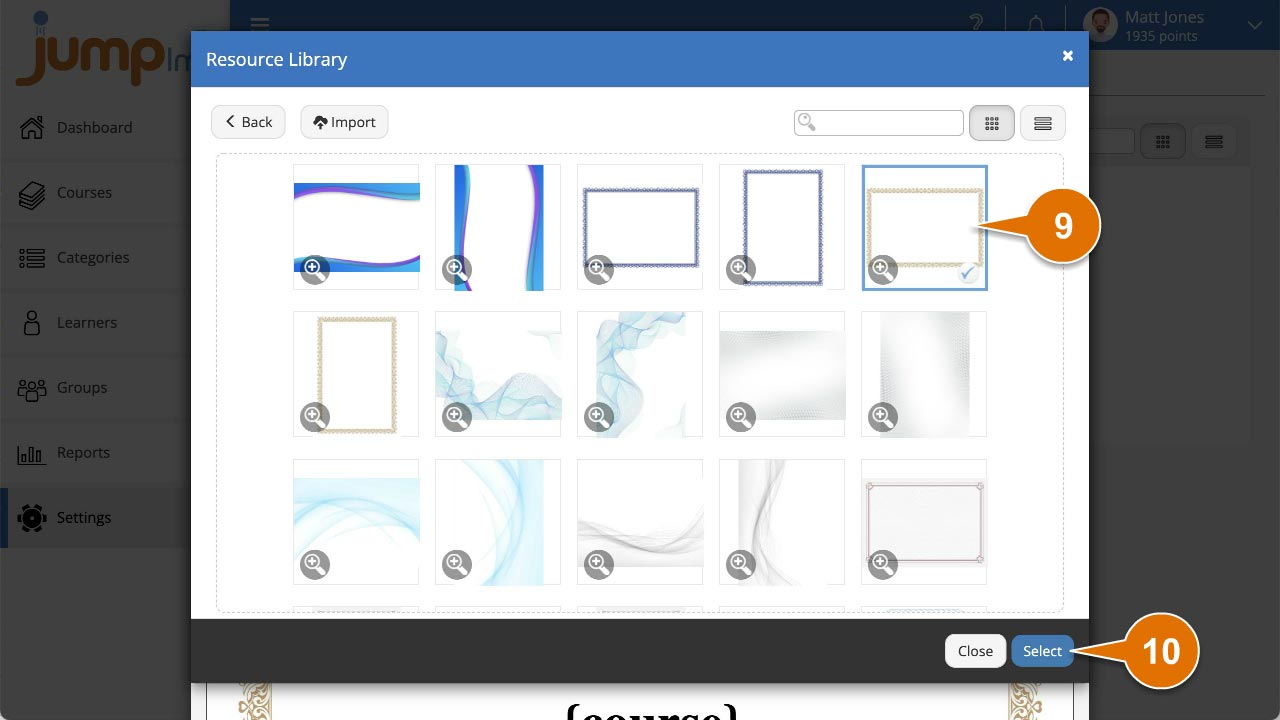
Select the background image you want to use.
-
Click Select.
-
Click Save and close.
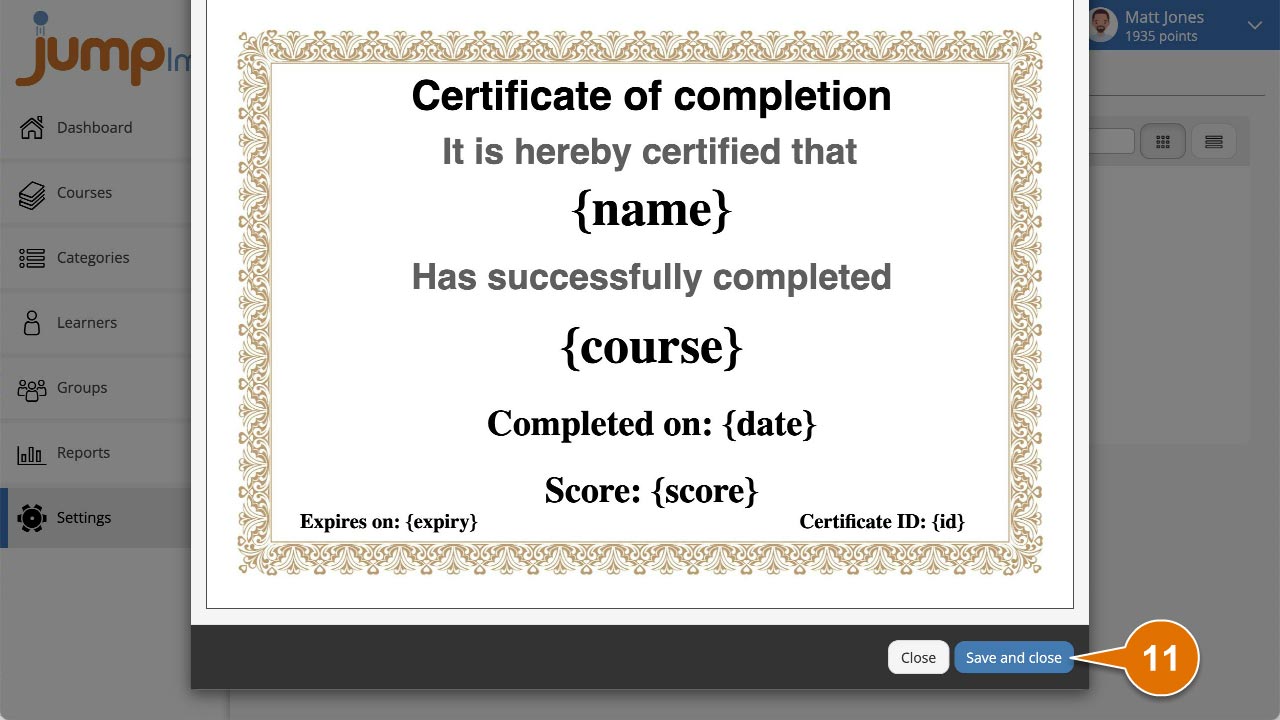
Your certificate now uses the selected background image.
Contact the JumpLMS team and we’ll help you find the right answer.