How to assign a certificate to a course in JumpLMS
JumpLMS certificates let Learners download or print proof of completion after finishing a course.
This guide explains how to assign an existing certificate template to a course and, if needed, add a certificate expiry date for renewable or compliance-based training.
How to assign a certificate to a course
-
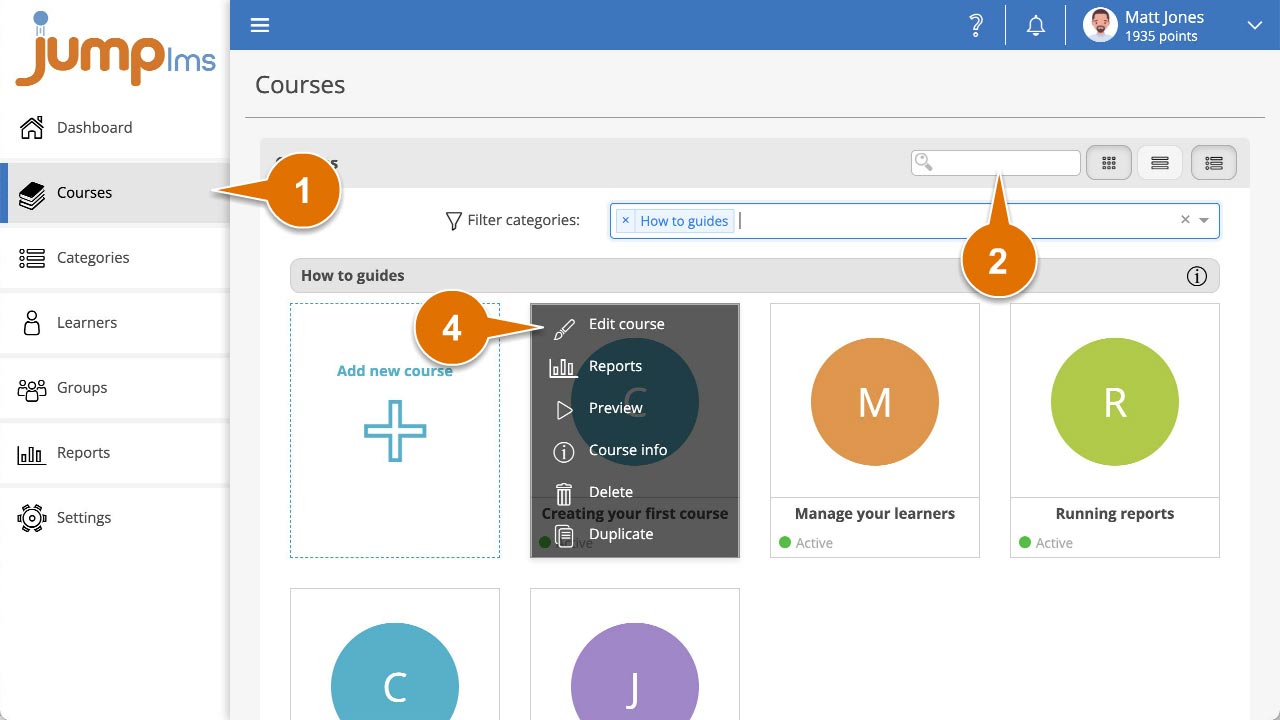
Click on the Courses tab.
-
Search for the course you want to assign a certificate to, or find it in the course list.
-
Open the course options and click Edit course.
-
Click the Navigation/Gamification tab.
-
In the Course Certificate panel, open the Course certificate dropdown and select the certificate you want to assign to the course.
-
If the certificate should expire, select Certificate expires.
-
Use the Certificate expires in dropdown to set the expiry period.
-
Click Save changes.
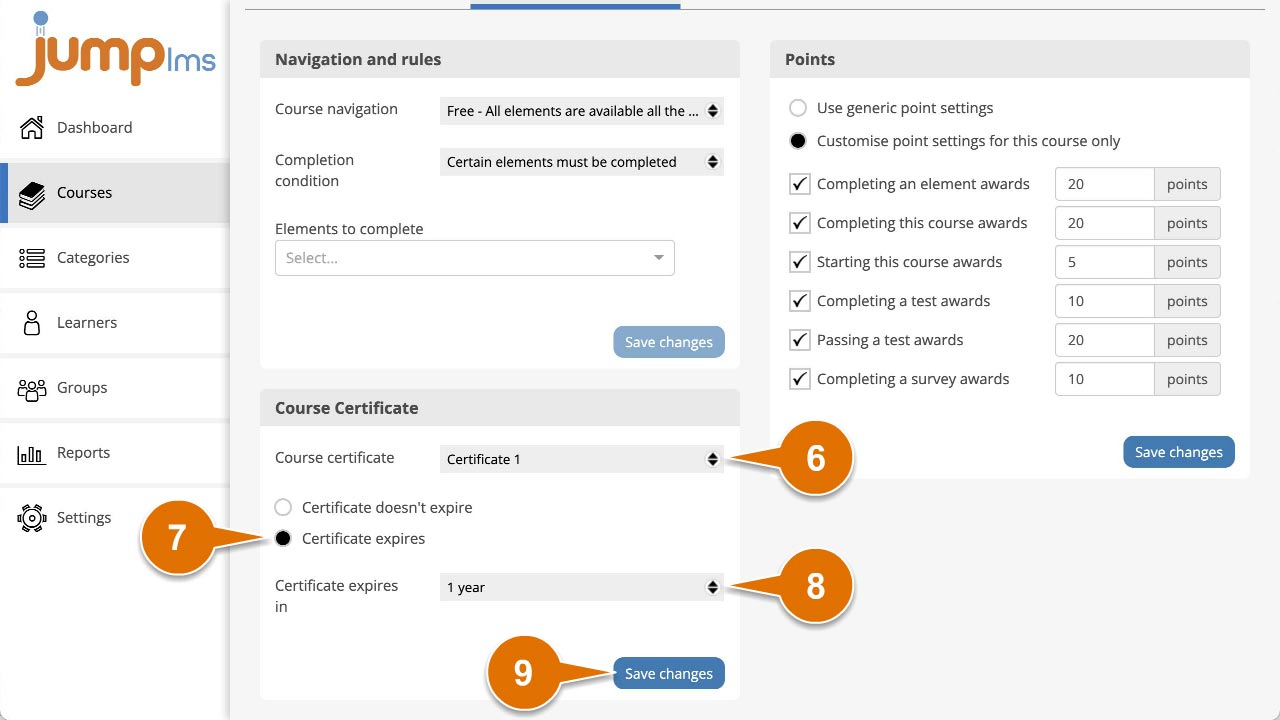
Your certificate has now been assigned to the course. Learners will be able to access their certificate when they complete the course.
Contact the JumpLMS team and we’ll help you find the right answer.