How to downgrade a subscription in JumpLMS
You can downgrade your JumpLMS subscription at any time from your account settings. Subscription changes are prorated, so your billing is adjusted based on the plan change and the time remaining in your billing period.
This guide explains how to choose a lower JumpLMS subscription plan and confirm the updated monthly or yearly price before the change is applied.
How to downgrade a subscription
-
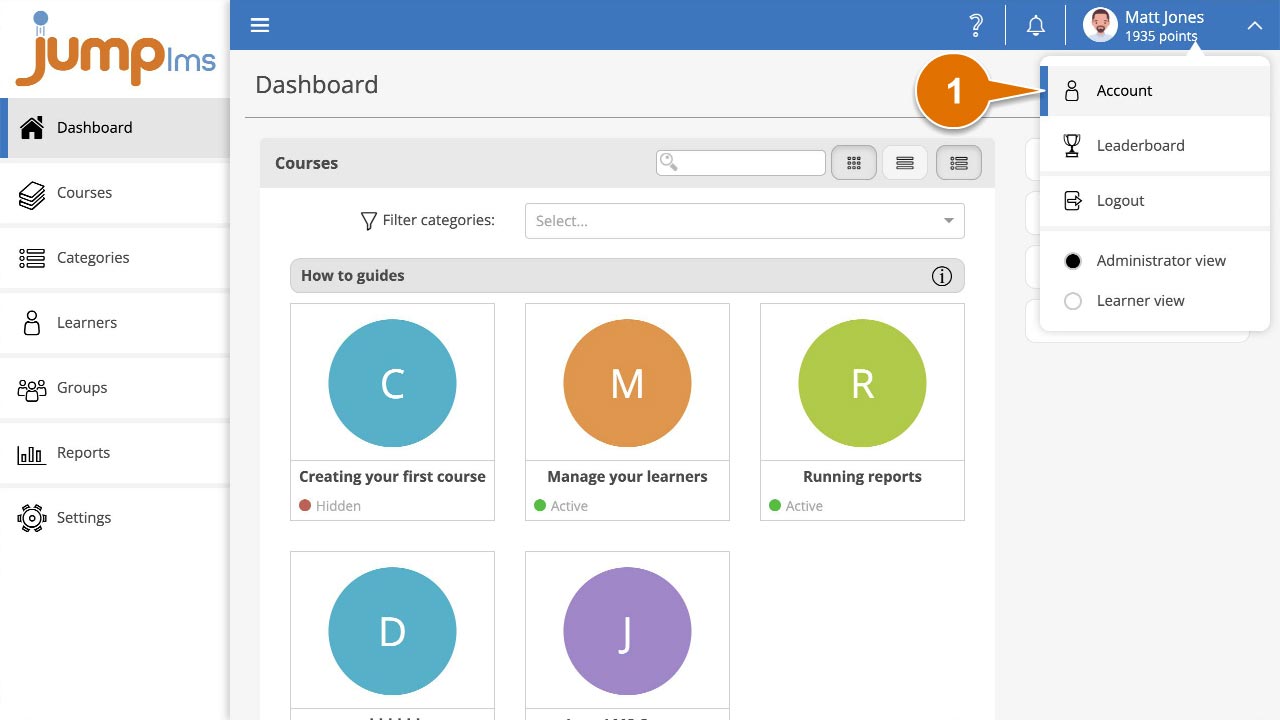
Click on your user profile image or name at the top-right of the screen and select Account.
-
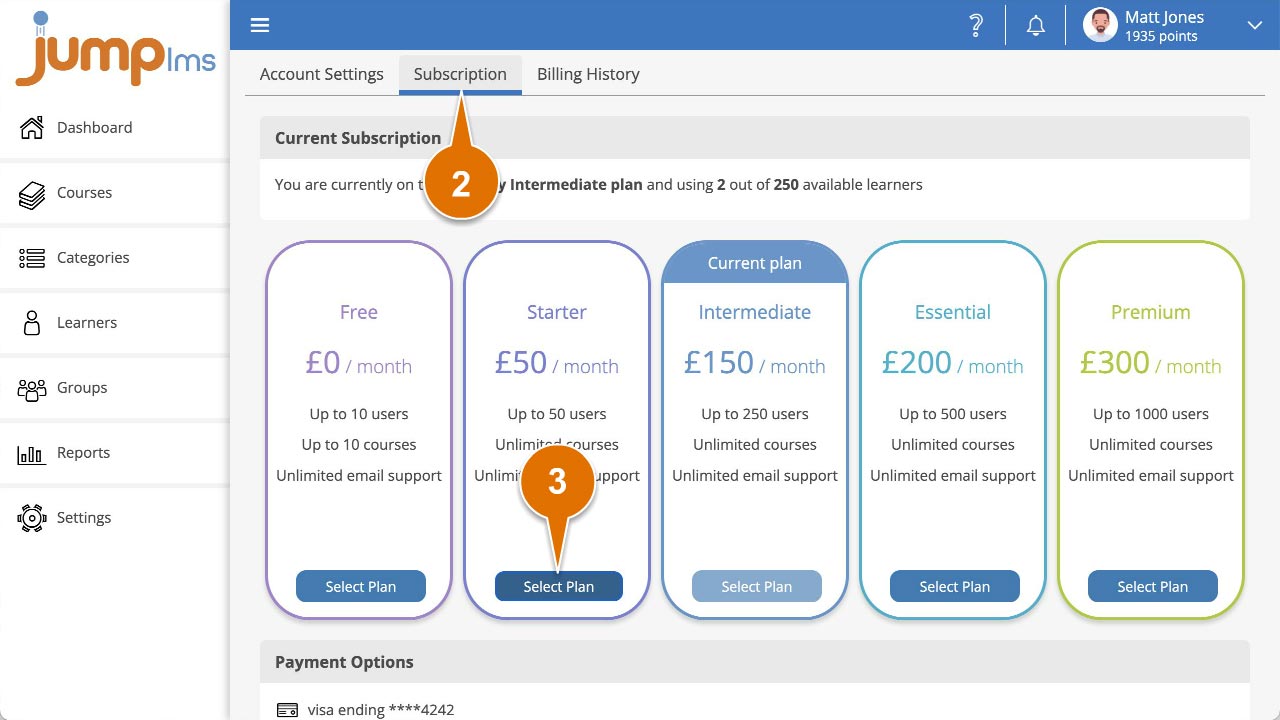
Select the Subscription tab.
-
Click Select Plan on the lower subscription plan you want to move to.
-
Review the summary showing how your monthly or yearly price will change. If you are happy with the new price, click Confirm Change.
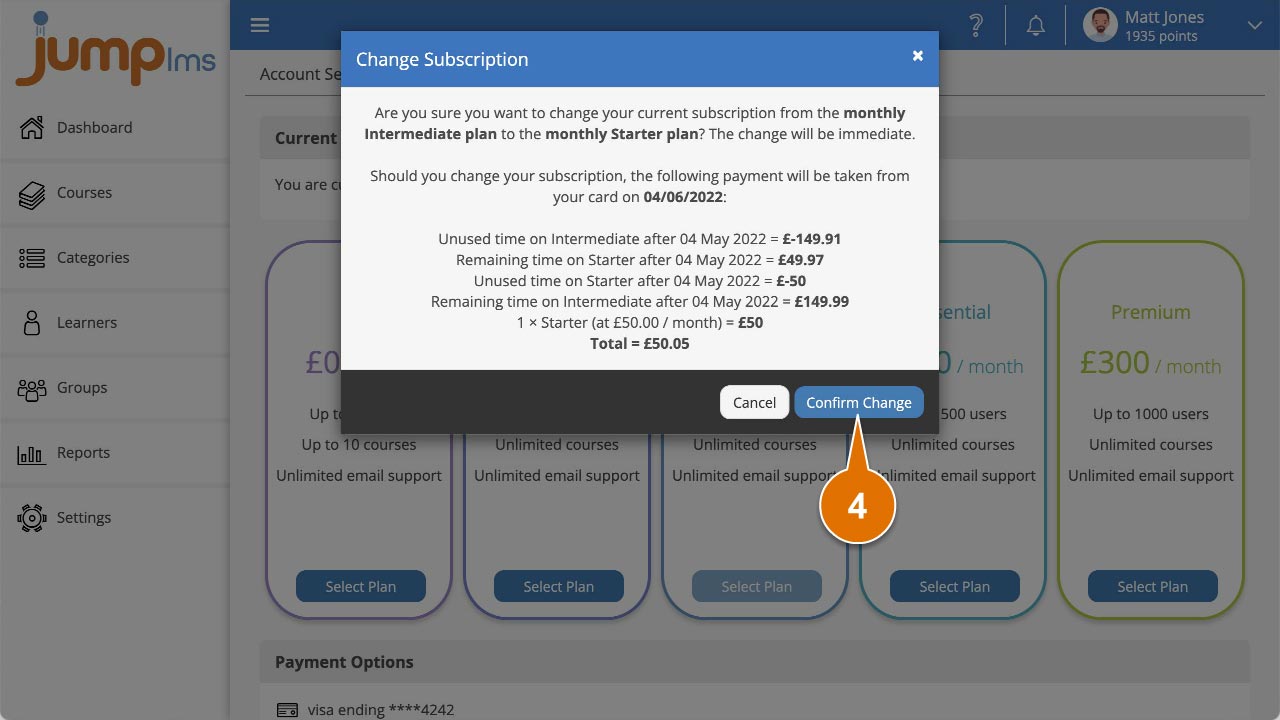
Your subscription has now been downgraded. Future payments will be charged at the new subscription amount.
Contact the JumpLMS team and we’ll help you find the right answer.