How to customise SCORM/xAPI elements in JumpLMS
JumpLMS lets you customise how a SCORM/xAPI element behaves inside a course, including how it is completed, how it launches, and the size of the launch window.
This guide explains how to edit an existing SCORM/xAPI element and update its settings.
How to customise SCORM/xAPI elements
-
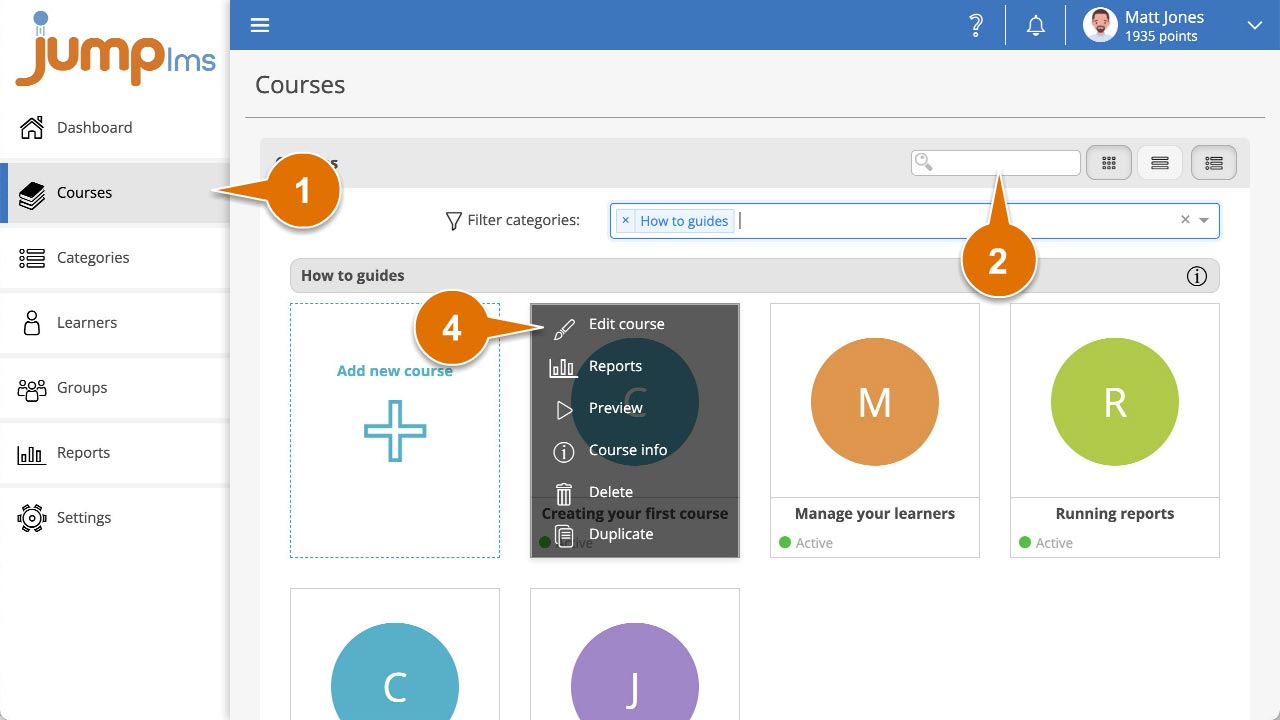
Click on the Courses tab.
-
Search for the course you want to update, or find it in the course list.
-
Open the course options and click Edit course.
-
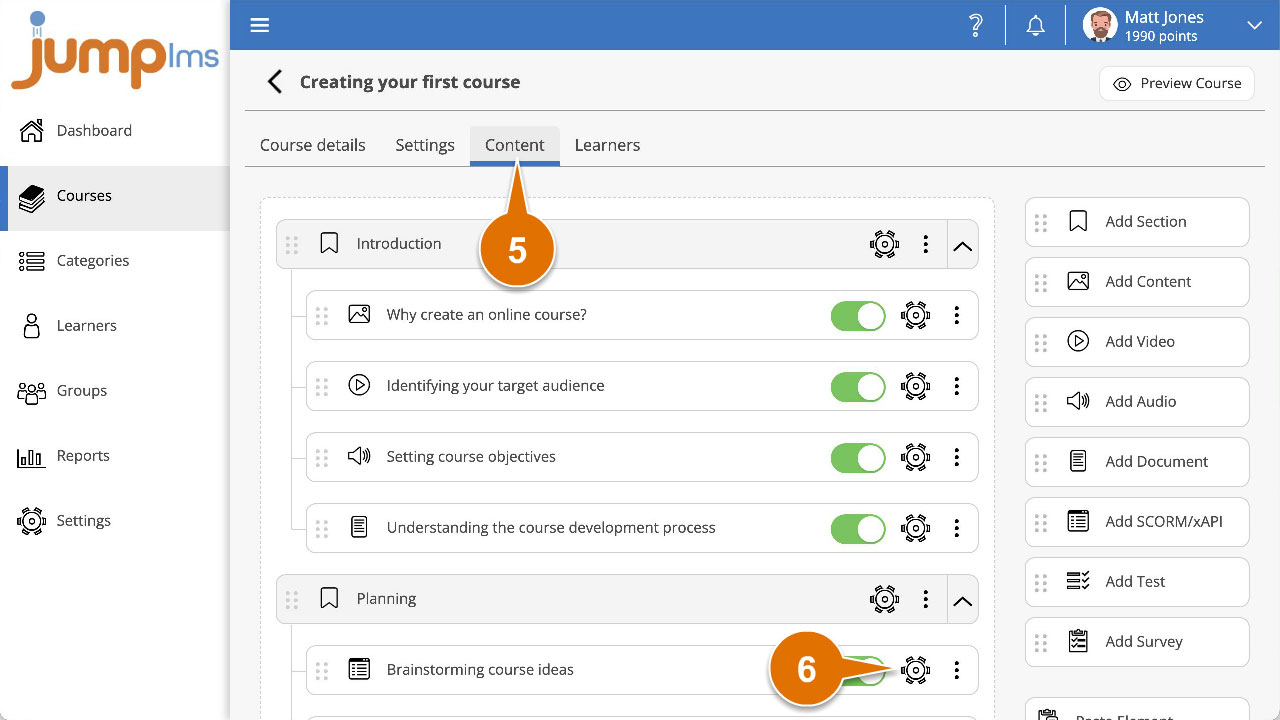
Click on the Content tab.
-
Find the SCORM/xAPI element in the list of course elements and click Edit.
-
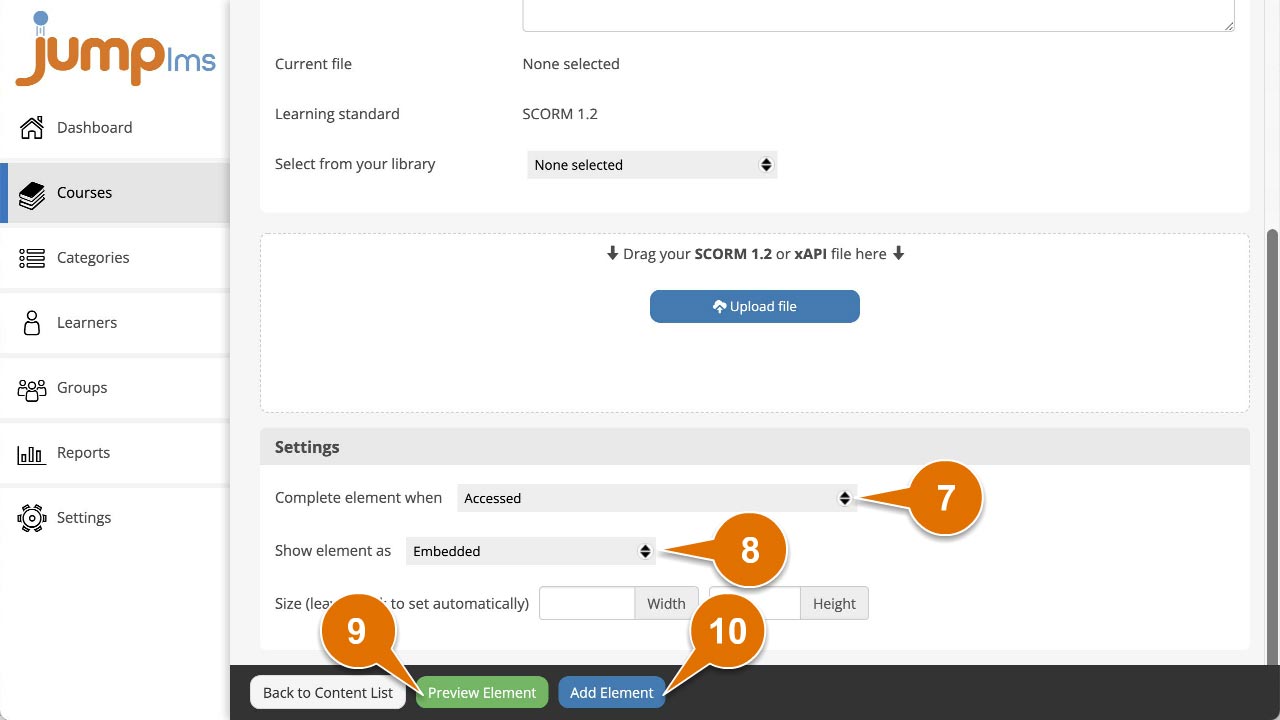
Set the completion criteria in the Settings panel by choosing an option from the Complete element when dropdown.
-
Choose how the SCORM/xAPI element should launch using the Show element as dropdown.
-
Set the launch size using the Size fields.
-
Click Preview Element if you want to see how the element will look in the course.
-
Click Save changes.
Your SCORM/xAPI element settings have now been updated.
Contact the JumpLMS team and we’ll help you find the right answer.