How to add a survey element in JumpLMS
Survey elements allow you to collect feedback, opinions and other useful information from Learners as part of a JumpLMS course.
You can build surveys using several question types, reuse existing survey questions, set completion rules and choose how Learners move through the survey.
Survey question types
Survey question types include:
- Multiple choice
- Dropdown
- Likert scale
- Free text
How to add a survey element to a course
-
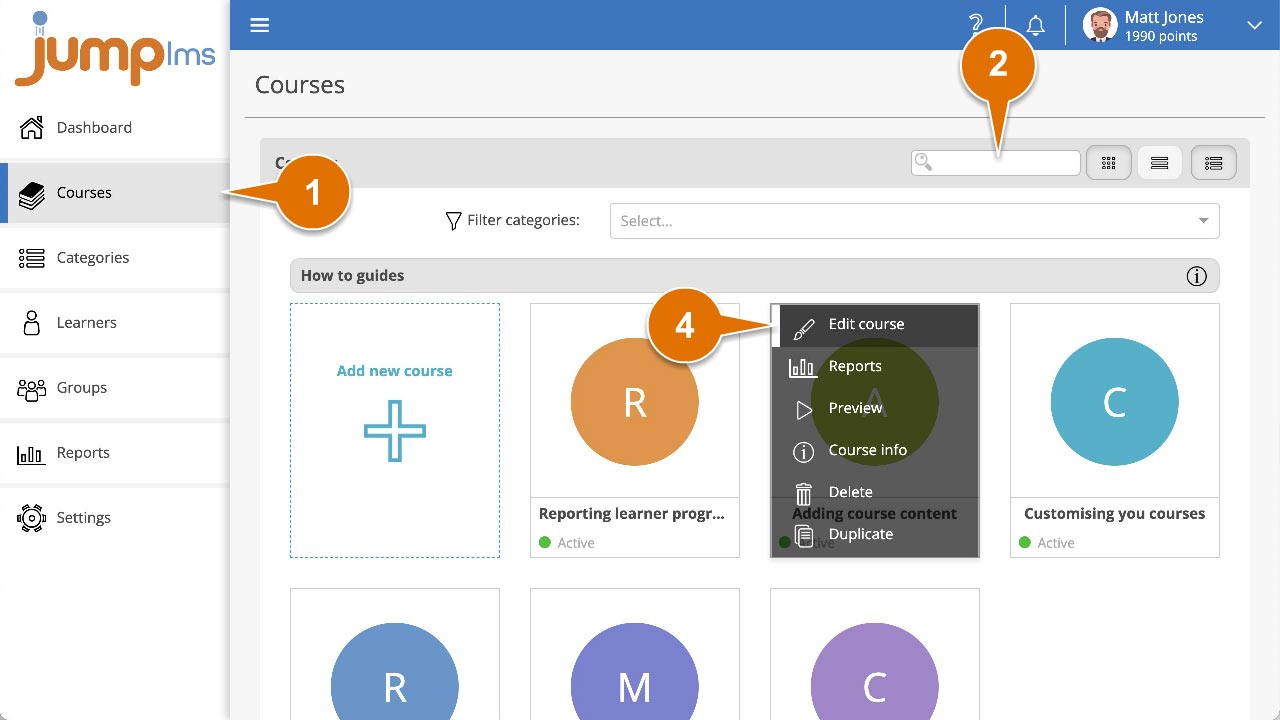
Click on the Courses tab.
-
Search for the course you want to add the element to, or find it in the list.
-
If you are using a touchscreen device, click the course thumbnail. If you are using a computer, hover over the course thumbnail.
-
Click Edit course.
-
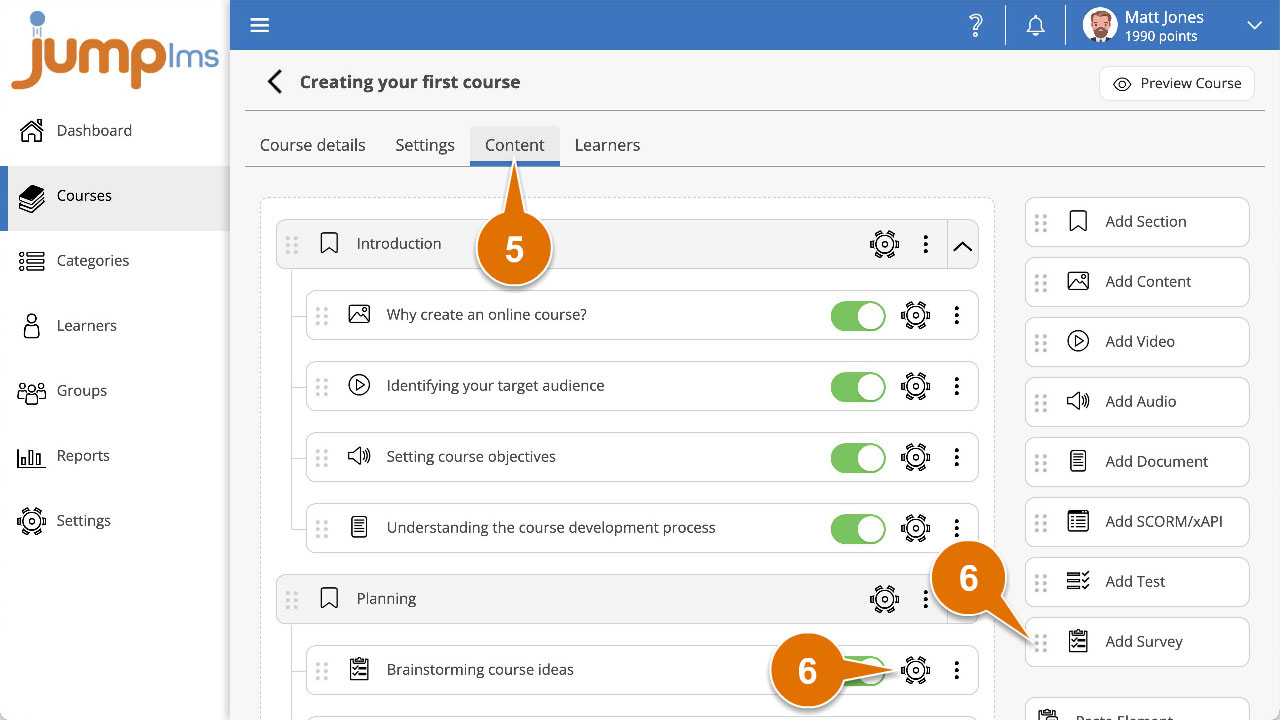
Click on the Content tab.
-
Click Add Survey to add the element to the end of the course structure, or drag and drop it into the required position. Then click Edit.
-
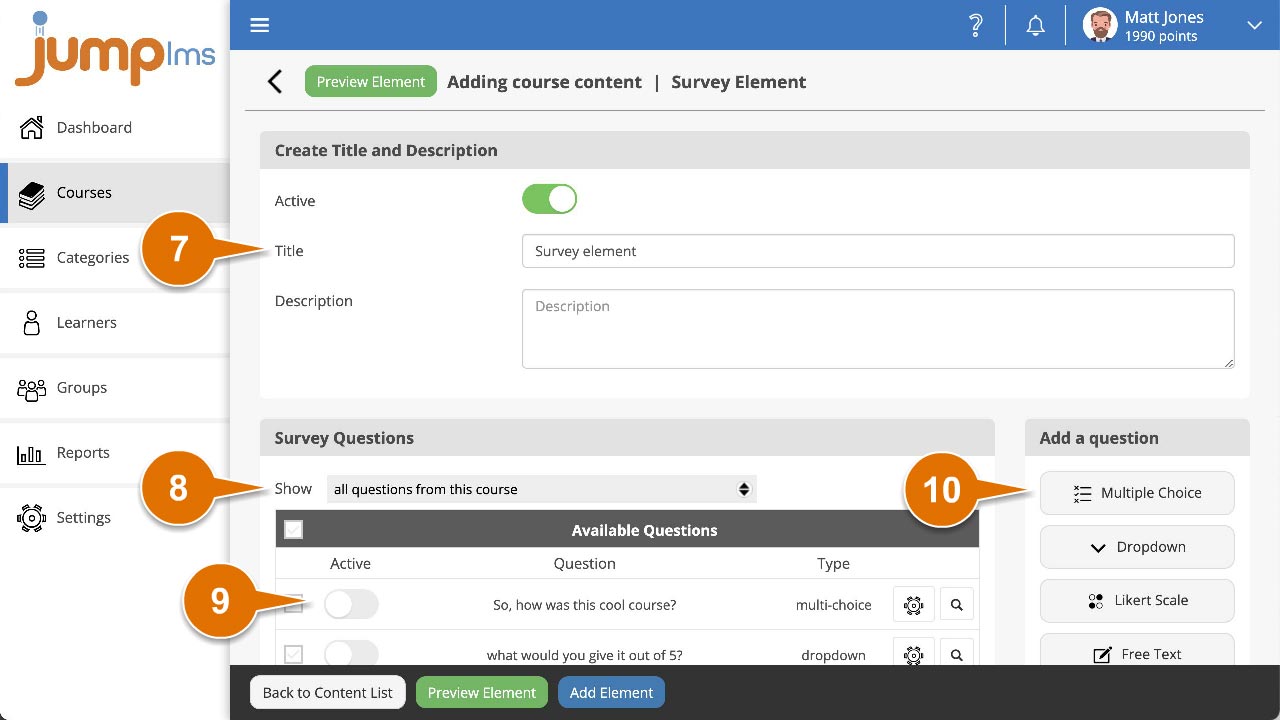
Enter a title and description for the survey element.
-
If you want to reuse survey questions from your existing courses, filter them using one of the available options:
- All questions from this course
- All questions active in this element
- All questions from all courses
- All questions from... an existing course title
-
Switch Active on to add a question to the survey.
-
To add a new question, select the appropriate question type from the Add a question list and set up the question details.
-
In the Settings panel, select the appropriate option from the Complete element when dropdown.
-
Open the Test navigation dropdown list and select the most appropriate navigation option:
- Free — all questions are available all the time.
- Restricted — Learners cannot proceed until the previous question has been submitted.
-
Click Preview Element if you want to see how the survey will look in the course.
-
Click Add Element.

The survey element will now be part of your course.
Contact the JumpLMS team and we’ll help you find the right answer.