How to set up a free-text question in JumpLMS
Free-text questions allow Learners to write their own open responses in a survey.
Use this question type when you want to collect comments, feedback, suggestions or other written answers that do not fit a fixed set of options.
How to set up a free-text question
-
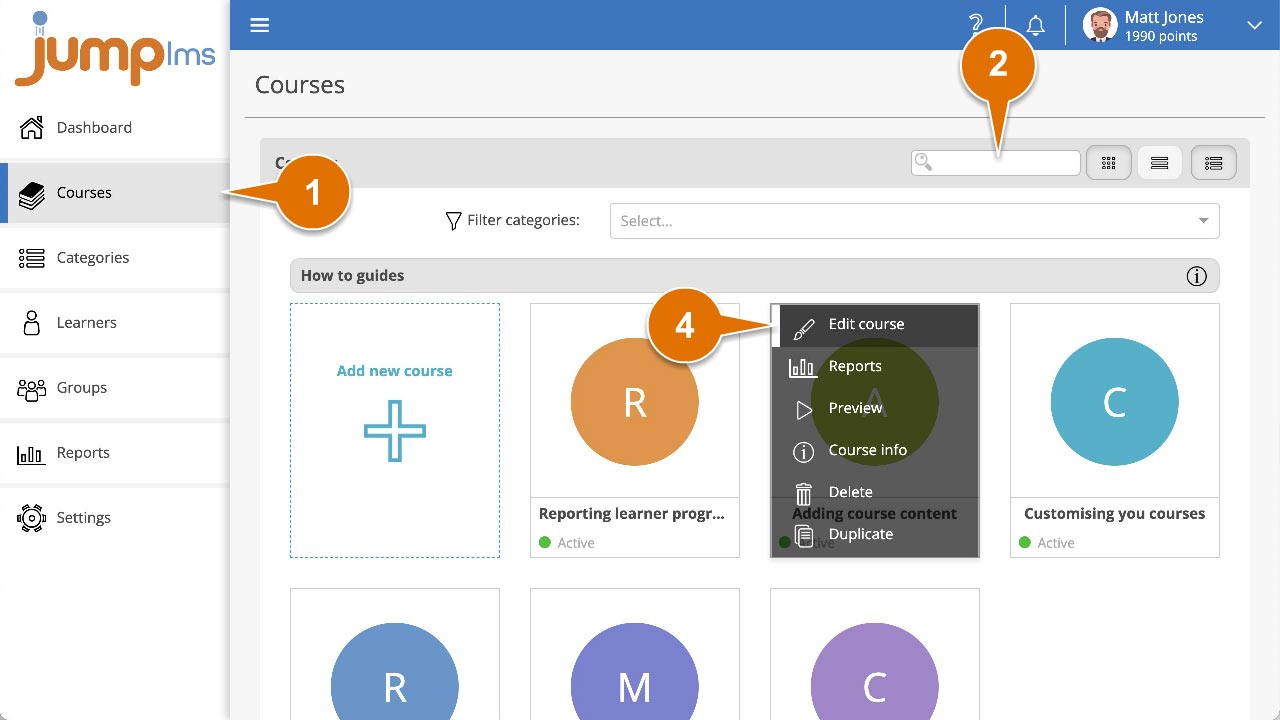
Click on the Courses tab.
-
Search for the course that contains the survey you want to edit, or find it in the list.
-
If you are using a touchscreen device, click the course thumbnail. If you are using a computer, hover over the course thumbnail.
-
Click Edit course.
-
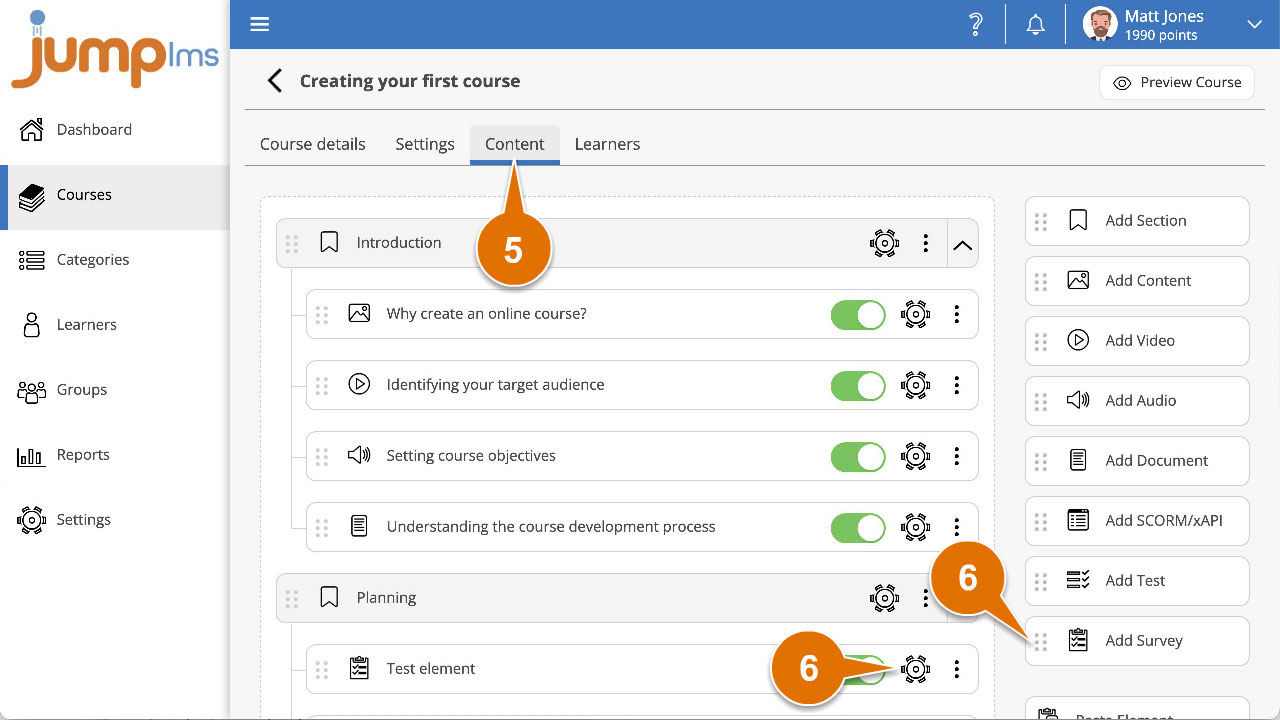
Click on the Content tab.
-
Find the survey element in the Course Elements list and click Edit. Alternatively, click Add Survey to create a new survey element.
-
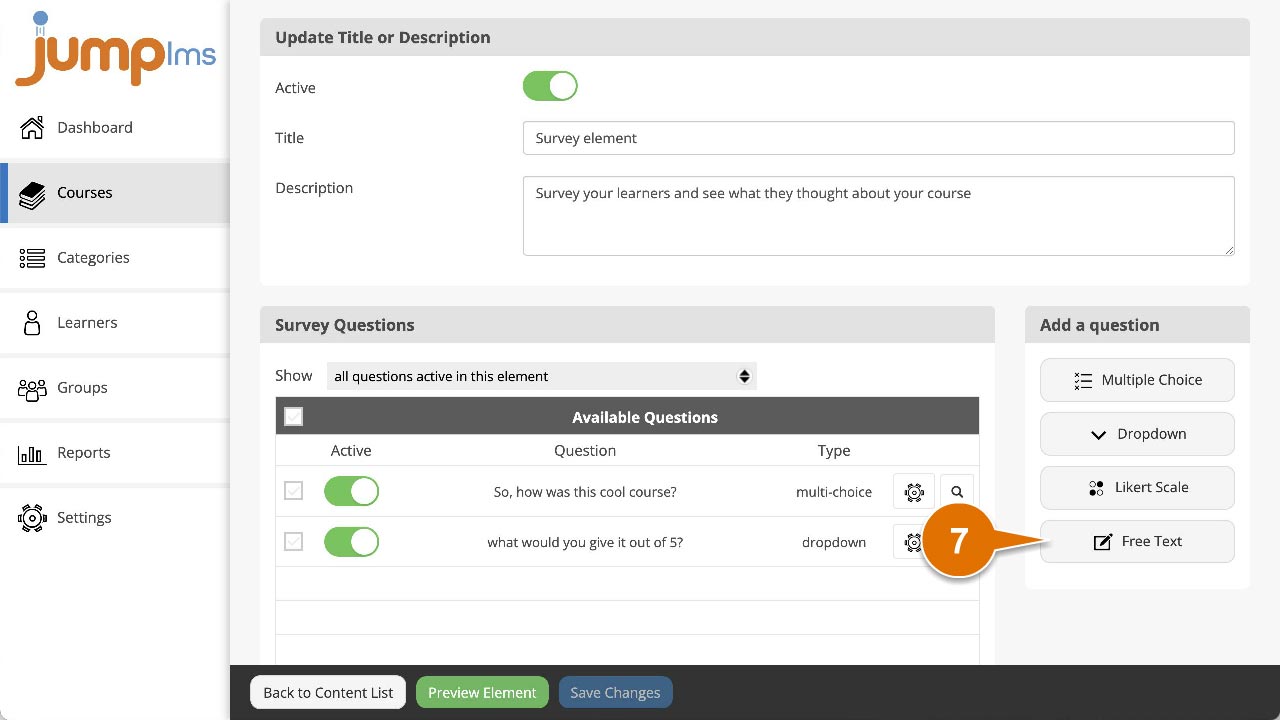
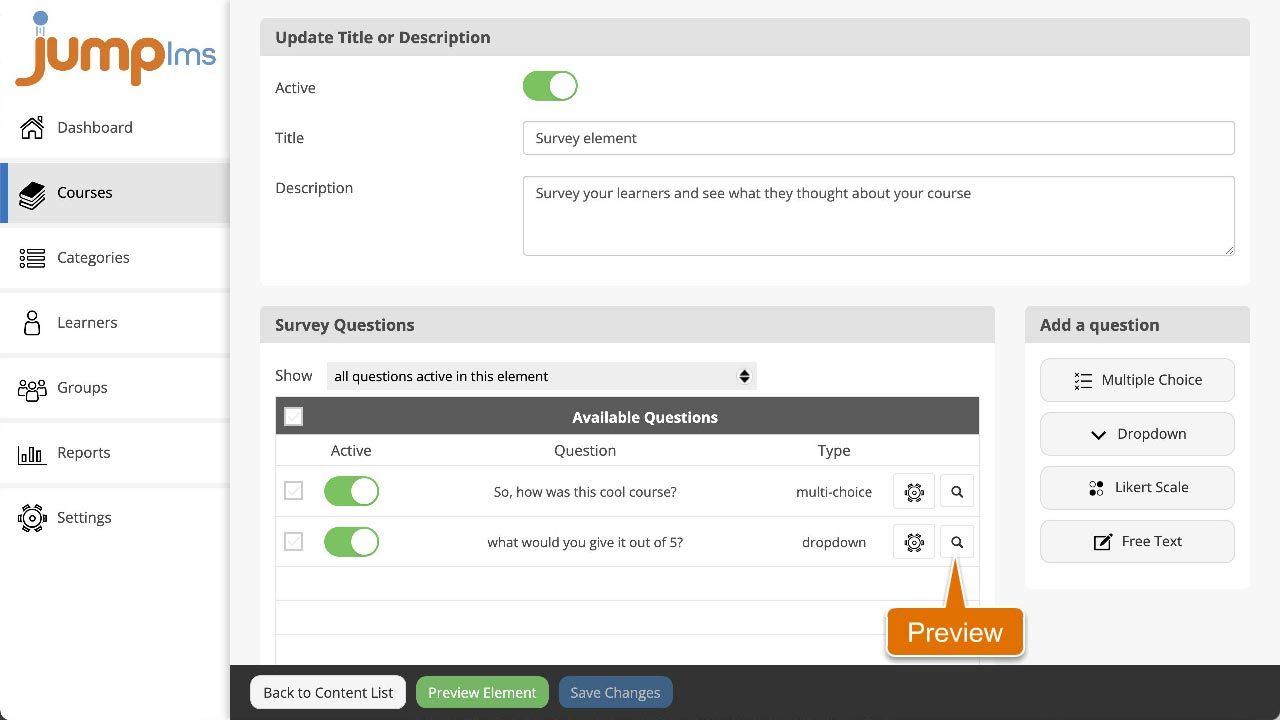
Click Free Text in the Add a question panel.
-
Enter the question text and/or images.
-
Click Add question.
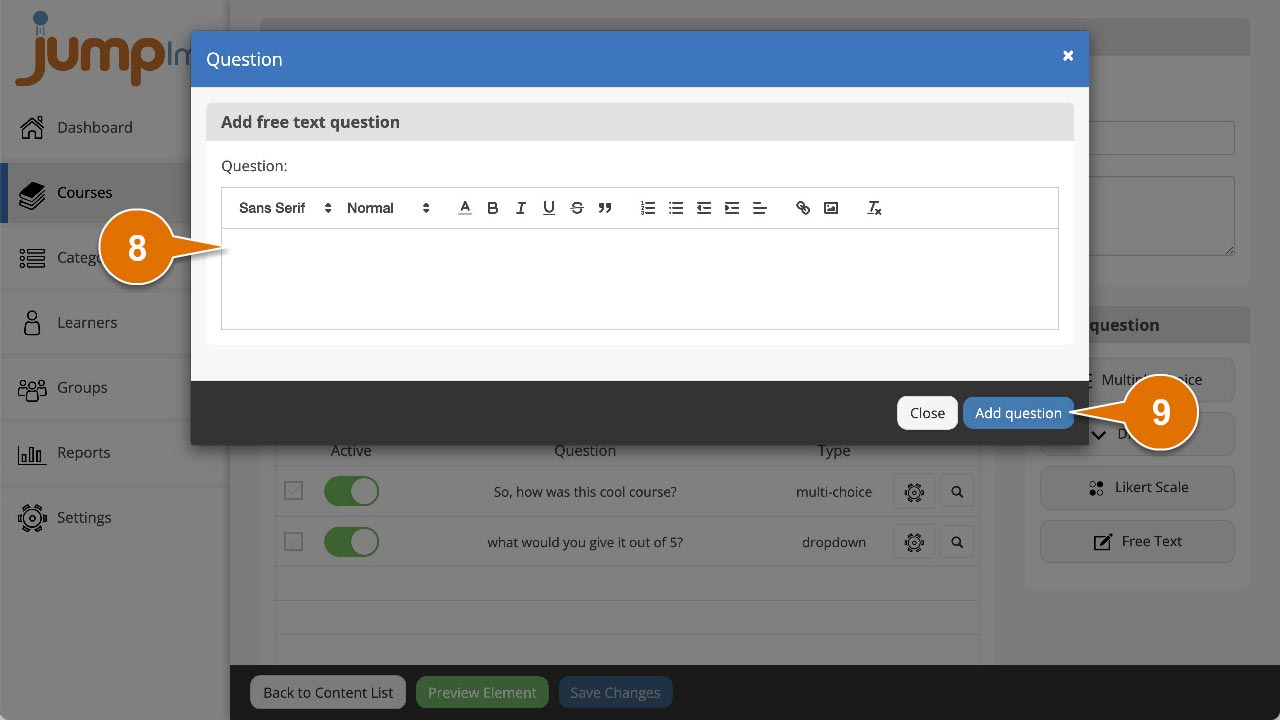
The question will be activated and added to the end of the survey. You can preview how it looks by clicking the Preview icon.
Contact the JumpLMS team and we’ll help you find the right answer.