How to view a Learner's progress across all courses in JumpLMS
JumpLMS Learner Reports help you review a Learner's overall progress across every course they have been enrolled on.
You can use the Learner Overview report for a portal-level summary, then open the Courses tab to see progress data for each enrolled course.
How to view a Learner's progress across all courses
-
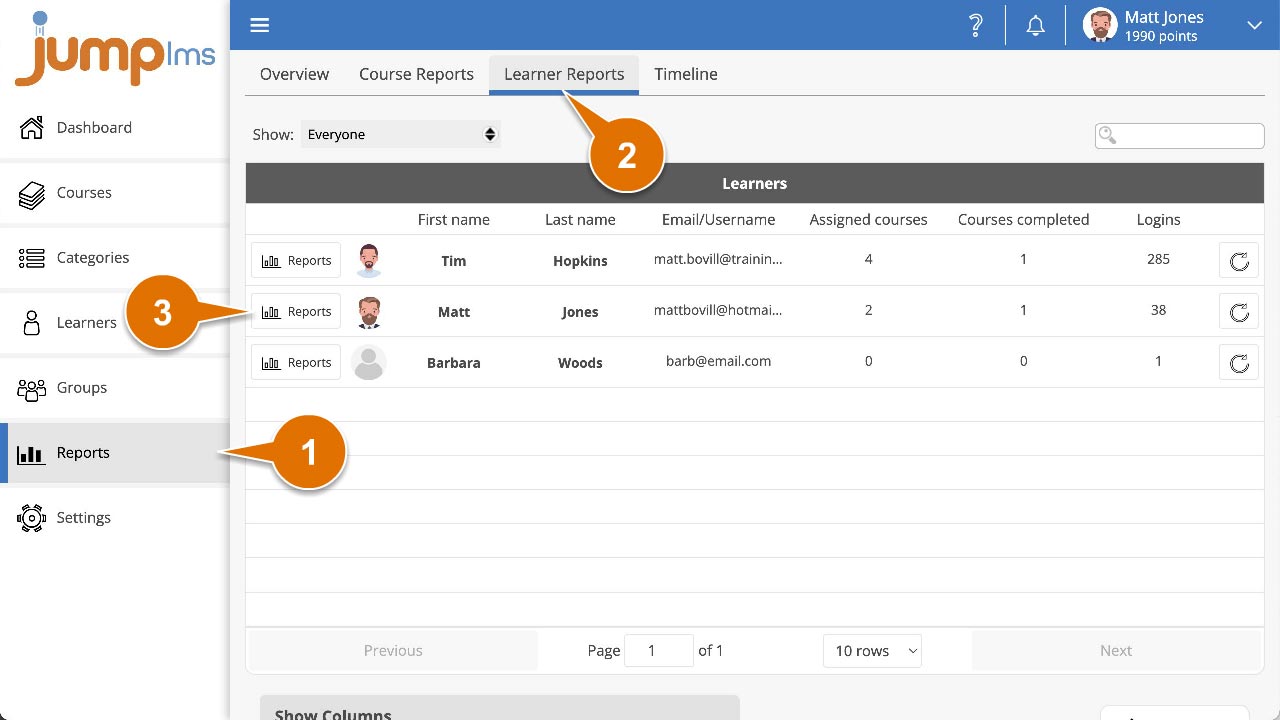
Click on the Reports tab.
-
Click on the Learner Reports tab.
-
Search for the required Learner, or find them in the table and click Reports.
-
Click on the Learner Overview tab to view a summary of the Learner's progress across the portal.
-
Click on the Courses tab.
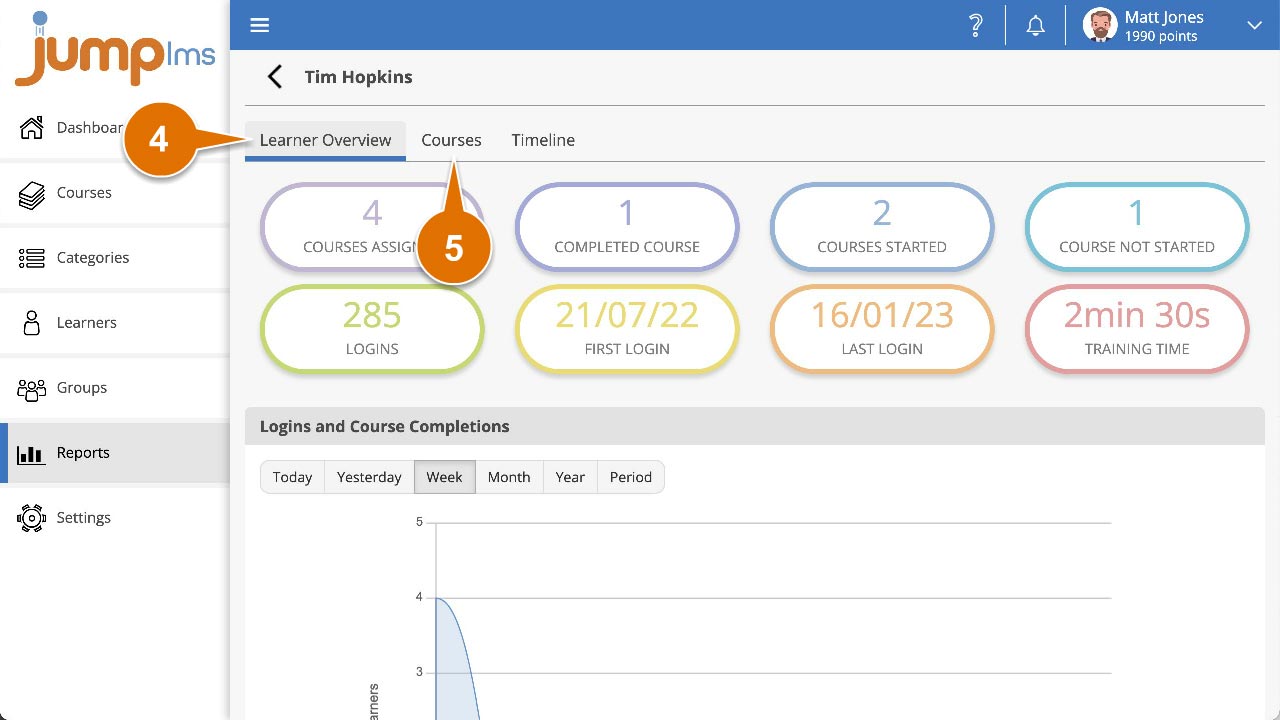
You can now view a breakdown of the Learner's progress through all the courses they have been enrolled on. Data includes:
- Progress percentage
- Completion status
- Score, when applicable
- Total training time
- Completion date
- Total accesses
- First accessed
- Last accessed
- Points earned
Contact the JumpLMS team and we’ll help you find the right answer.