How to preview a course element in JumpLMS
JumpLMS lets you preview your course content while you are building it, so you can check how it will look and work before Learners access it.
You can preview the full course, an individual course element, or a specific test or survey question.
How to preview a full course
-
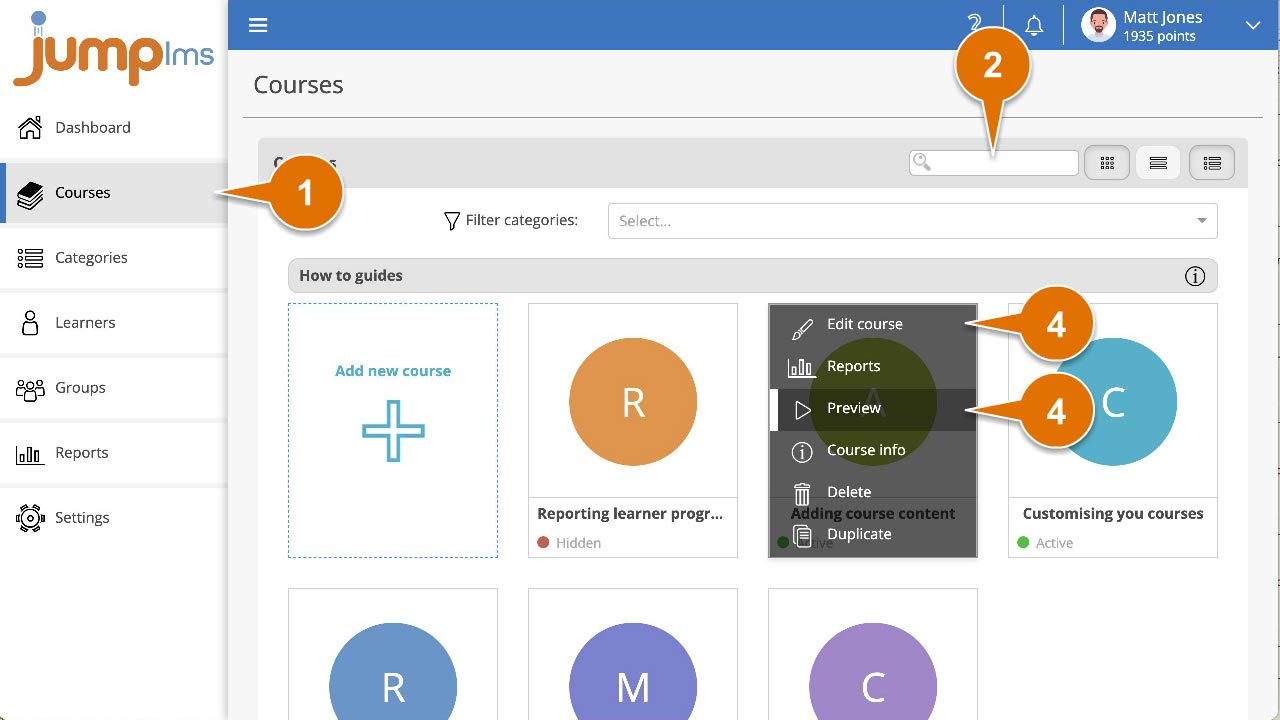
Click on the Courses tab.
-
Search for the course you want to preview, or find it in the course list.
-
Open the course options and click Preview to launch the course in its current configuration. Alternatively, click Edit course and continue with the steps below.
-
If you opened the course editor, click Preview Course.
The course will launch in its current configuration.
How to preview an individual course element
-
Open the course editor using the steps above.
-
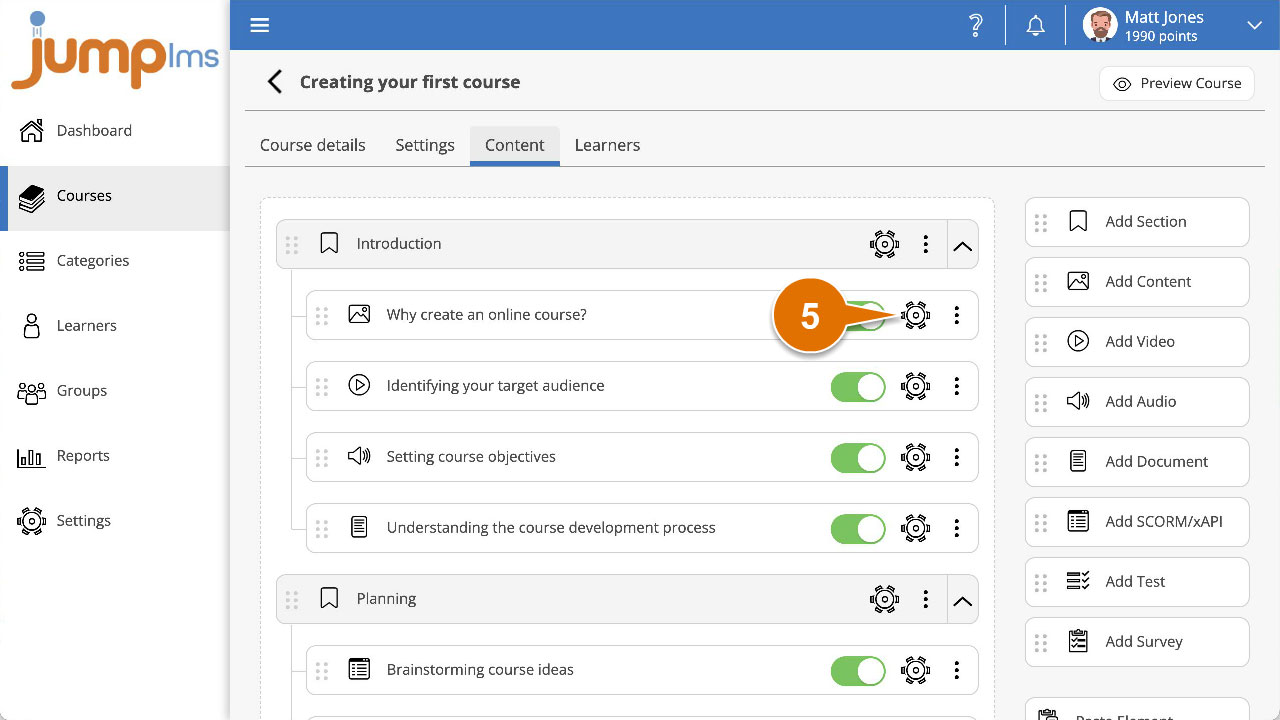
Locate the element you want to preview and click the Edit button.
-
Click Preview Element.
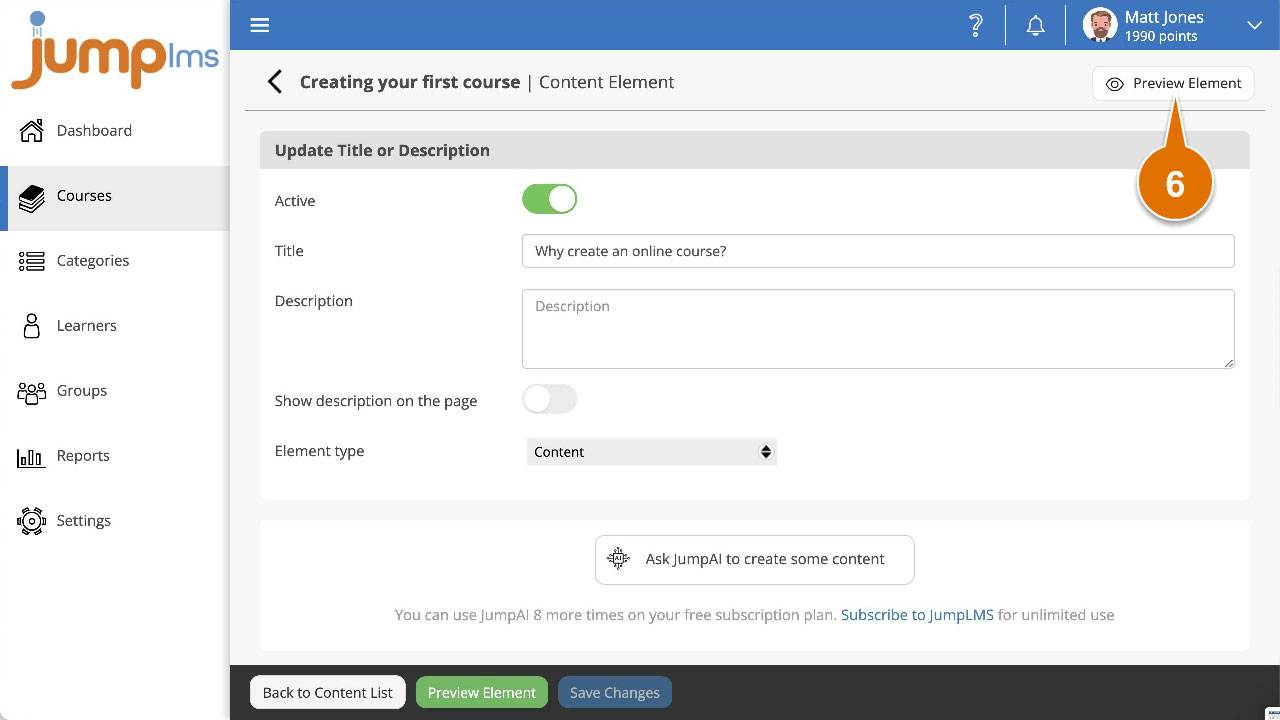
The course element will launch in its current configuration in a popup window.
How to preview a test or survey question
-
Open the course editor using the steps above.
-
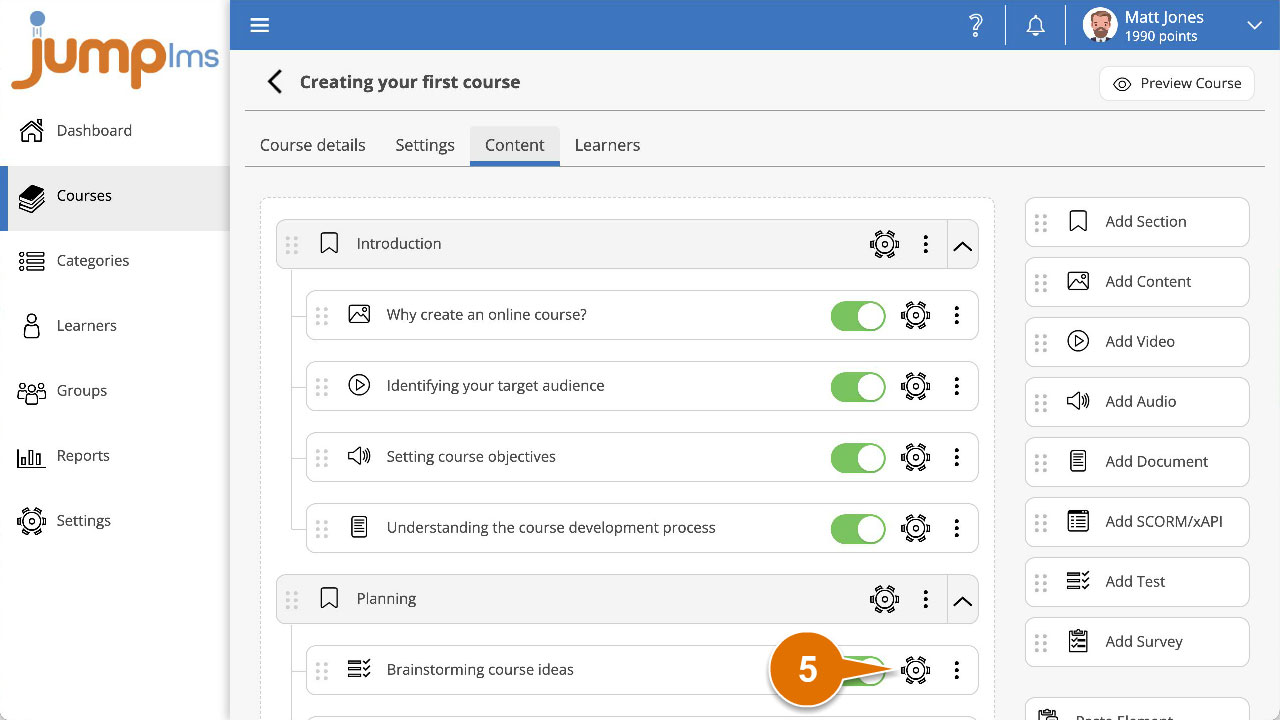
Locate the test or survey element that contains the question you want to preview and click the Edit button.
-
Locate the question you want to preview and click the Preview button.
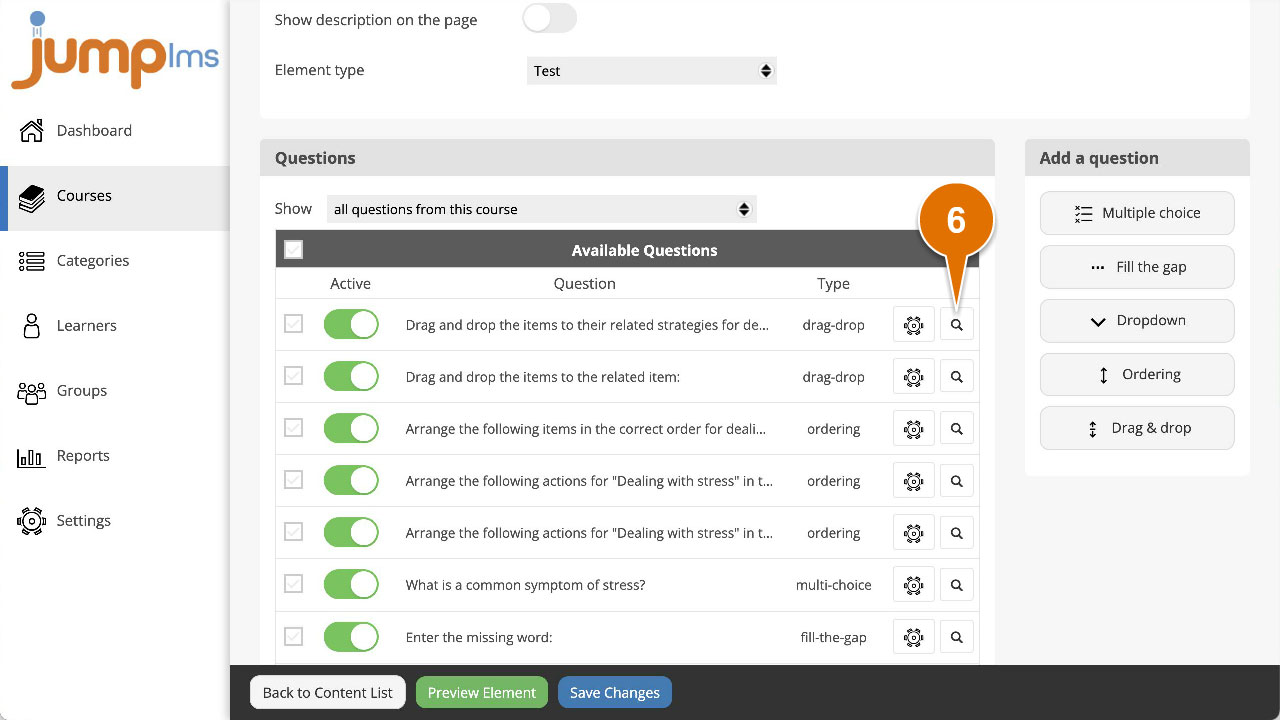
The question will launch in its current configuration in a popup window.
Contact the JumpLMS team and we’ll help you find the right answer.