How to set a Learner's access level in JumpLMS
JumpLMS allows you to control what each Learner can access and manage inside your portal.
You can set a Learner as a standard Learner, Group manager or Administrator, depending on the level of responsibility they need.
How to set a Learner's access level
-
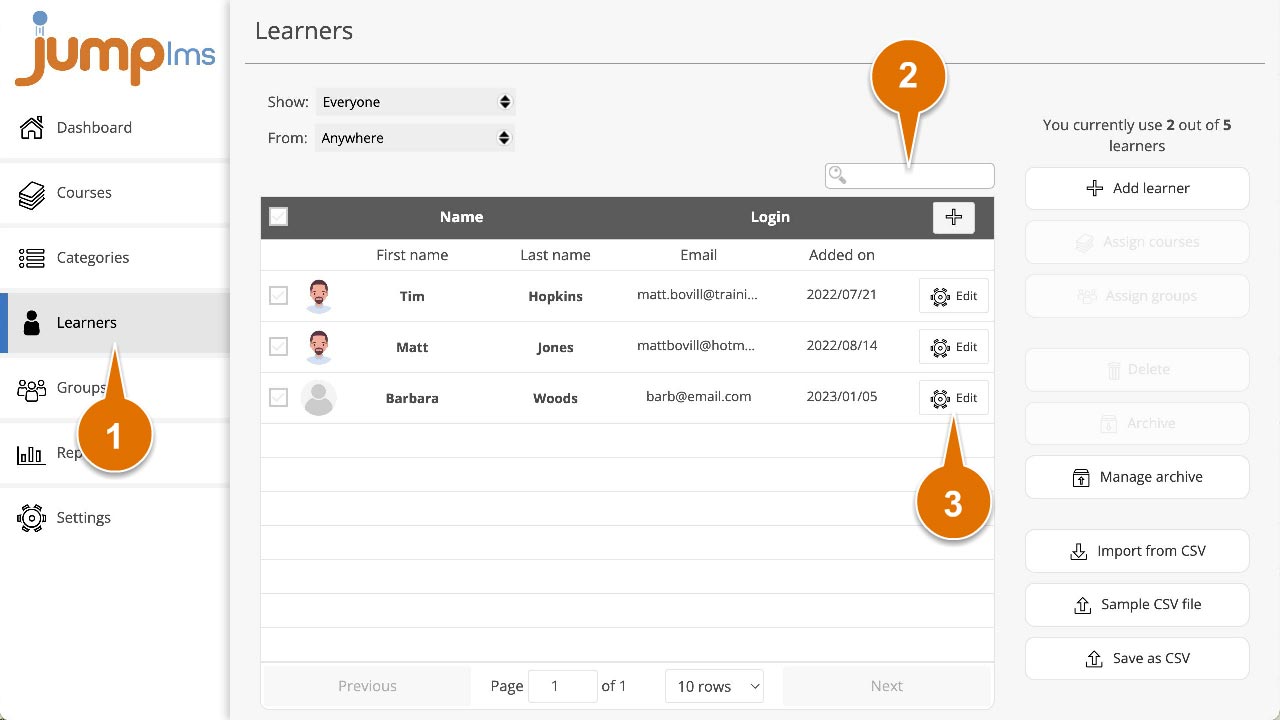
Click on the Learners tab.
-
Search for the Learner whose access level you want to change, or find them in the Learners list.
-
Click Edit.
-
Open the Learner type dropdown and select the relevant access level.
-
Click Save changes.
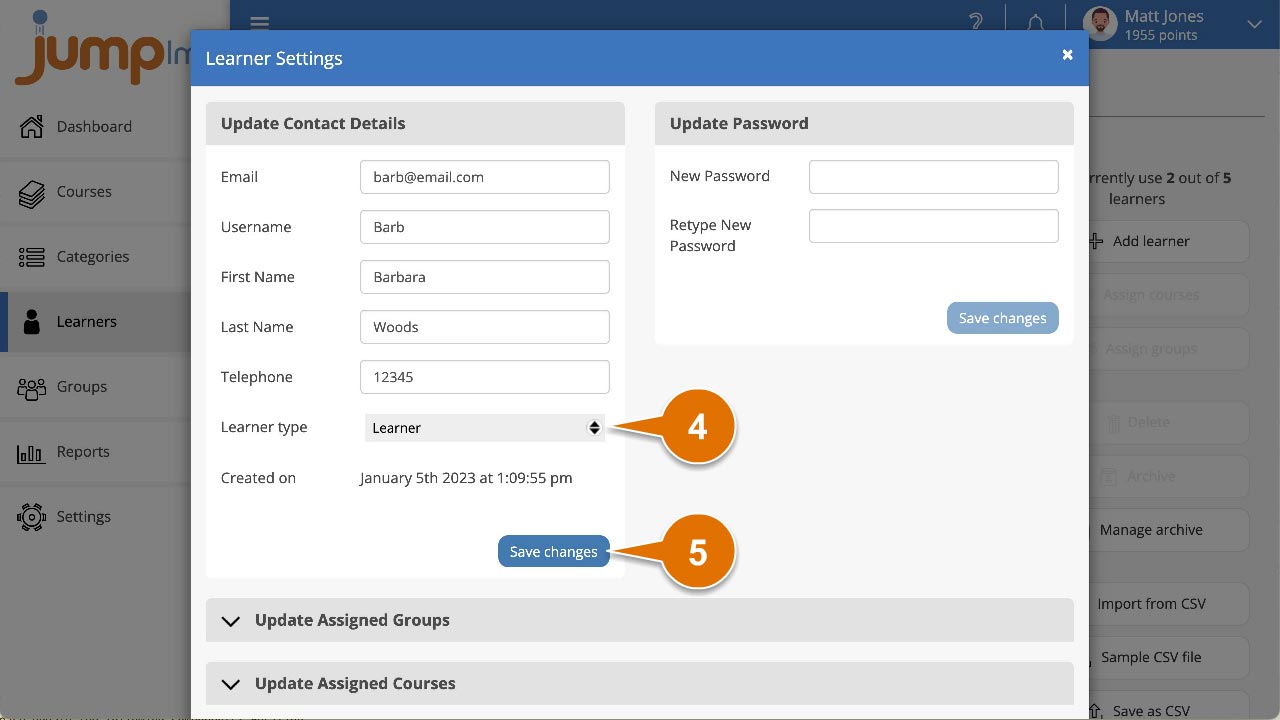
The Learner's access level has now been updated.
JumpLMS access levels explained
Learner access
This access level has no editing rights. It allows Learners to:
- Play active courses they have been enrolled on.
- View their progress reports.
- View the course catalogue, if permission has been given by an administrator.
Group manager access
This access level allows Group managers to:
- Edit and manage the courses assigned to the groups they manage.
- View Learner progress reports and course reports for their assigned groups.
- Manage Learners.
- Create and manage groups.
Administrator access
This is the highest access level in JumpLMS. Administrators can:
- Create, edit and manage all courses.
- View all Learner progress reports and all course reports.
- Create and manage course categories.
- Add, remove and manage Learners.
- Create and manage groups.
- Create and manage certificates.
- Create and manage automatic notifications.
- Manage gamification settings.
- Manage the subscription.
- Edit and manage portal customisation.
Contact the JumpLMS team and we’ll help you find the right answer.