How to duplicate a content element in JumpLMS
JumpLMS lets you duplicate content elements so you can reuse existing course content without rebuilding it from scratch.
You can copy an element and paste it into the course you are currently editing.
How to duplicate a content element
-
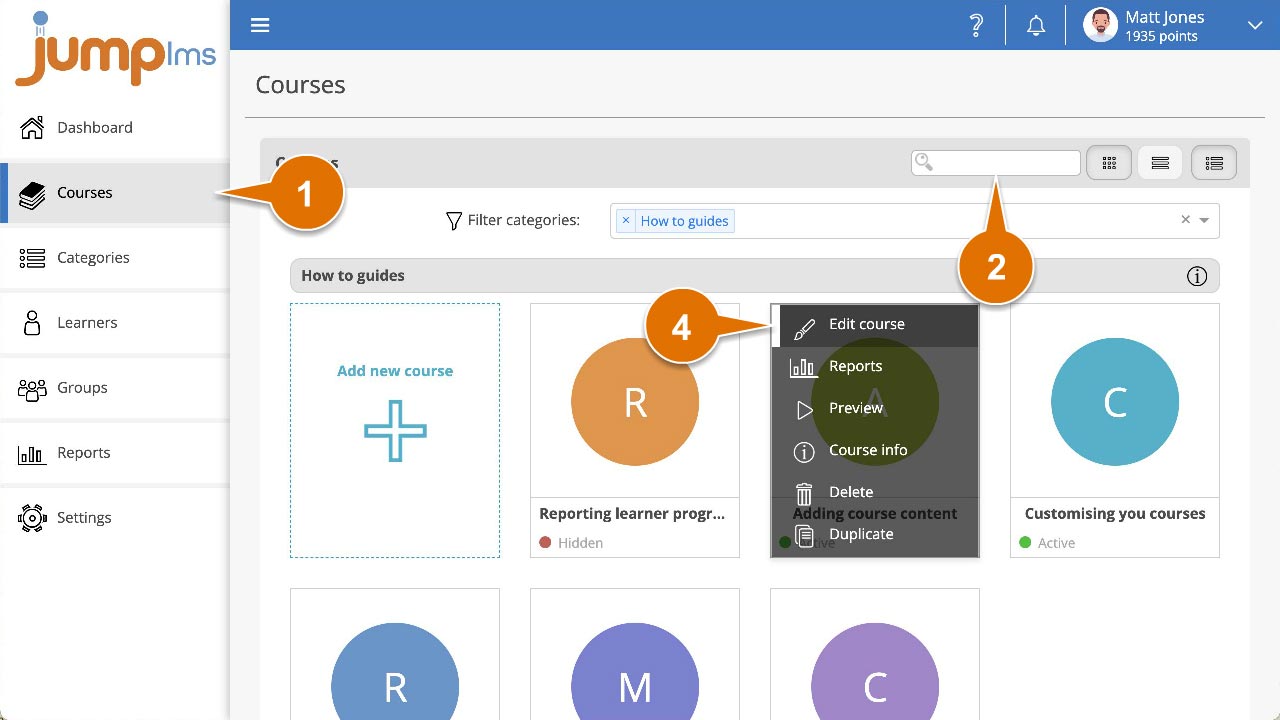
Click on the Courses tab.
-
Search for the course that contains the element you want to duplicate, or find it in the course list.
-
Open the course options and click Edit course.
-
Click on the Content tab.
-
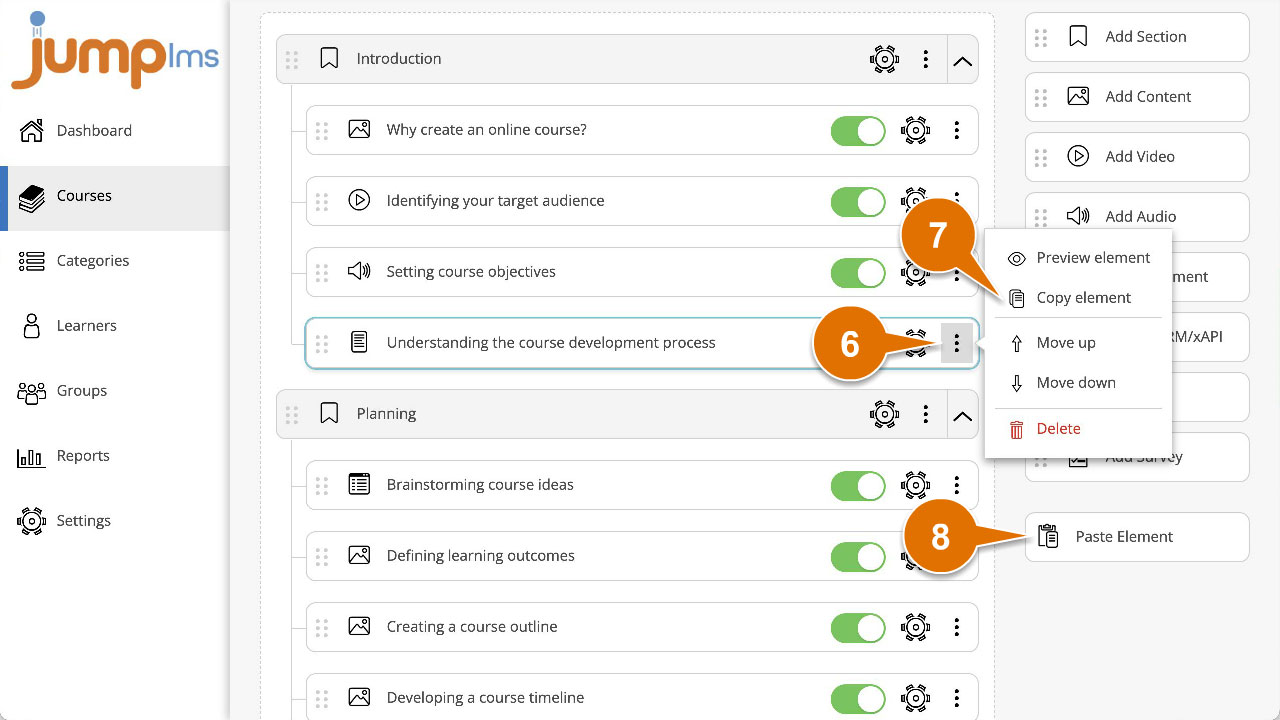
Locate the element you want to duplicate and click the More button.
-
Click Copy element.
-
Click Paste element to add a copy of the element into the course you are currently editing.
The duplicate element has now been added to your course.
Contact the JumpLMS team and we’ll help you find the right answer.