How to view a Learner's survey answers in JumpLMS
JumpLMS survey reports help you review how Learners responded to individual questions in completed surveys.
You can access a Learner's survey answers from either Course Reports or Learner Reports, depending on where you prefer to start.
How to view survey answers from Course Reports
-
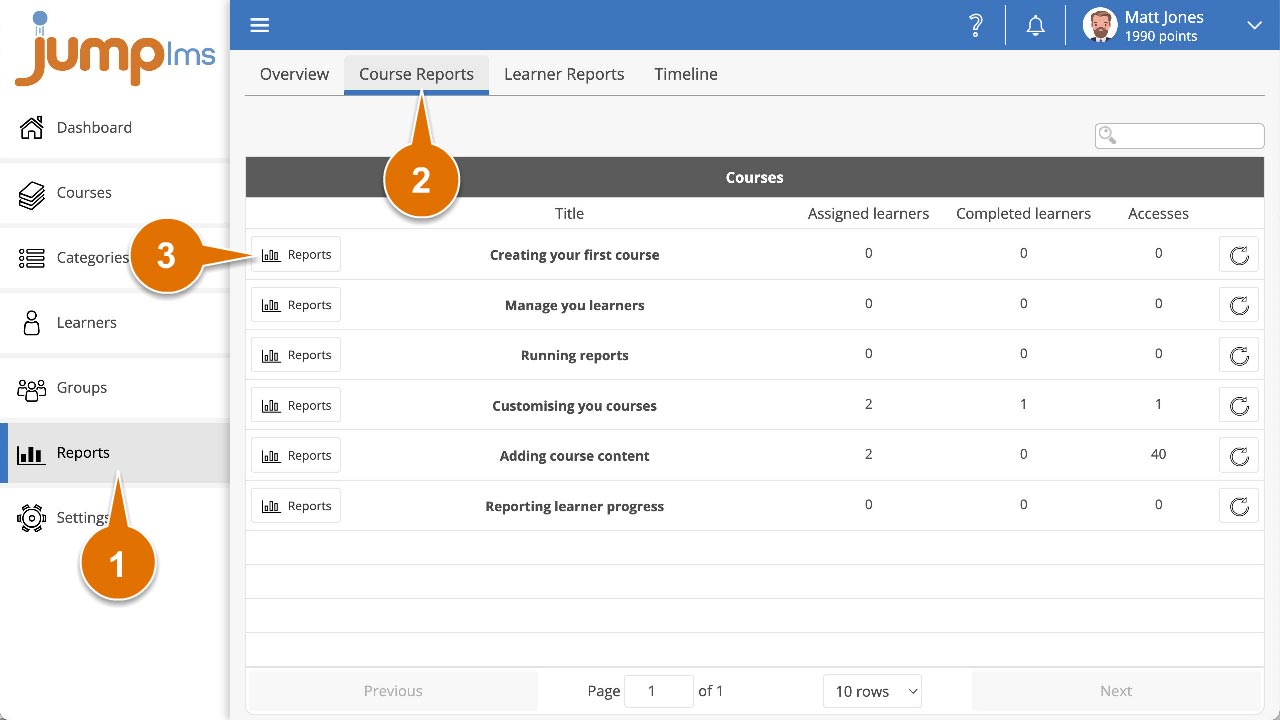
Click on the Reports tab.
-
Click on the Course Reports tab.
-
Search for the required course, or find it in the table and click Reports.
-
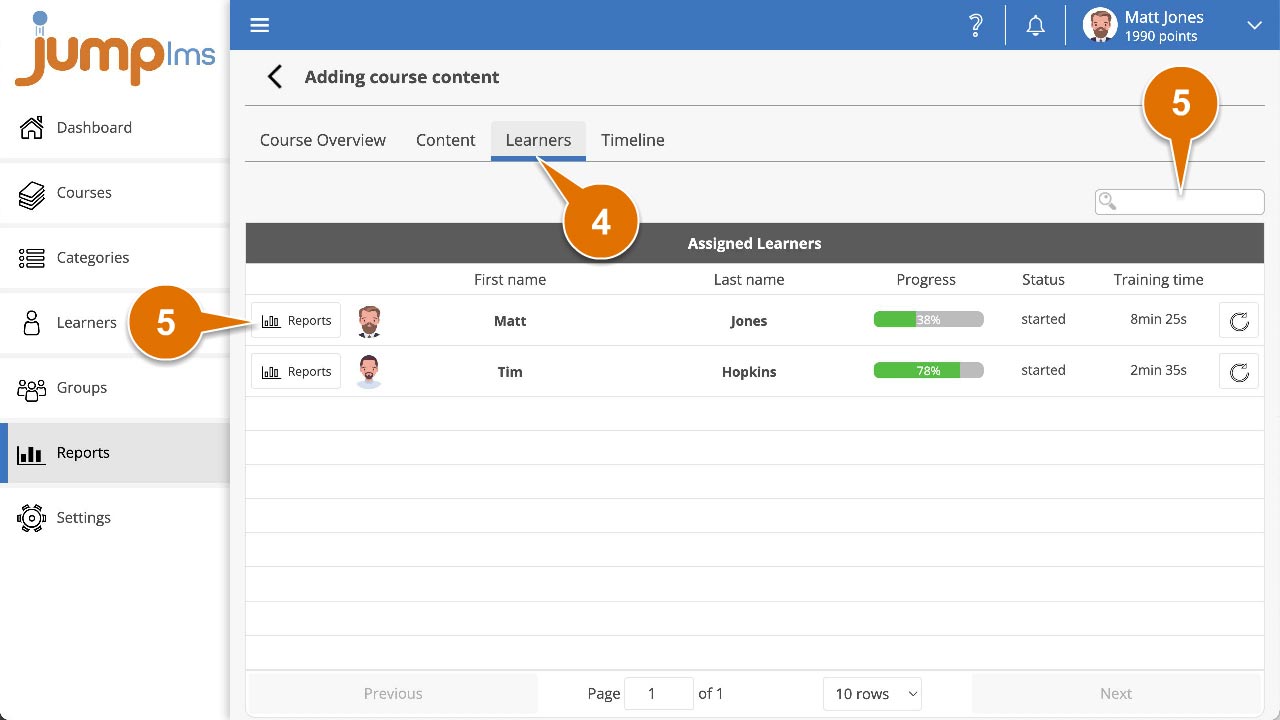
Click on the Learners tab.
-
Search for the required Learner, or find them in the table and click Reports.
-
Find the required survey element in the table and click Reports. Alternatively, click on the survey title tab.
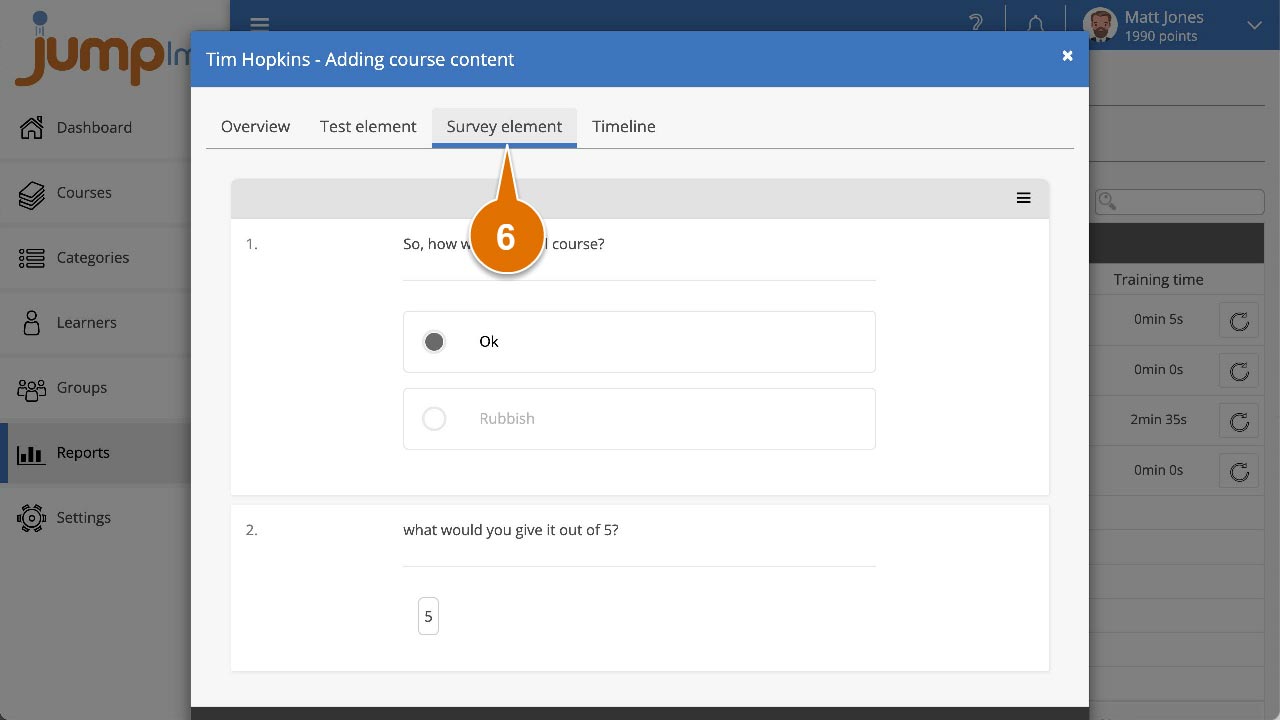
You can now view a question-by-question breakdown of the Learner's responses in the survey.
How to view survey answers from Learner Reports
-
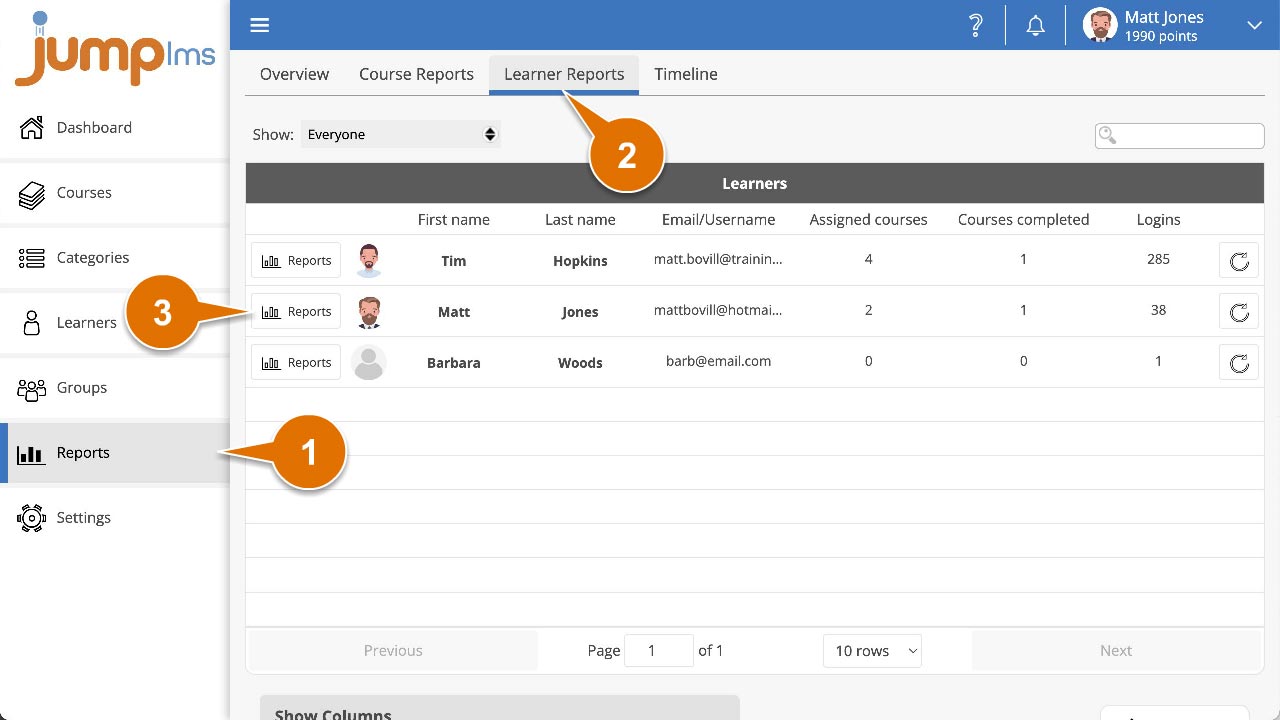
Click on the Reports tab.
-
Click on the Learner Reports tab.
-
Search for the required Learner, or find them in the table and click Reports.
-
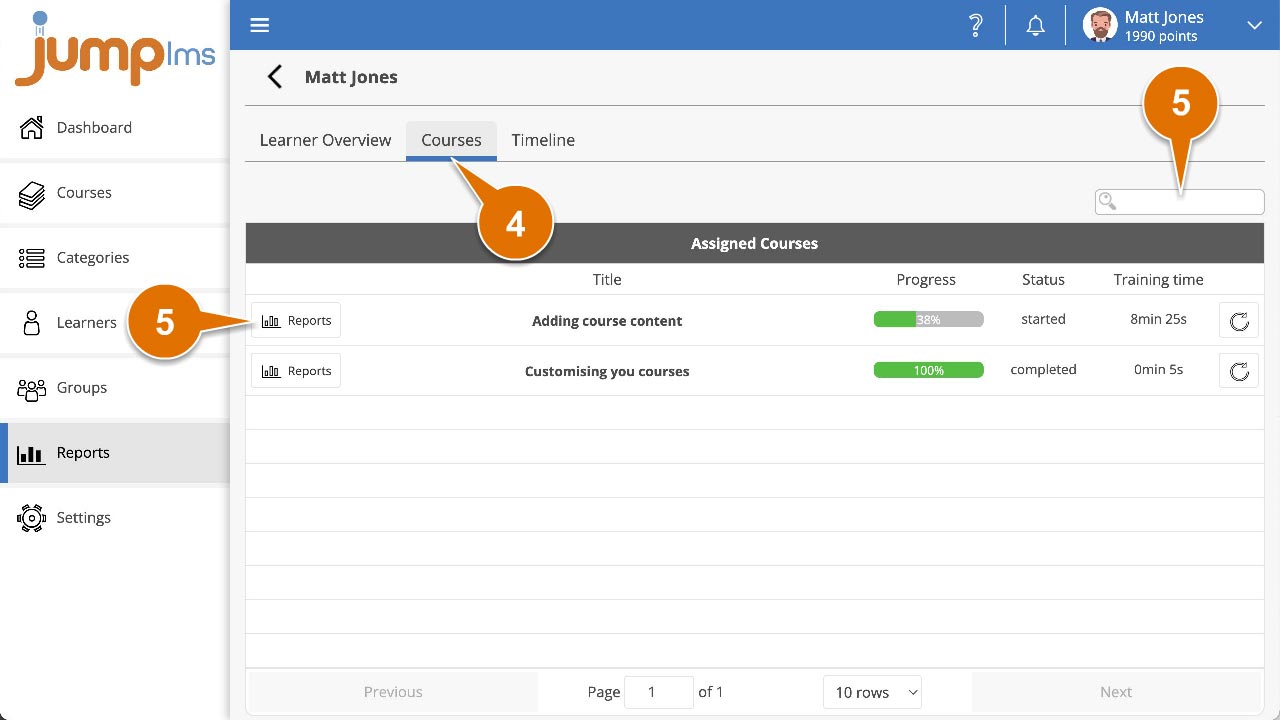
Click on the Courses tab.
-
Search for the required course, or find it in the table and click Reports.
-
Find the required survey element in the table and click Reports. Alternatively, click on the survey title tab.
You can now view a question-by-question breakdown of the Learner's responses in the survey.
Contact the JumpLMS team and we’ll help you find the right answer.