How to read and manage your messages in JumpLMS
The JumpLMS messaging system works in a familiar way, similar to an email application.
From the Notification Centre, you can read messages, search your inbox or sent messages, reply, forward, delete, and mark messages as read or unread.
How to read your messages
-
Click the Notifications button.
-
Open either the Inbox or Sent tab.
-
Search for the message, or find it in the list. The system will search your messages for any word or phrase you enter.
-
Click the message, or click Read to open it.
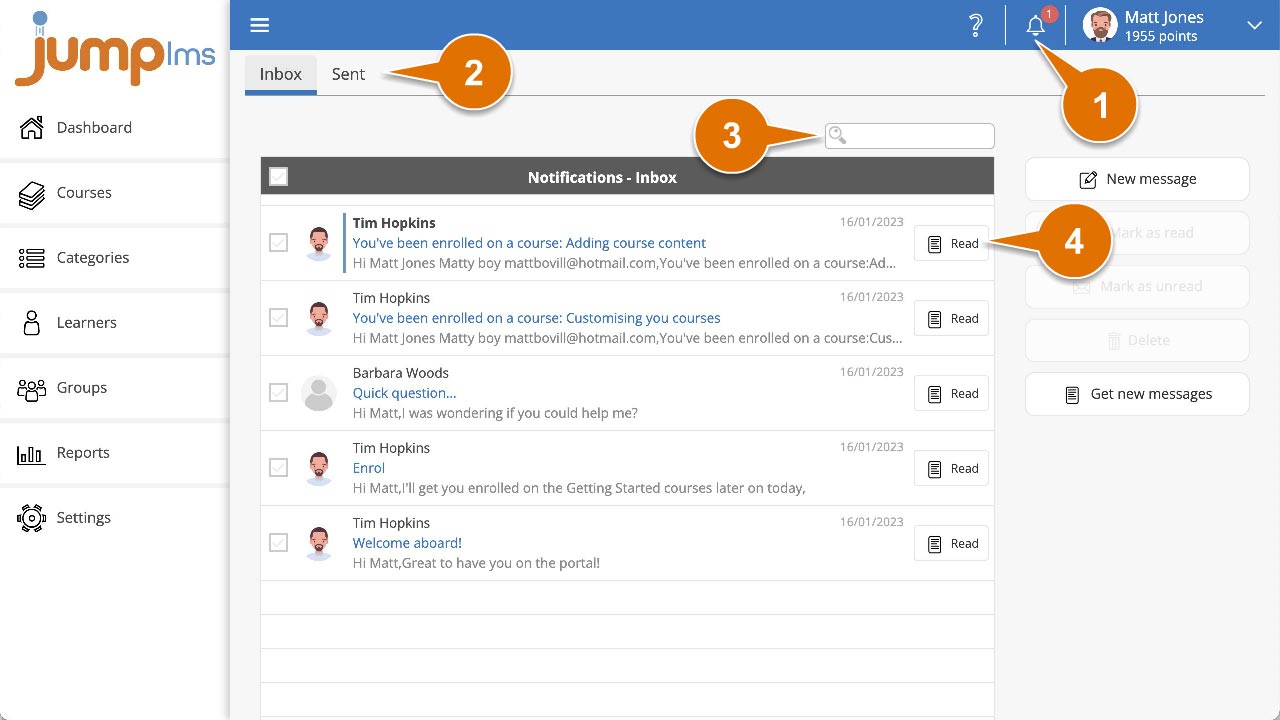
You can now read the message, reply, reply all, forward it or delete it.
How to delete your messages
-
Click the Notifications button.
-
Open either the Inbox or Sent tab.
-
Search for the message, or find it in the list. The system will search your messages for any word or phrase you enter.
-
Tick each message you want to delete.
-
Click Delete.
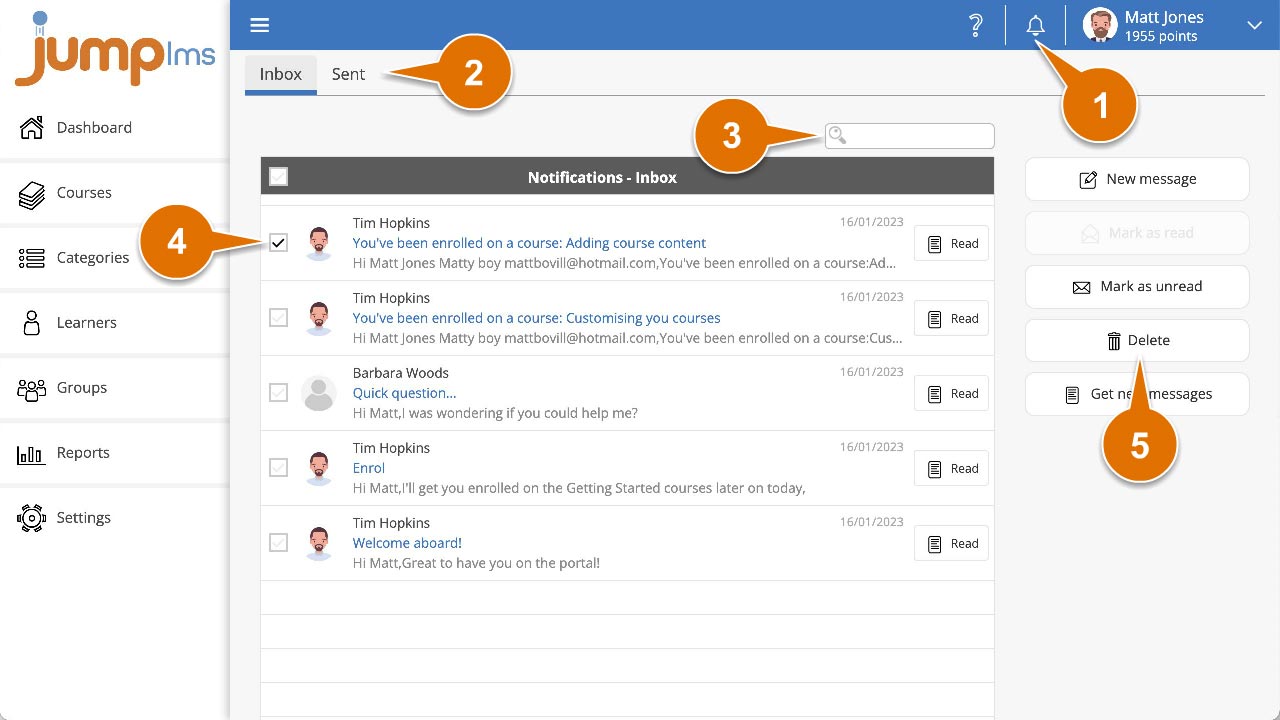
The selected messages have now been deleted.
How to mark messages as read or unread
-
Click the Notifications button.
-
Open either the Inbox or Sent tab.
-
Search for the message, or find it in the list. The system will search your messages for any word or phrase you enter.
-
Tick each message you want to update.
-
Click Mark as read or Mark as unread to change the message status.
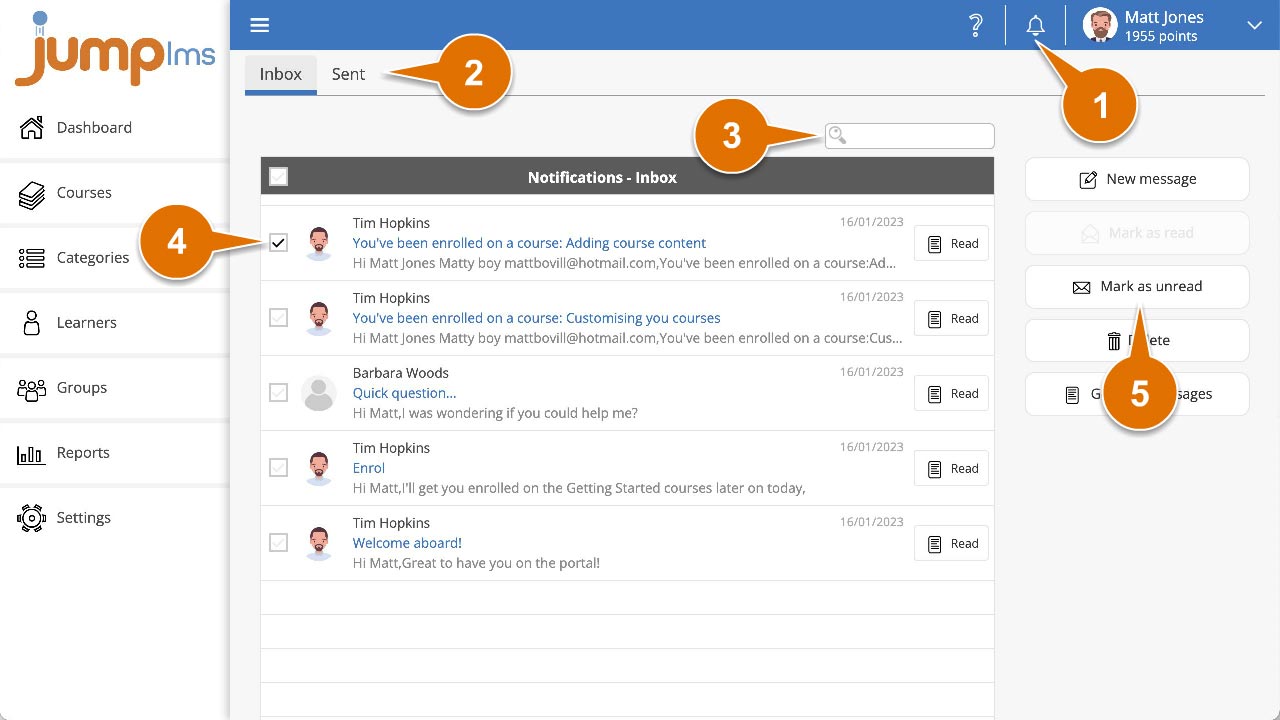
The selected messages will now appear as read or unread.
Contact the JumpLMS team and we’ll help you find the right answer.