How to preview a course in JumpLMS
JumpLMS lets you preview a course at any stage, whether it is still being developed or has already gone live.
Previewing a course helps you check the Learner experience, course structure, navigation, completion rules, and content before assigning it more widely.
How to preview a course
-
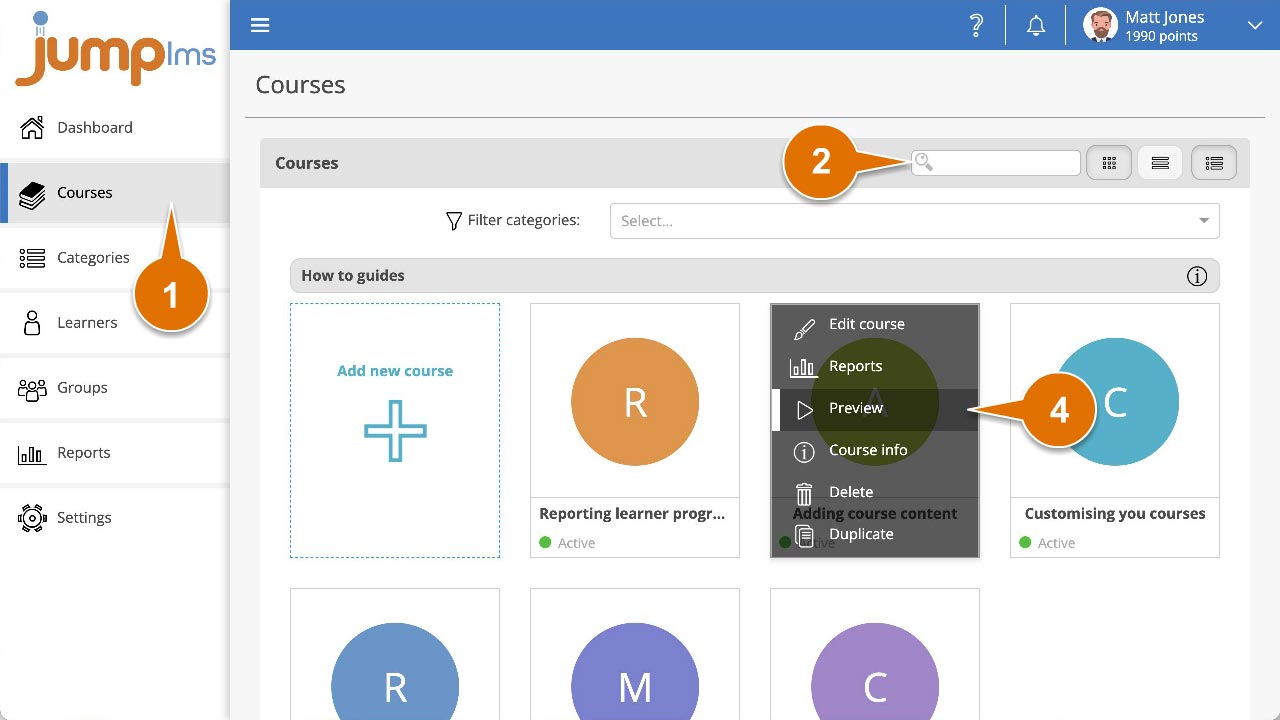
Click on the Courses tab.
-
Search for the course you want to preview, or find it in the course list.
-
Open the course options.
-
Click Preview to launch the course immediately in its current configuration.
-
Alternatively, click Edit course, then click Preview Course from inside the course editor.
The course will launch in its current configuration.
Contact the JumpLMS team and we’ll help you find the right answer.