How to set up a Likert scale question in JumpLMS
Likert scale questions allow Learners to answer a series of related subquestions using the same scaled set of response options.
This question type is ideal for surveys where you want to measure how strongly Learners agree, disagree, feel, rate or respond to a set of statements.
How to set up a Likert scale question
-
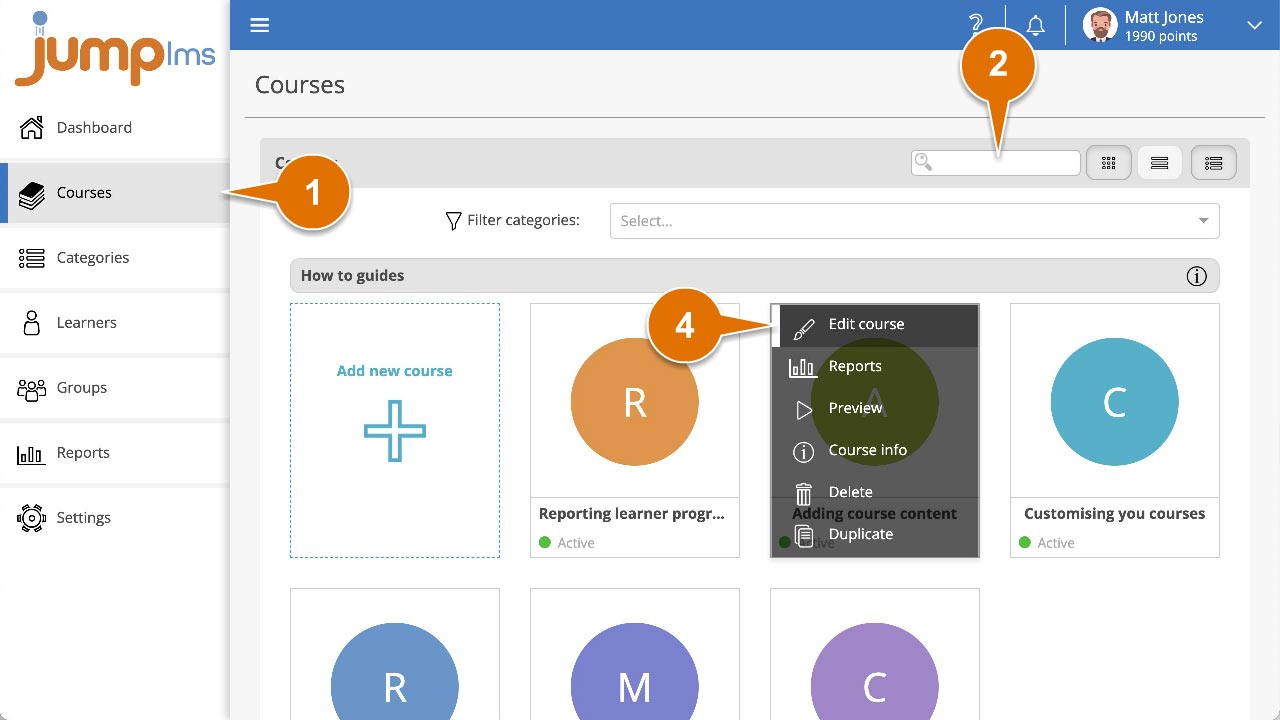
Click on the Courses tab.
-
Search for the course that contains the survey you want to edit, or find it in the list.
-
If you are using a touchscreen device, click the course thumbnail. If you are using a computer, hover over the course thumbnail.
-
Click Edit course.
-
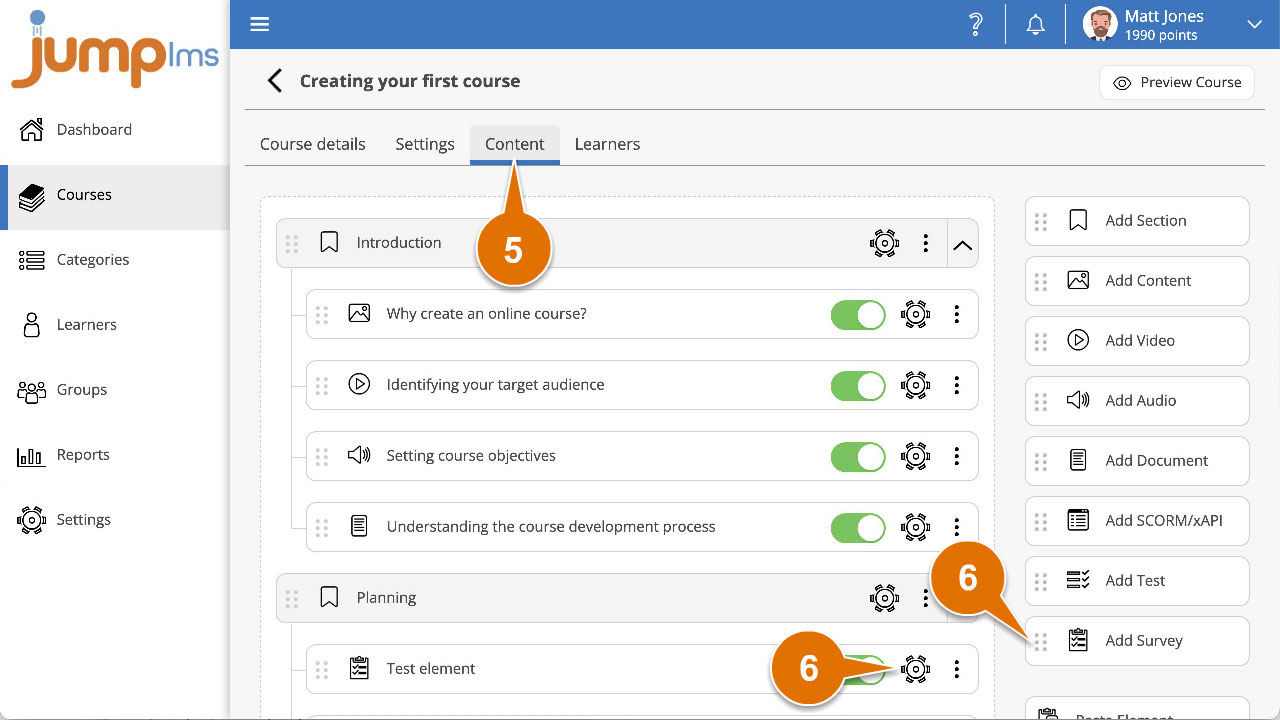
Click on the Content tab.
-
Find the survey element in the Course Elements list and click Edit. Alternatively, click Add Survey to create a new survey element.
-
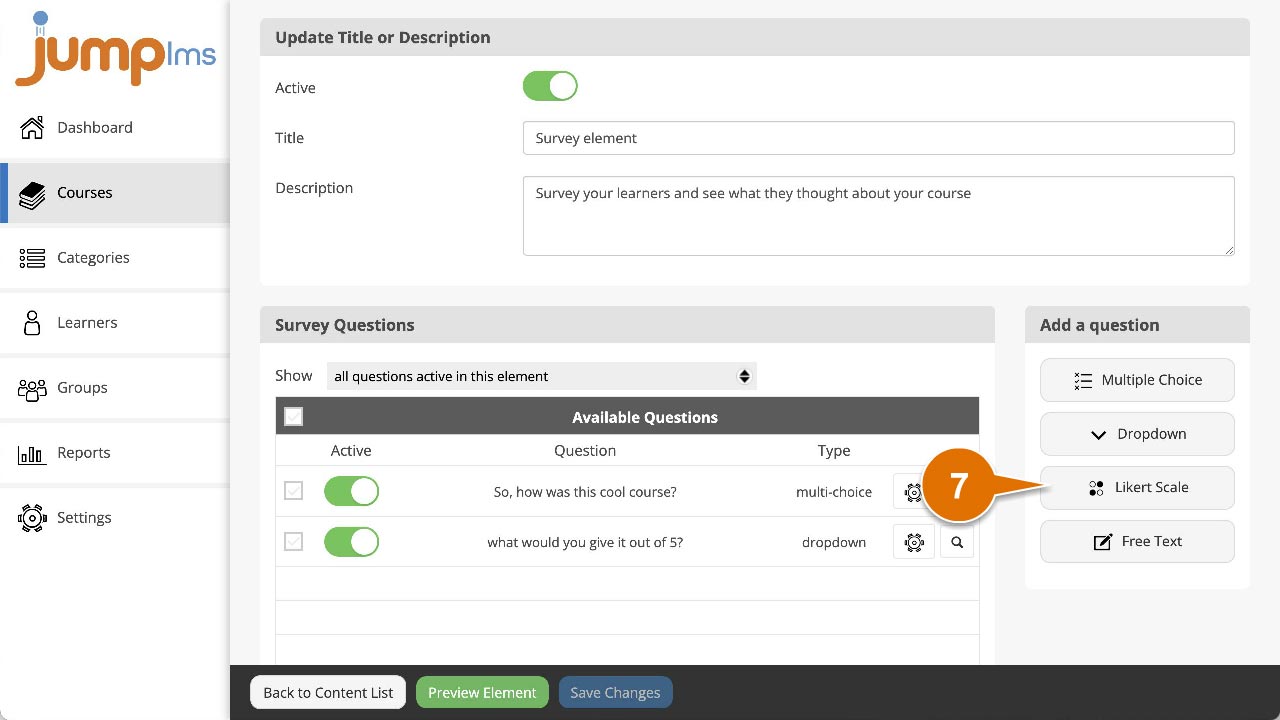
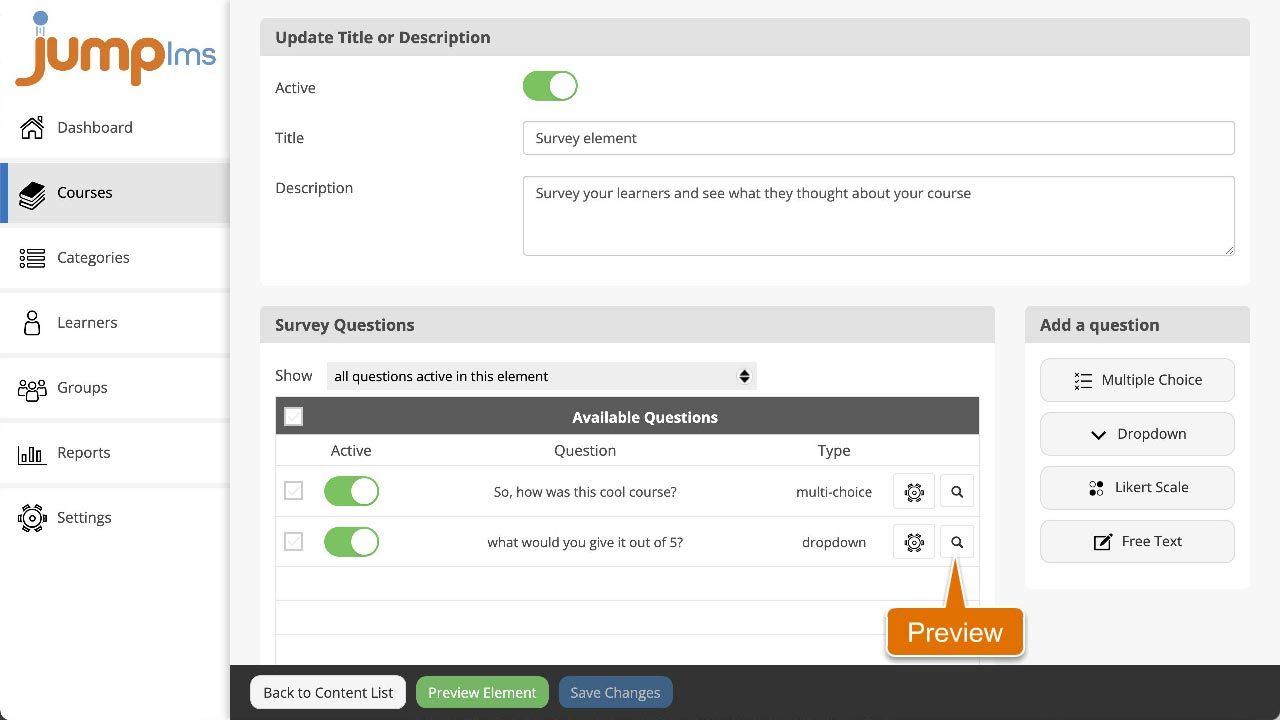
Click Likert Scale in the Add a question panel.
-
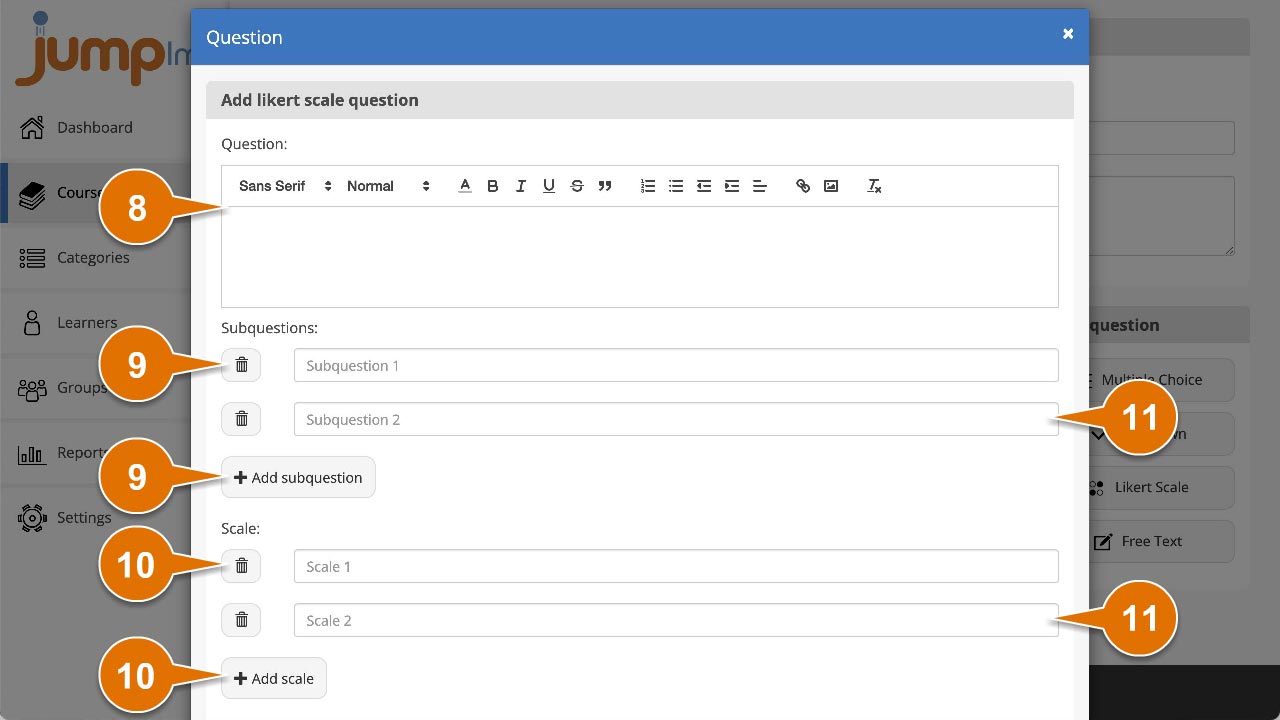
Enter the question text and/or images.
-
Add or remove subquestions by clicking Add subquestion or the relevant Remove icon.
-
Add or remove scale intervals by clicking Add scale or the relevant Remove icon.
-
Enter the text for each subquestion and each scale interval.
-
Click Add question.
The question will be activated and added to the end of the survey. You can preview how it looks by clicking the Preview icon.
Contact the JumpLMS team and we’ll help you find the right answer.