How to change your portal's colour scheme in JumpLMS
Last updated on
You can apply your own colour scheme to your JumpLMS portal so it matches your organisation's branding.
The colour scheme controls the portal header, sub-header and background colours, helping you create a more consistent branded experience for your Learners.
If you already have brand colours, you can enter the HTML hex values to select the exact colours you need.
How to change your portal's colour scheme
-
Click on the Settings tab.
-
Click the Customise tab.
-
In the Colour Scheme panel, click the Header, Sub-header or Background colour swatch.
-
Select the colour you want from the colour palette, or enter the colour's hex value into the input box.
-
Click Save changes.
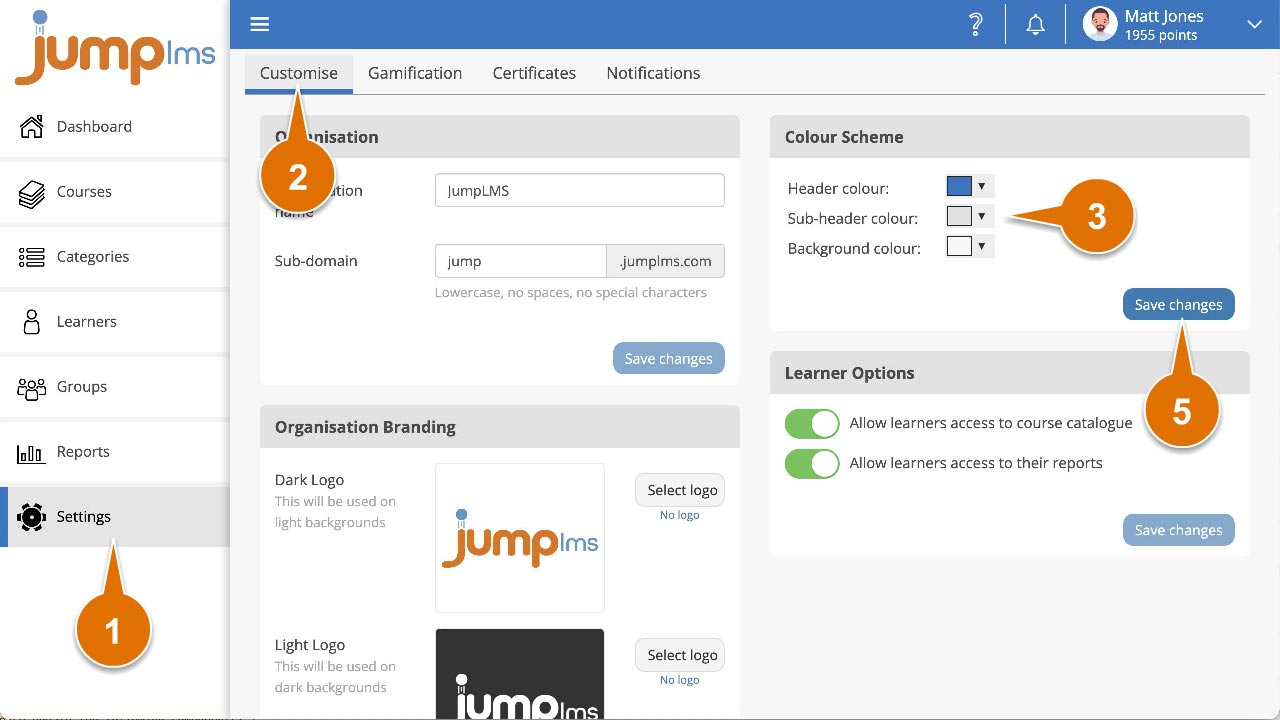
Your portal colour scheme has now been updated.
Did this article help?
Can't find what you're looking for?
Contact the JumpLMS team and we’ll help you find the right answer.
Contact the JumpLMS team and we’ll help you find the right answer.