How to create a SCORM/xAPI element in JumpLMS
SCORM/xAPI elements let you add eLearning packages created in authoring tools such as Articulate, Adobe Captivate, and Gomo to your JumpLMS courses.
SCORM and xAPI packages must be uploaded as .zip files. You can upload a new package or reuse one that has already been added to your library.
How to create a SCORM/xAPI element
-
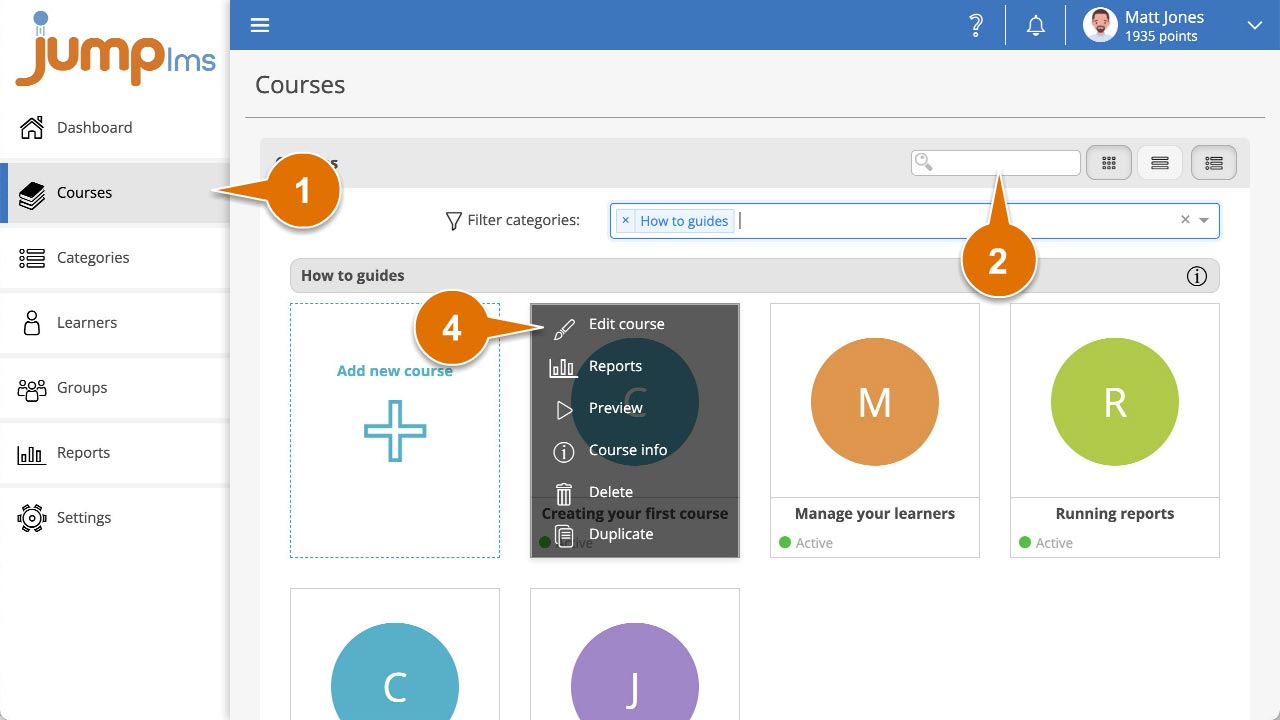
Click on the Courses tab.
-
Search for the course you want to add the SCORM/xAPI element to, or find it in the course list.
-
Open the course options and click Edit course.
-
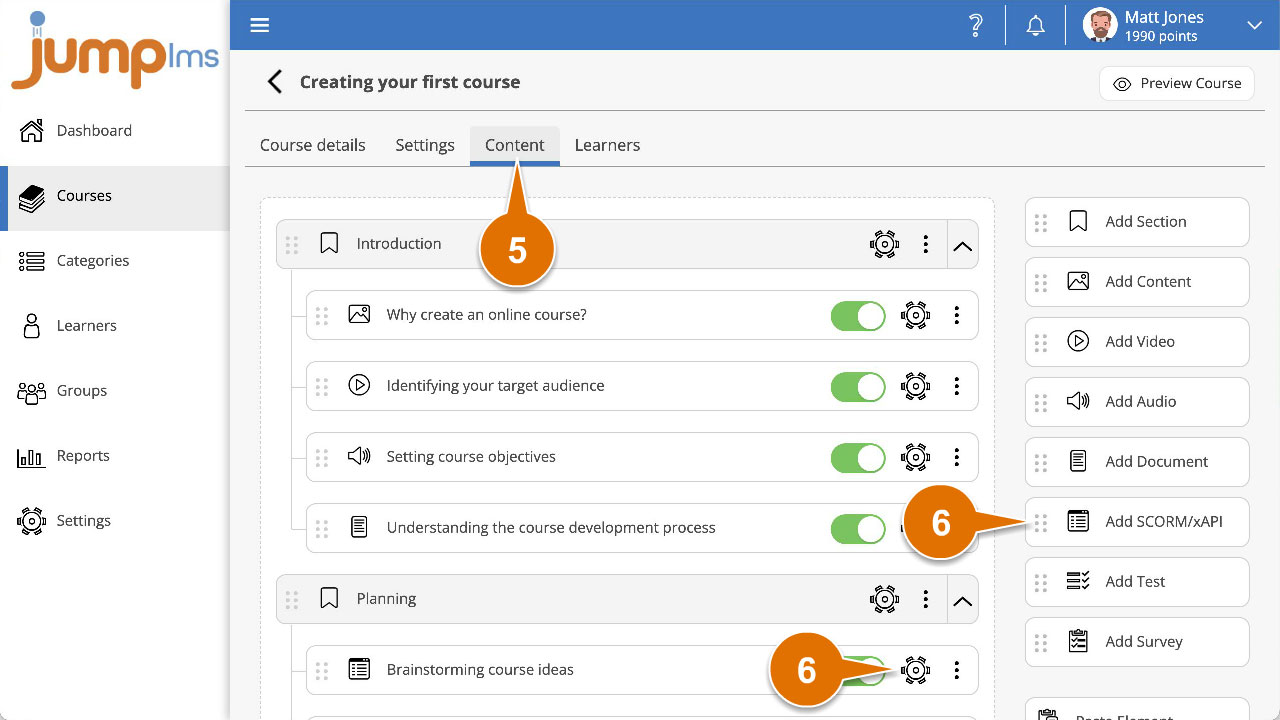
Click on the Content tab.
-
Click Add SCORM/xAPI to add the element to the end of the course structure, or drag and drop it into the position you want. Then click Edit.
-
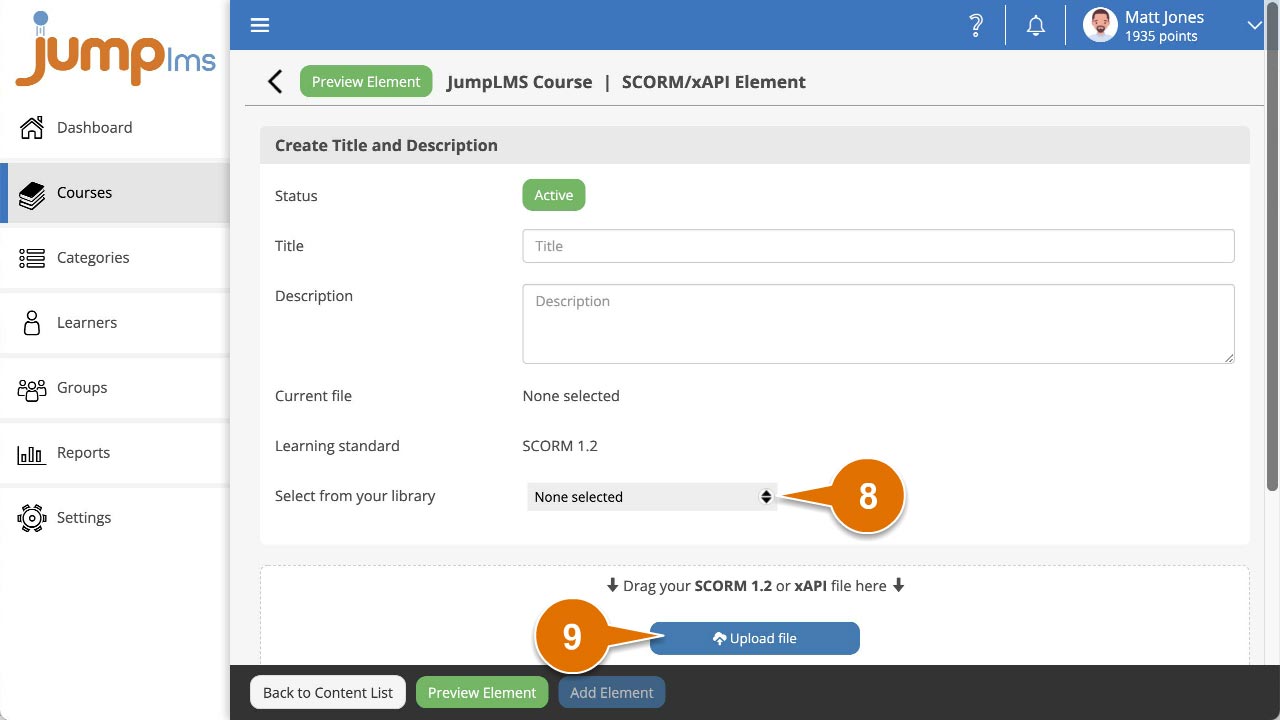
Enter a title and description for the element.
-
To reuse an existing SCORM/xAPI package, select it from the Select from your library dropdown.
-
To upload a new SCORM/xAPI package, click Upload file, or drag and drop the package from your computer into the upload area.
-
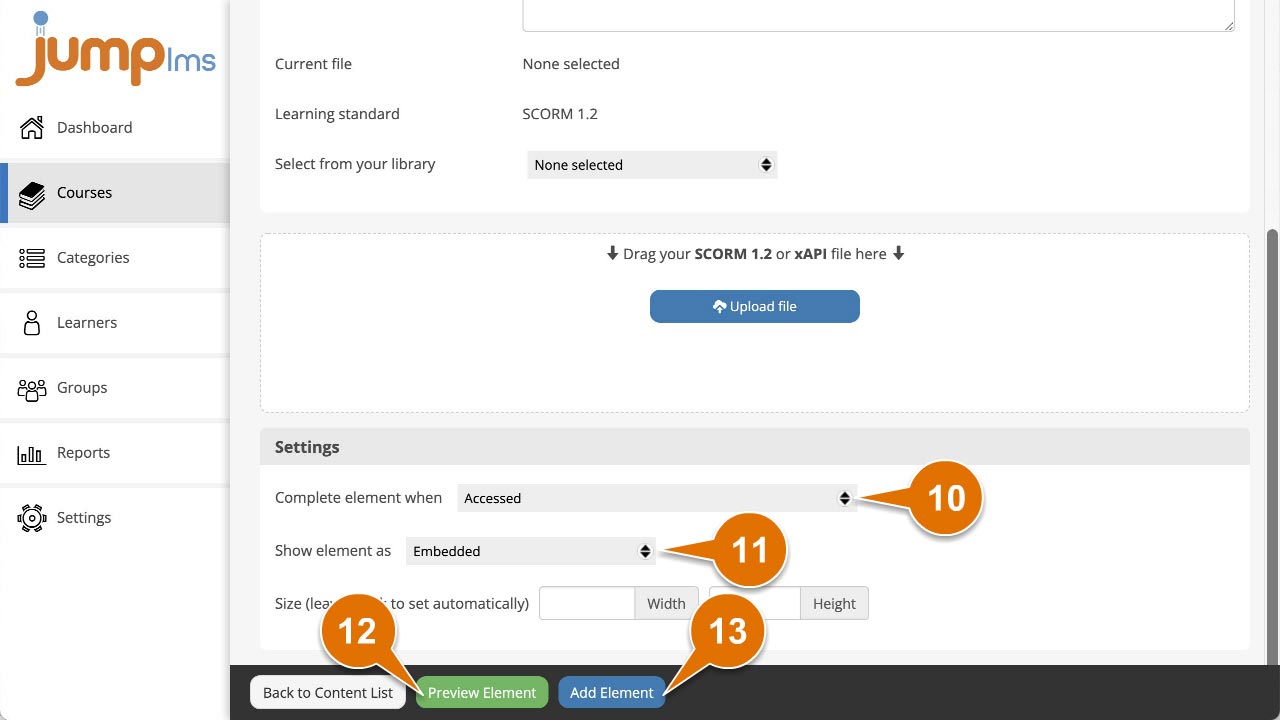
Set the completion criteria in the Settings panel by choosing an option from the Complete element when dropdown.
-
Choose how the SCORM/xAPI package should launch using the Show element as dropdown.
-
Set the launch size using the Size fields.
-
Click Preview Element if you want to see how the element will look in the course.
-
Click Add Element.
The SCORM/xAPI element has now been added to your course.
Contact the JumpLMS team and we’ll help you find the right answer.