How to export reports to a spreadsheet in JumpLMS
JumpLMS reports include interactive graphs, charts and tables that help you understand Learner progress and training activity.
If you need to use the report data outside JumpLMS, you can export reports as CSV files and open them in most spreadsheet applications.
How to export a report to a spreadsheet
-
Click on the Reports tab.
-
Select the type of report you want to export from the available tabs:
- Course Reports
- Learner Reports
- Timeline
-
If you want a more detailed report, search for the required Learner or course, or find it in the table and click Reports. Then select the required report type.
-
Select the data columns you want to display.
-
Click Save as CSV.
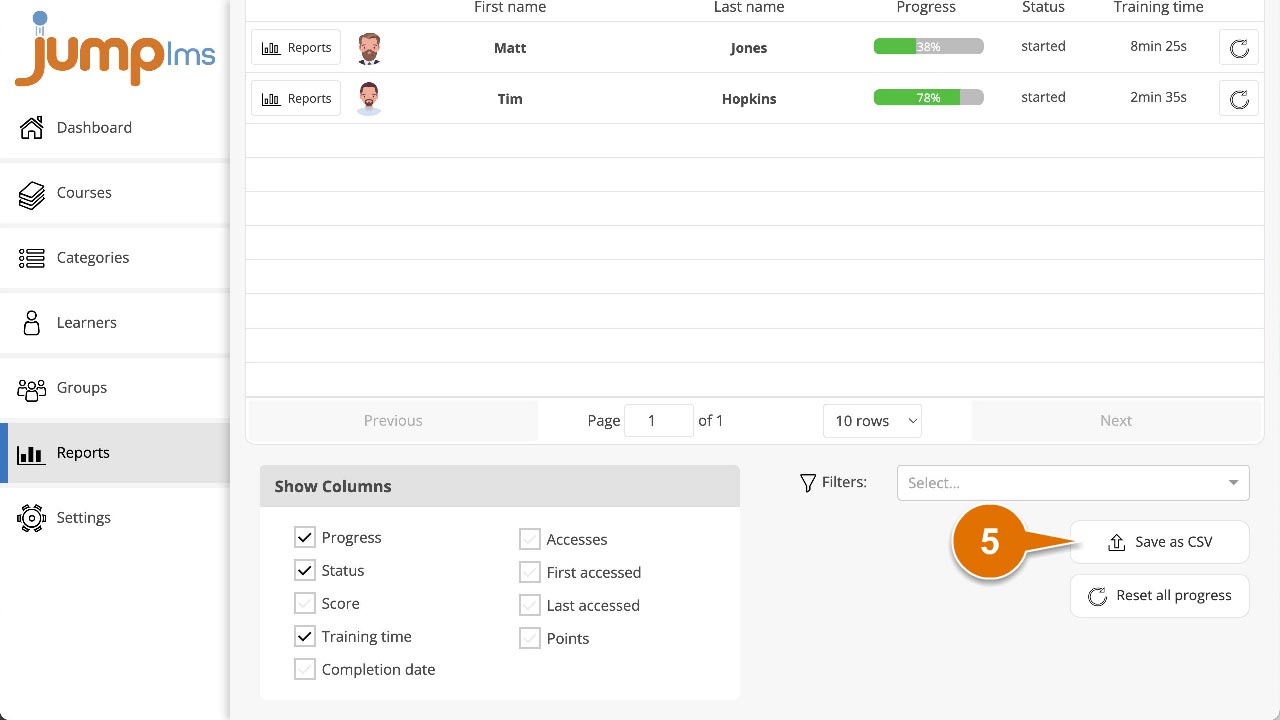
The CSV file will be downloaded and will contain the report data you selected.
Contact the JumpLMS team and we’ll help you find the right answer.