How to switch between administrator and Learner views in JumpLMS
Last updated on
Administrator and Learner views let you move between managing your JumpLMS portal and seeing the platform from a Learner’s perspective.
This is useful when you want to check how courses, messages, reports, and navigation appear to Learners after you have configured them as an administrator.
How to switch between administrator and Learner views
-
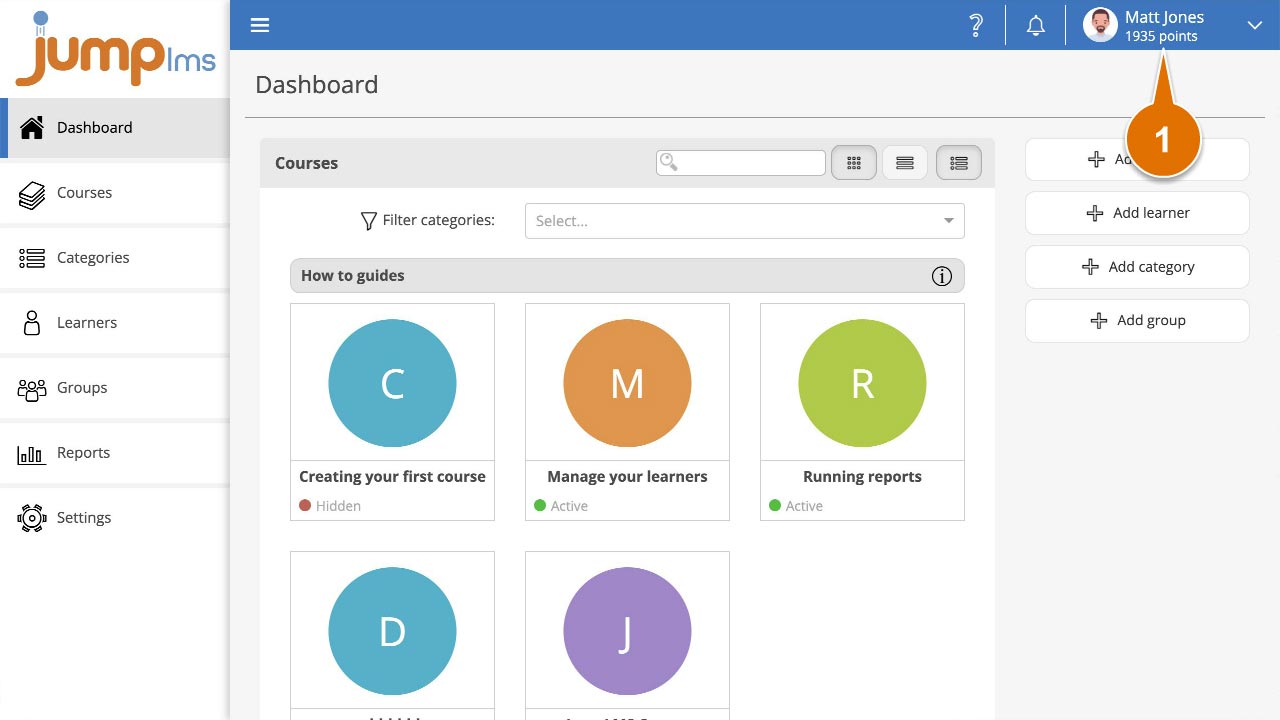
Click on your user profile image or name at the top-right of the screen to open your profile options menu.
-
Select Administrator view or Learner view.
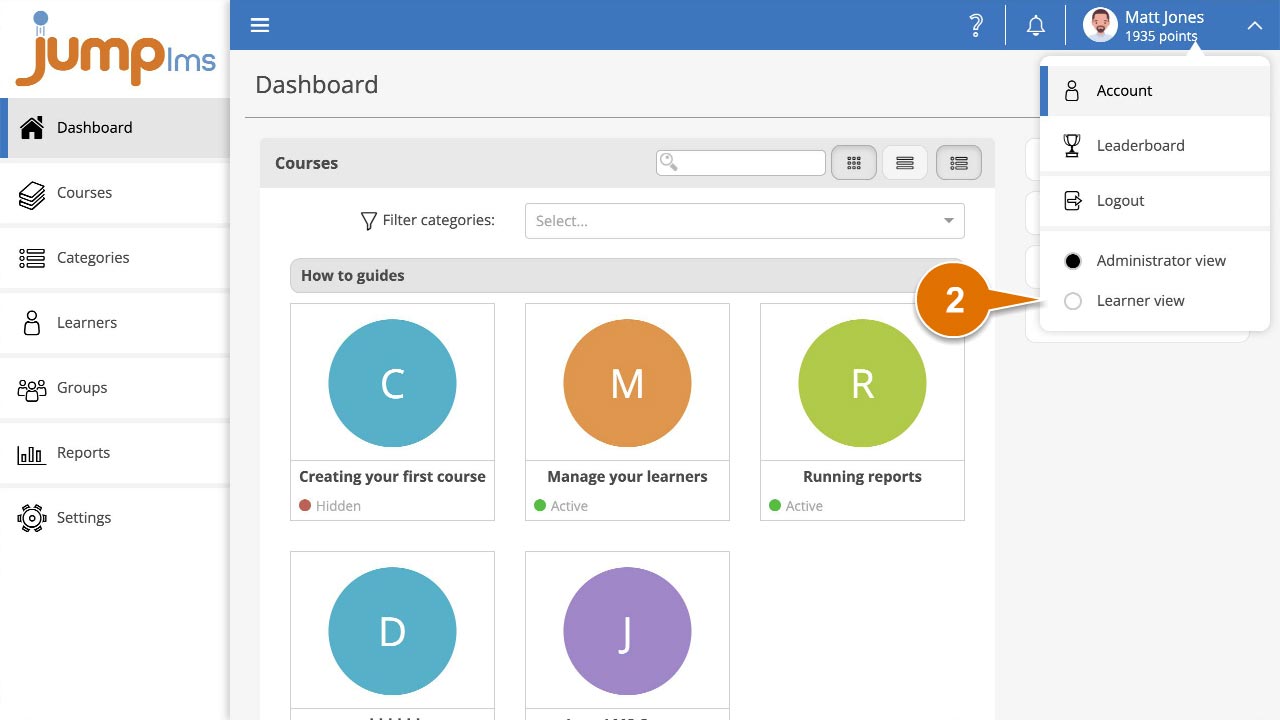
Your portal will automatically update to the selected view. To switch back, repeat the same steps and select the other view.
Did this article help?
Can't find what you're looking for?
Contact the JumpLMS team and we’ll help you find the right answer.
Contact the JumpLMS team and we’ll help you find the right answer.