How to set or disable the duration of a test in JumpLMS
JumpLMS lets you choose whether a test should be timed or untimed.
If you enable a timed test, you can set the duration in minutes. If you disable the timed test option, Learners can complete the test without a time limit.
How to set or disable the duration of a test
-
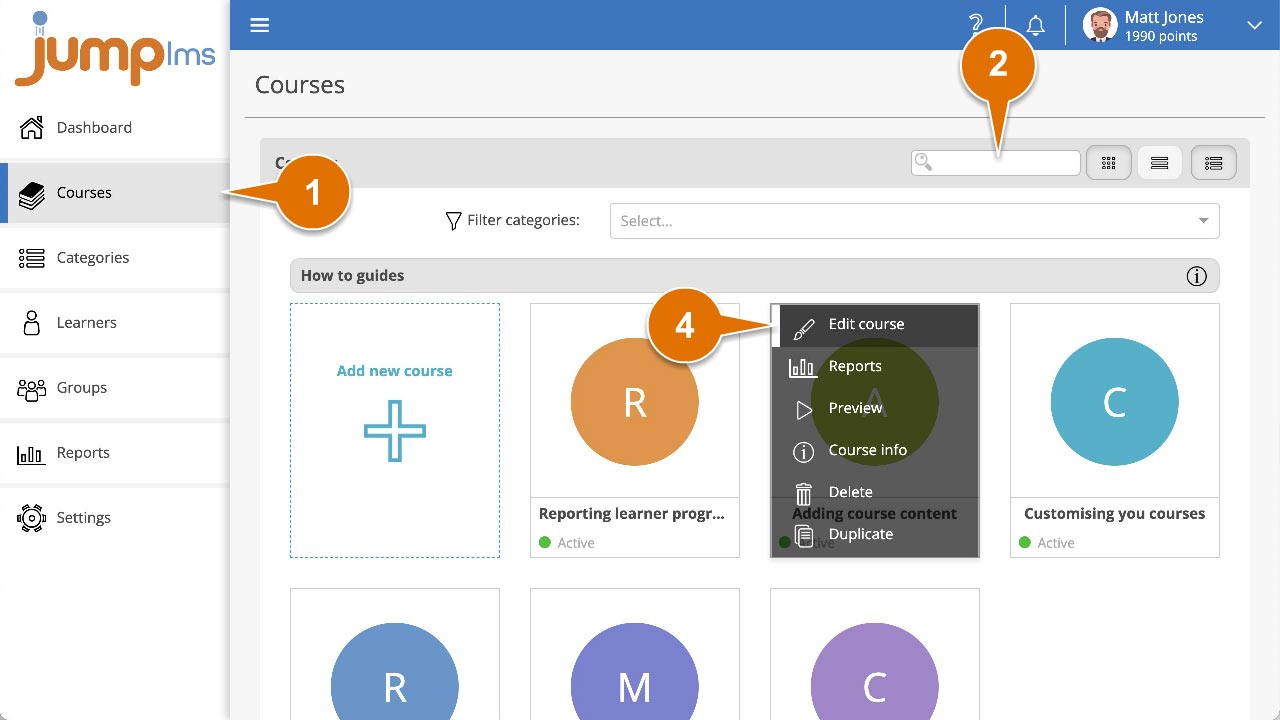
Click on the Courses tab.
-
Search for the course you want to edit, or find it in the list.
-
If you are using a touchscreen device, click the course thumbnail. If you are using a computer, hover over the course thumbnail.
-
Click Edit course.
-
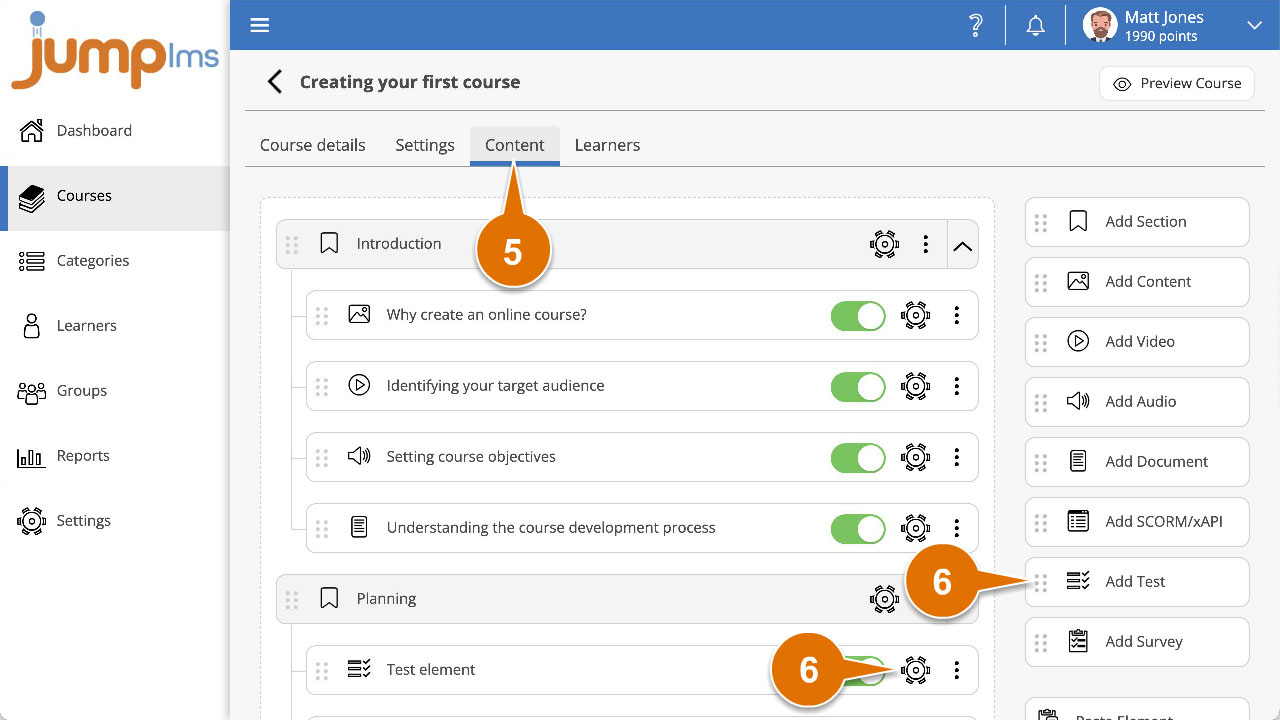
Click on the Content tab.
-
Find the test element in the Course Elements list and click Edit. Alternatively, click Add Test to create a new test element.
-
If you do not require a timed test, untick Timed test.
-
If you want a timed test, tick Timed test and enter the required duration in minutes.
-
Click Preview Element if you want to see how the test will look in the course.
-
Click Add Element or Save Changes.
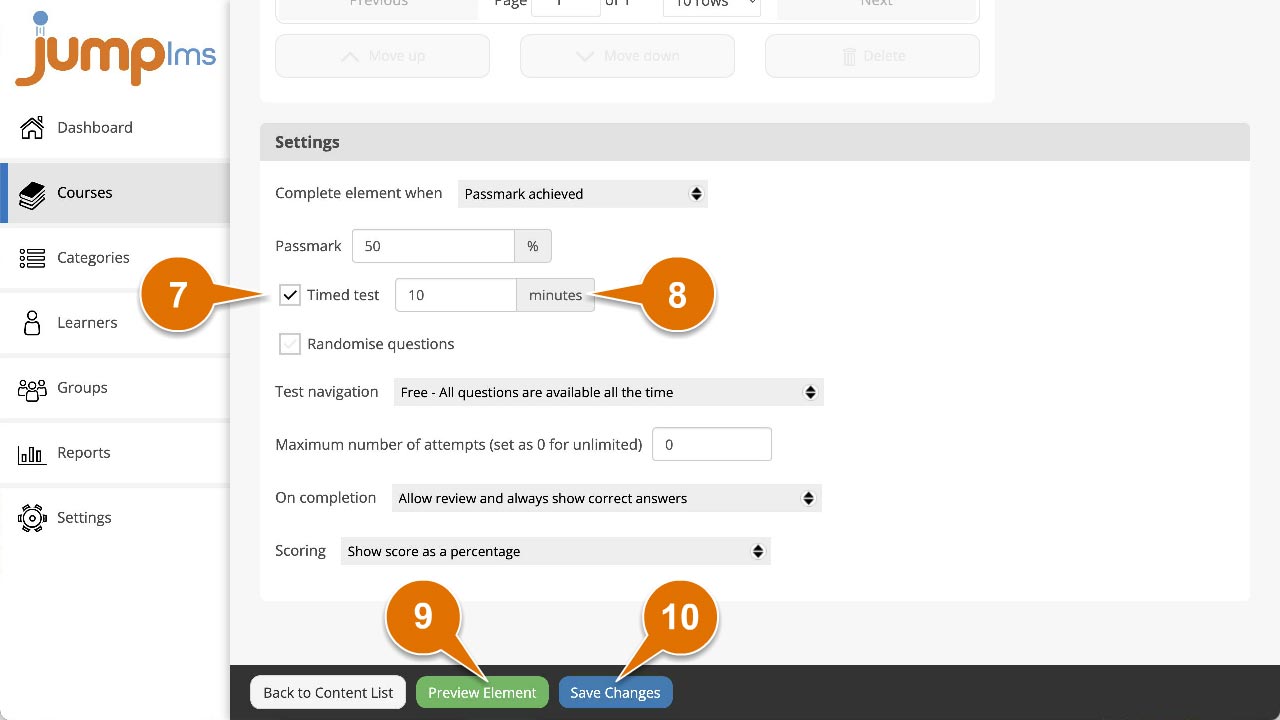
The test duration settings have now been updated.
Contact the JumpLMS team and we’ll help you find the right answer.