How to preview a test or survey question in JumpLMS
JumpLMS lets you preview an individual question in a test or survey without previewing the full course.
This is useful when you want to quickly check the wording, layout, answer options or interaction before saving or publishing your changes.
How to preview a test or survey question
-
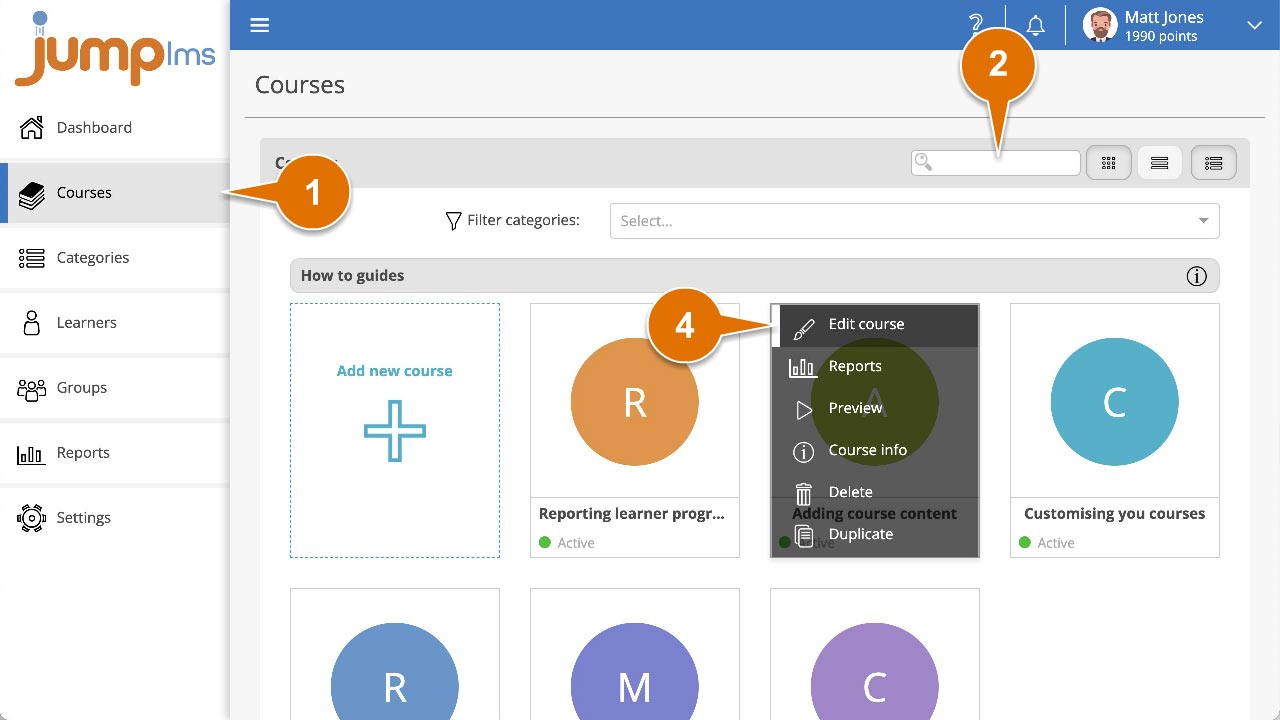
Click on the Courses tab.
-
Search for the course that contains the question you want to preview, or find it in the list.
-
If you are using a touchscreen device, click the course thumbnail. If you are using a computer, hover over the course thumbnail.
-
Click Edit course.
-
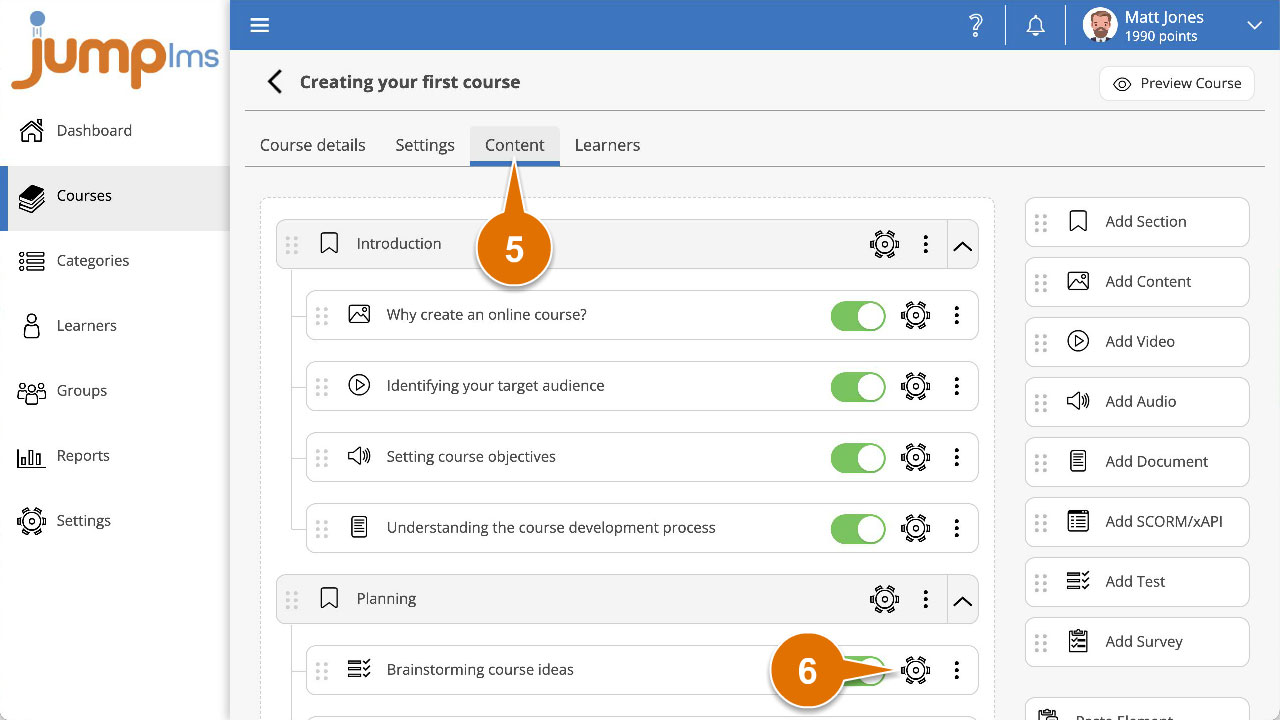
Click on the Content tab.
-
Find the test or survey element in the Course Elements list and click Edit.
-
Find the question you want to preview in the Questions list and click the Preview icon.
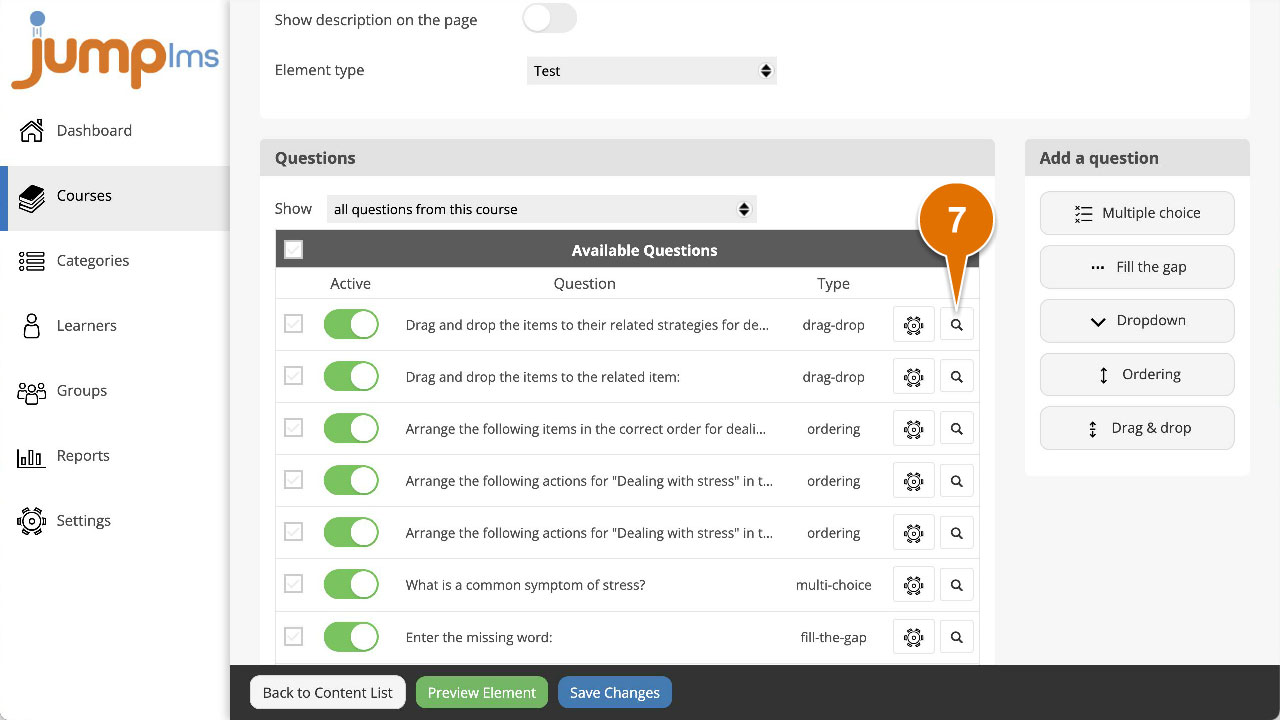
The question will now appear in a pop-up.
Contact the JumpLMS team and we’ll help you find the right answer.