How to set up a drag-and-drop question in JumpLMS
Drag-and-drop questions let Learners match related options by dragging each item into the correct paired position.
They are useful for matching terms with definitions, scenarios with responses, products with categories, or any other paired information.
How to set up a drag-and-drop question
-
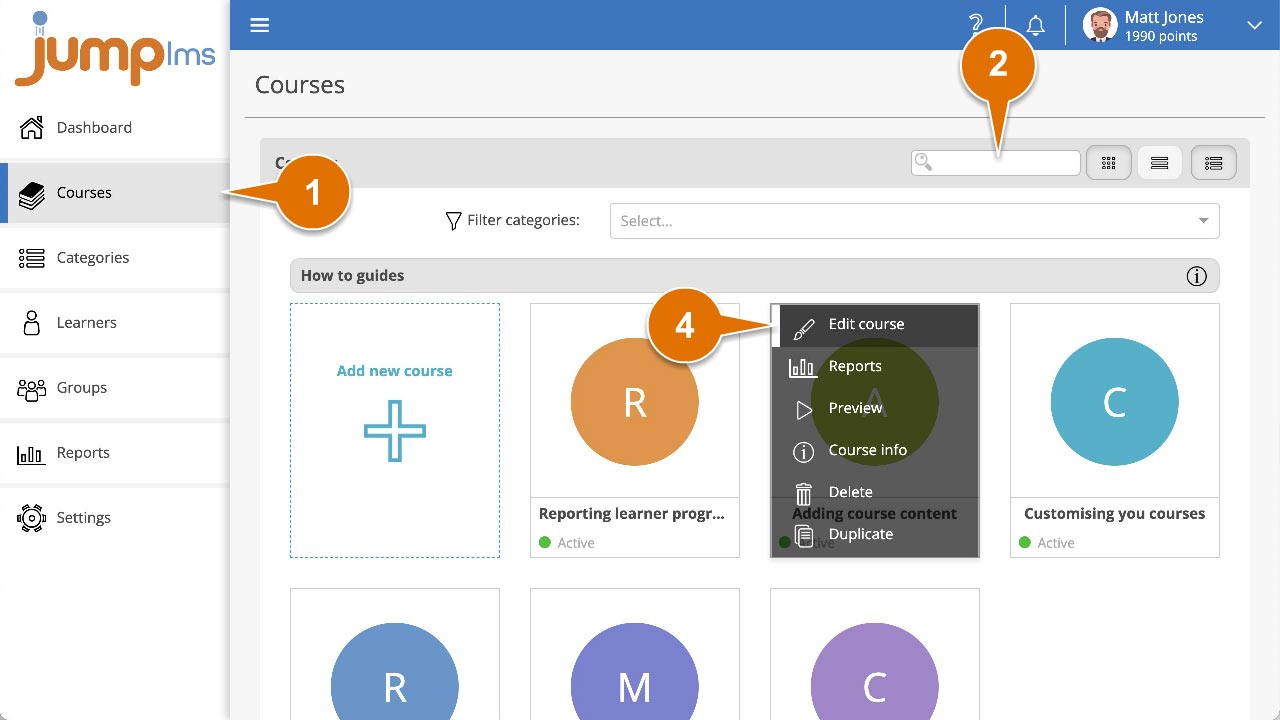
Click on the Courses tab.
-
Search for the course that contains the test you want to edit, or find it in the list.
-
If you are using a touchscreen device, click the course thumbnail. If you are using a computer, hover over the course thumbnail.
-
Click Edit course.
-
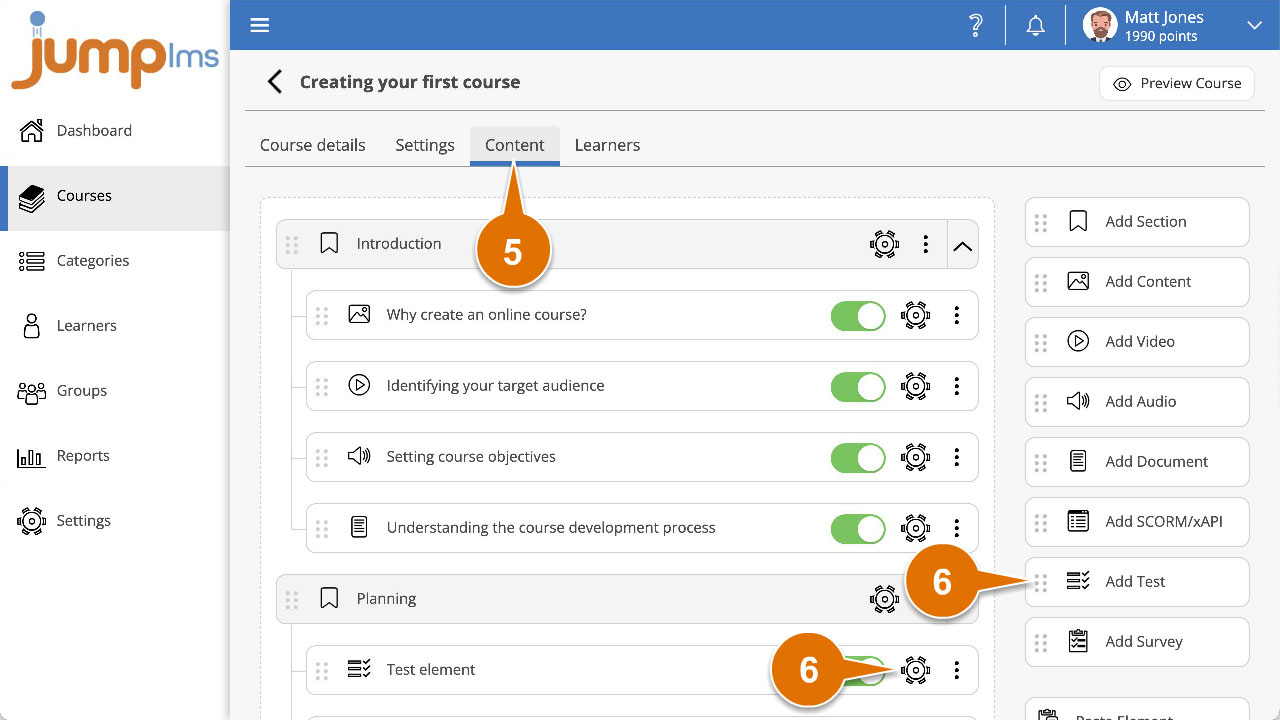
Click on the Content tab.
-
Find the test element in the Course Elements list and click Edit. Alternatively, click Add Test to create a new test element.
-
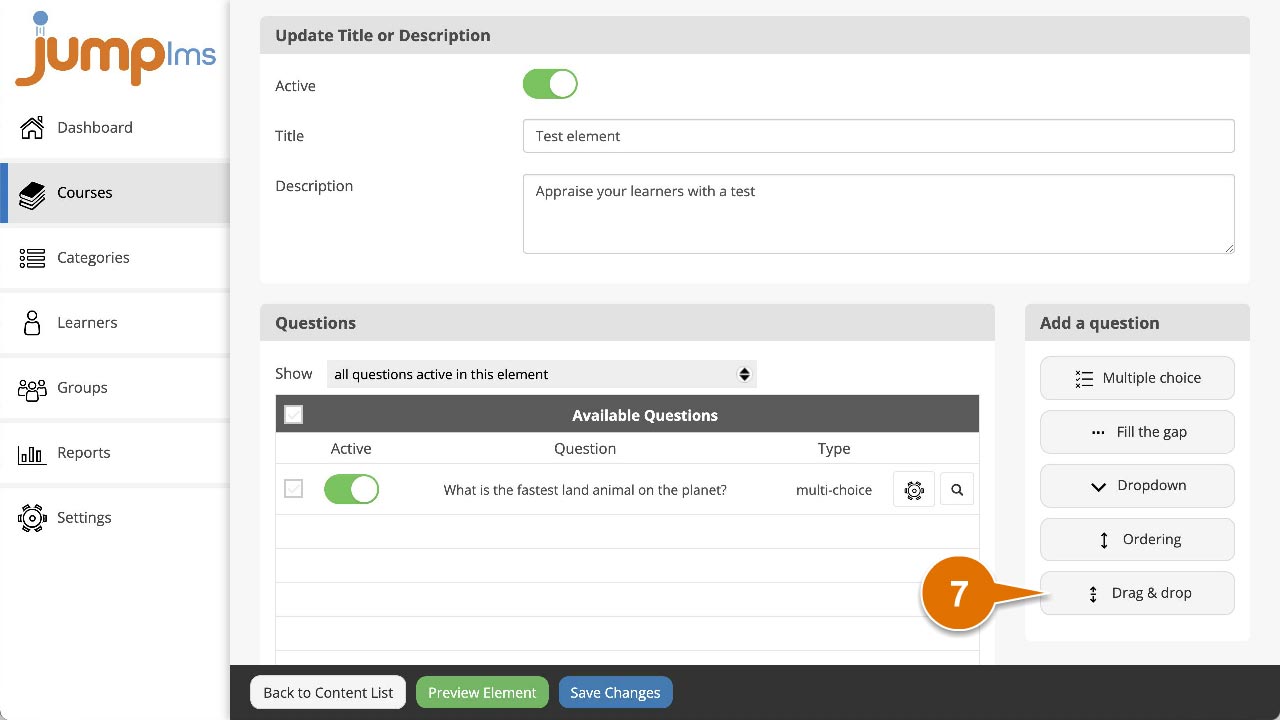
Click Drag and drop in the Add a question panel.
-
Enter the question text and/or images. Alternatively, click Ask JumpAI to write your question. JumpAI can use the course and test titles to generate the question, options and feedback for you.
-
Add or remove option pairs by clicking Add drag and drop pair or the relevant Remove icon.
-
Enter the text for each pair of options. Add the pairs in the correct matching order; JumpLMS will randomise the order when the question is presented to the Learner.
-
Enter feedback text, or leave it blank if you do not want to display feedback after the question has been submitted.
-
Click Add question.
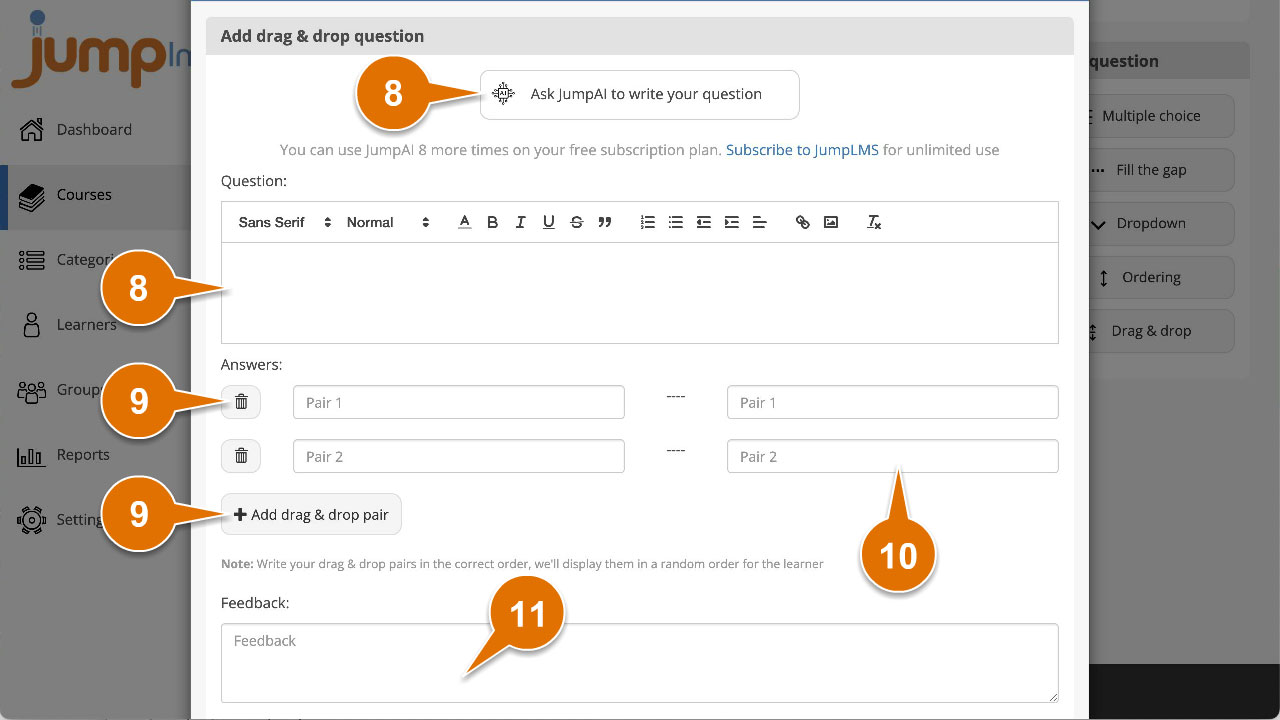
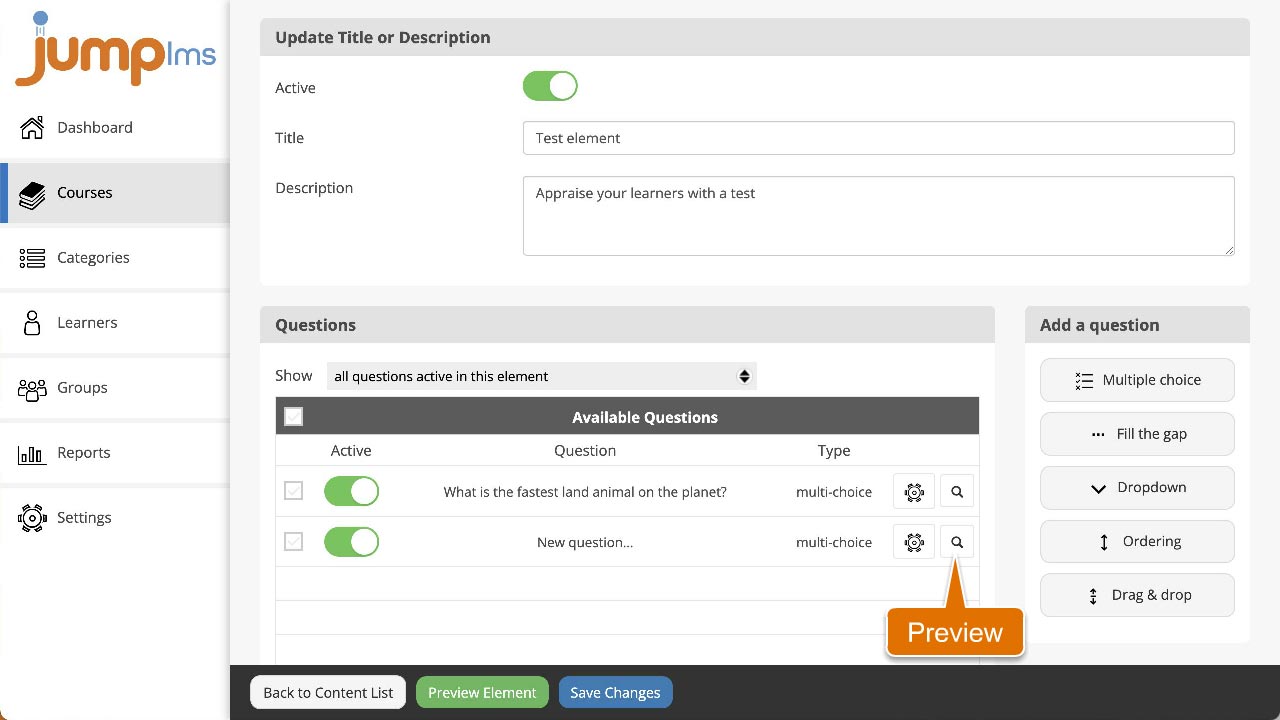
The question will be activated and added to the end of the test. You can preview how it looks by clicking the Preview icon.
Contact the JumpLMS team and we’ll help you find the right answer.