How to configure your courses for sale in JumpLMS
After you connect Stripe to your JumpLMS portal, you can configure individual courses so Learners can purchase them.
You can set the course price, choose how Learners can access the course, set the access duration and activate the course for sale.
How to configure your courses for sale
-
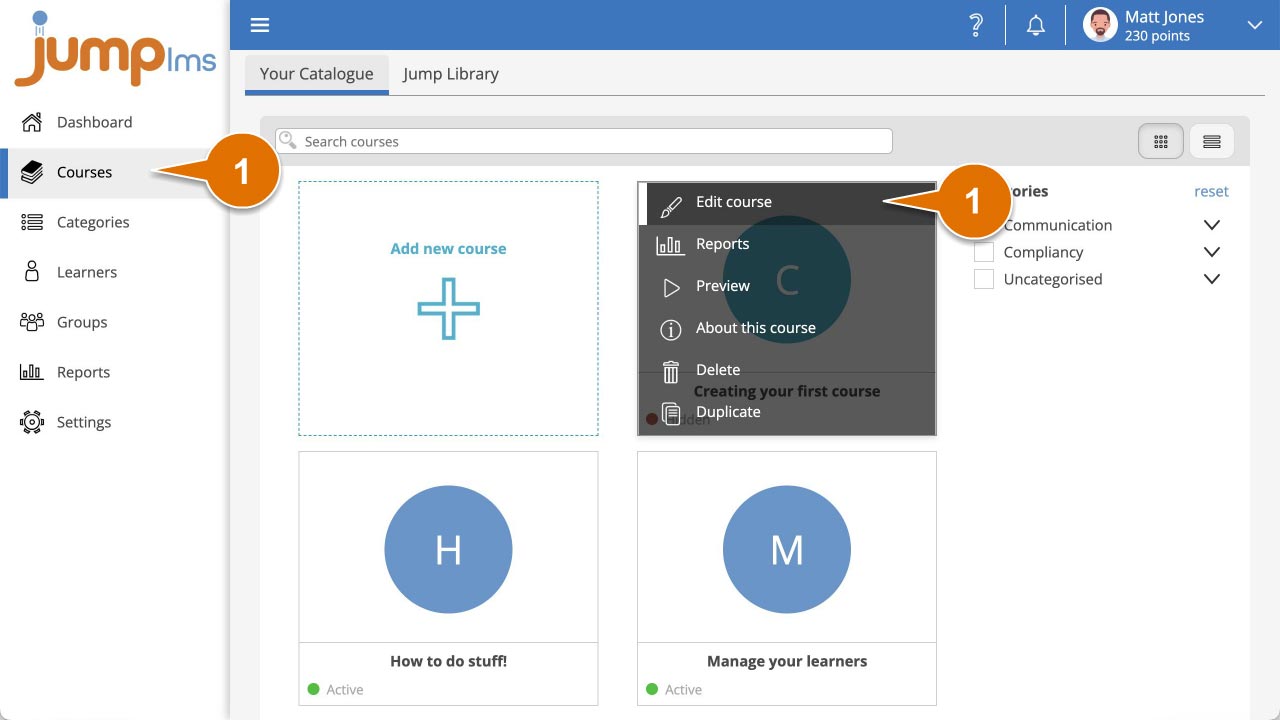
Click on the Courses tab.
-
Search for the course you want to sell, or find it in the course list.
-
Open the course options and click Edit course.
-
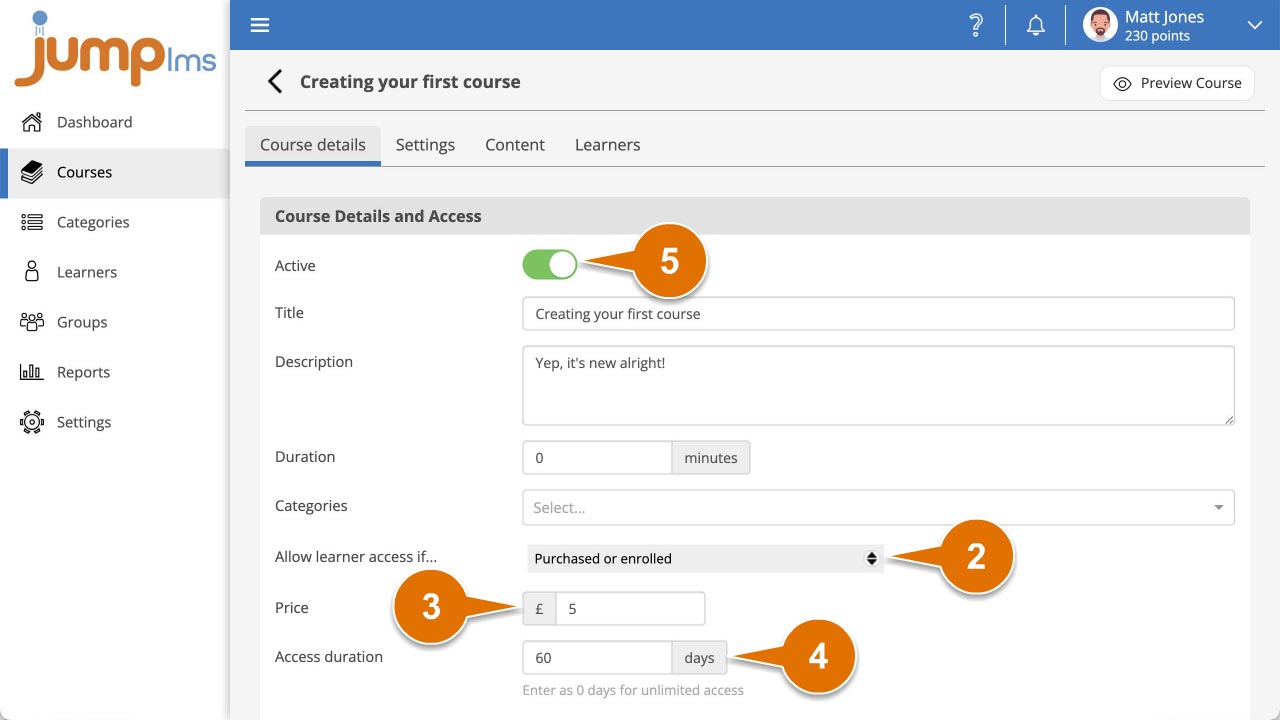
In the Course details tab, open the Allow Learner access if... dropdown and select Purchased or enrolled.
-
Enter the course price. The currency is controlled by the default currency used on your Stripe account.
-
Enter the access duration in days. Leave this as 0 for unlimited access.
-
Switch on Activate to make the course active.
-
Click Save changes.
Your course is now purchasable and can be added to a Learner's basket.
Next, learn how to enable public access to your course catalogue and self-registration.
Contact the JumpLMS team and we’ll help you find the right answer.